-
These steps are for our refreshed internet banking experience.
We’re gradually moving everyone to the new look, so your screens may not look like this yet. Find out more.
-
View your transactions
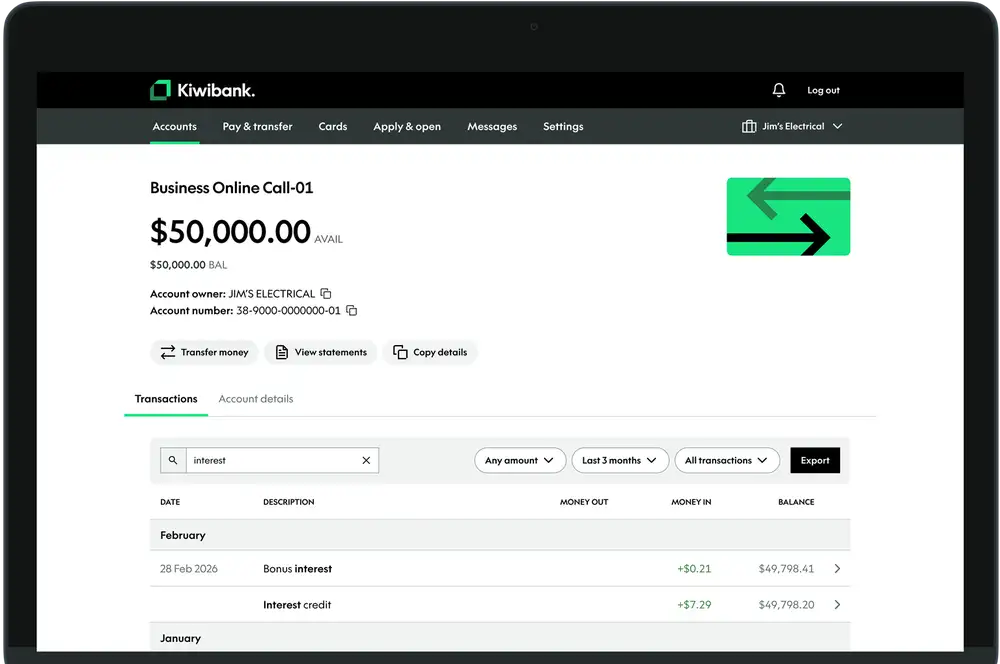
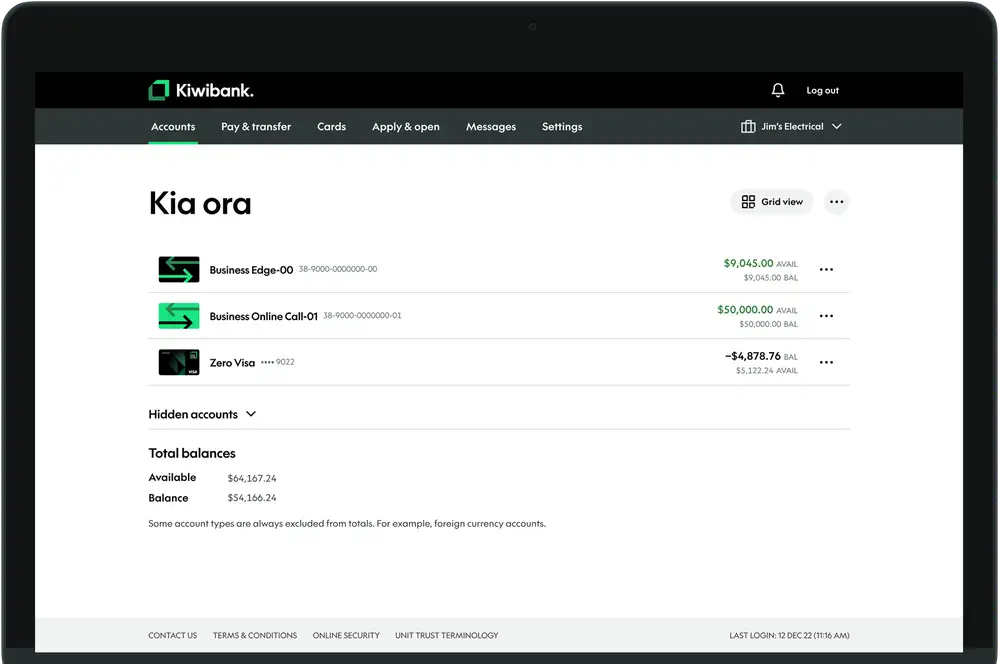
- Log in to internet banking.
- From the accounts overview, click an account.
You’ll see your recent transactions for that account.
To view more details, click into a transaction. The details will appear on the side of the page.
-
Search & filter transactions
- Log in to internet banking.
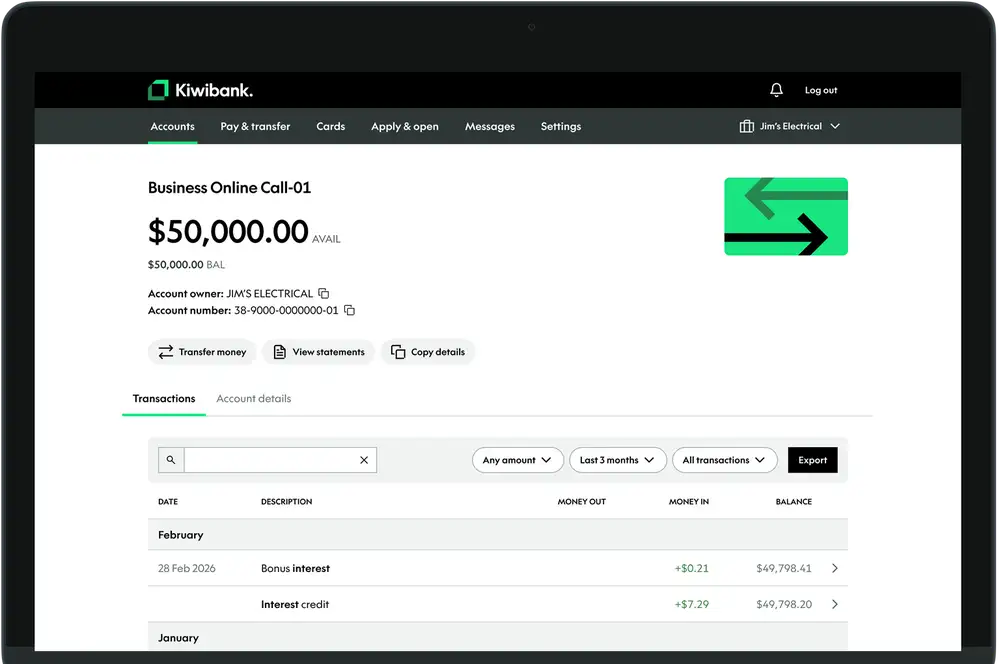
- From the accounts overview, click an account.
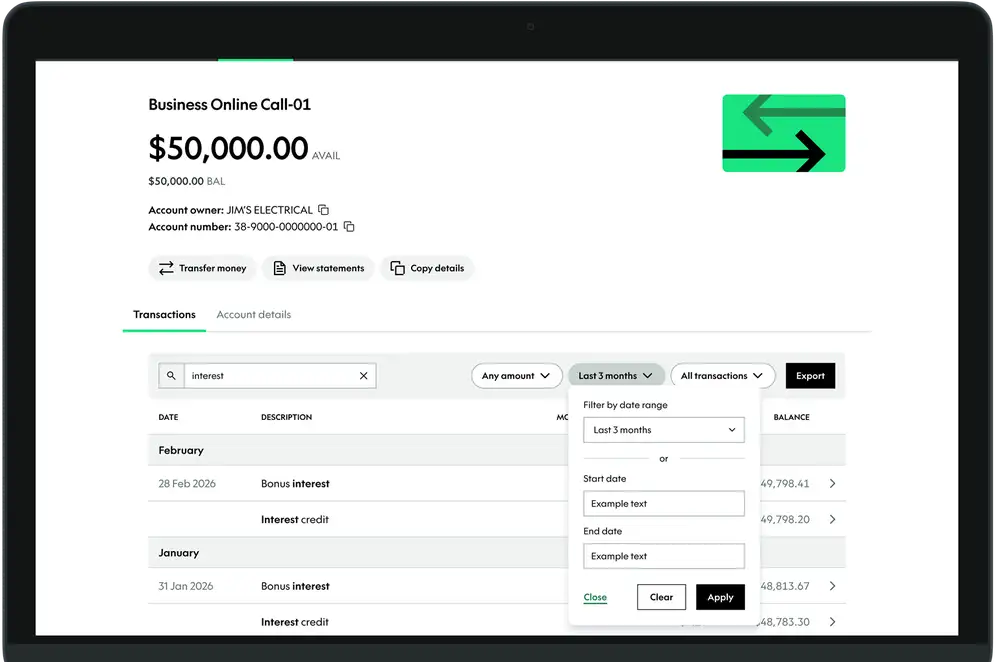
- Use the search box and/or filters to find transactions.
You can filter by:
- amount
- date
- transaction type.
-
Export your transactions
- Log in to internet banking.
- From the accounts overview, click an account.
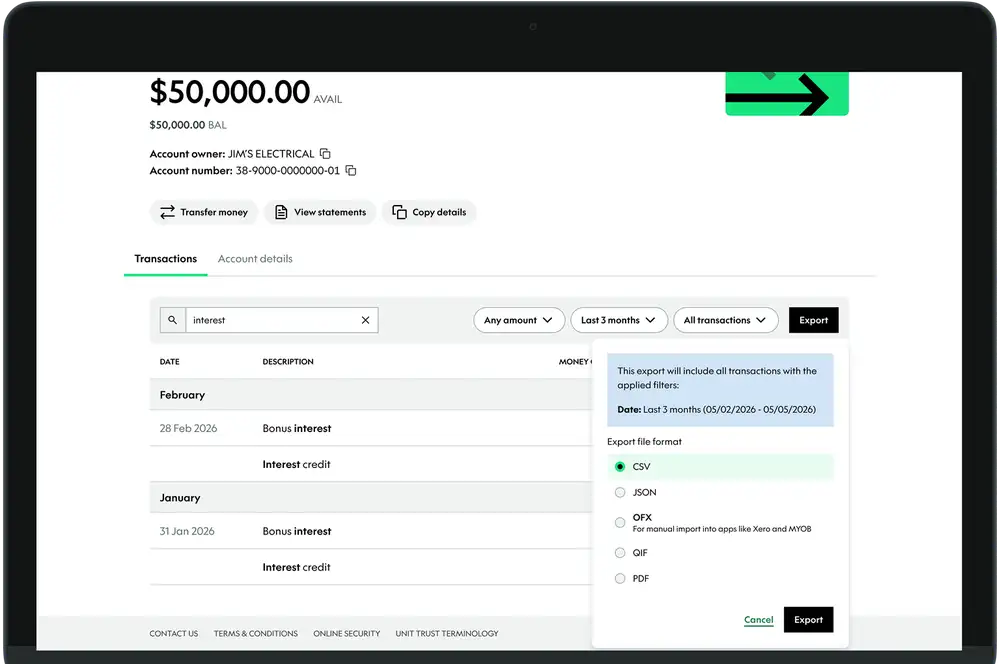
- Use search and/or filters to select the transactions you want to export.
- Click 'Export'.
- Select a file format (CSV, JSON, OFX, QIF, PDF).
- Click 'Export'.
Your export will include all transactions that match your filters.
Exports are limited to two years. To view older transactions, use your statements.