-
These steps are for our refreshed internet banking experience.
We’re gradually moving everyone to the new look, so your screens may not look like this yet. Find out more.
Switch between your profiles
-
- Log in to internet banking or the mobile app.
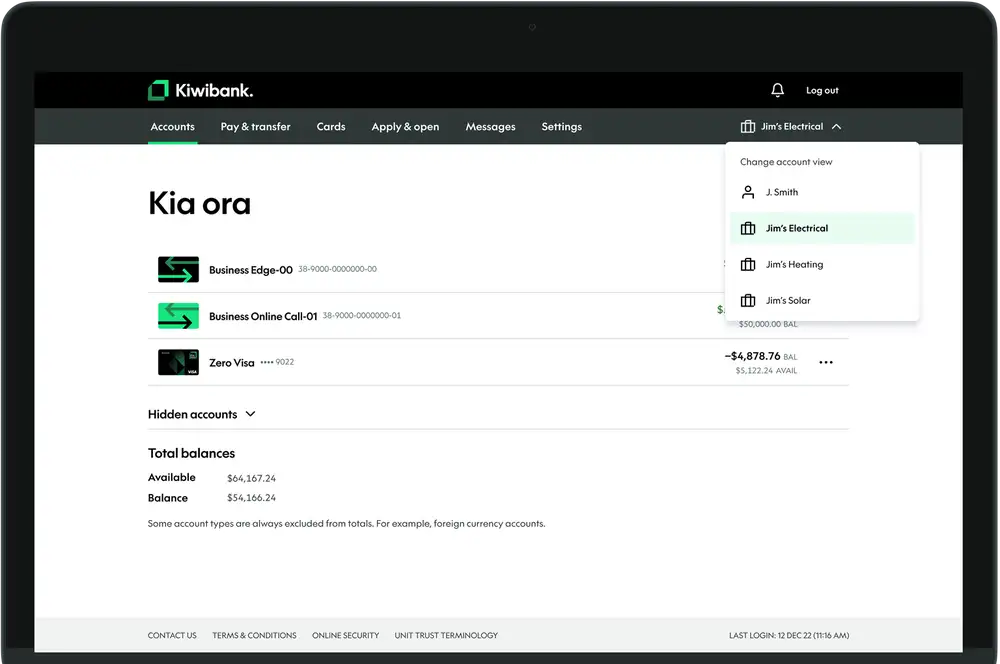
- Find the profile icon in the top right of the screen.
- Click the drop-down arrow to view your profiles.
- Select the profile you want to use to change your account view.
Reorder your profiles & set a default
-
- Log in to internet banking or the mobile app.
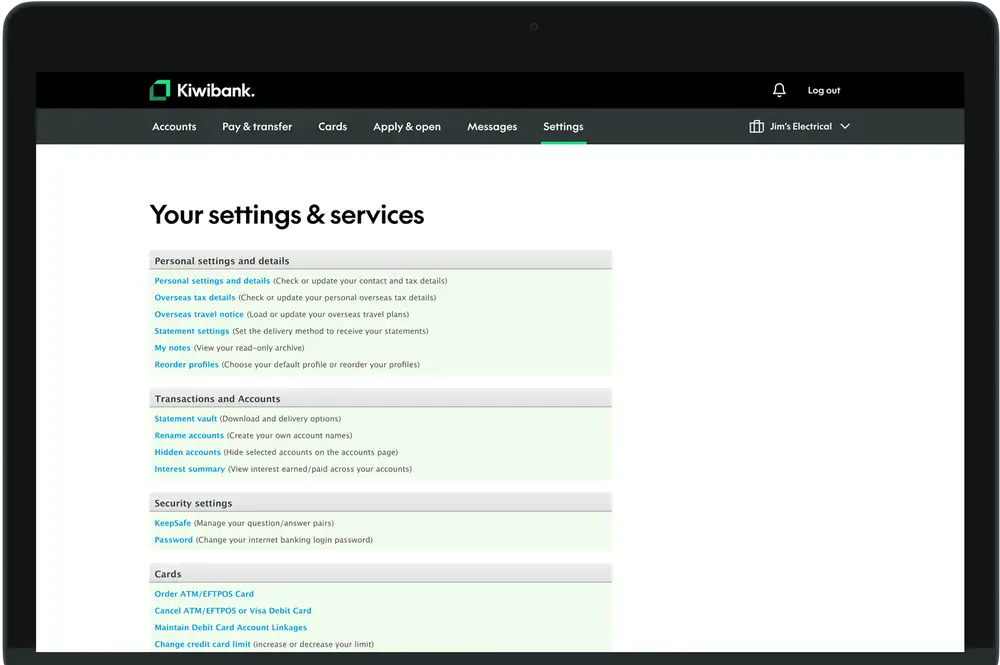
- Go to ‘Settings’.
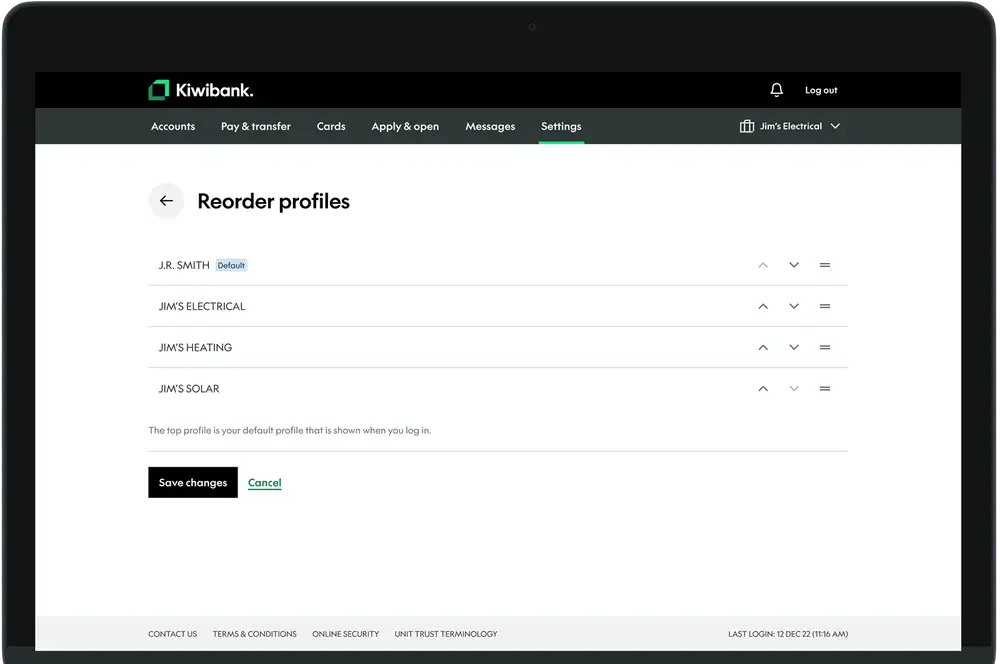
- Select ‘Reorder profiles’.
- Use the arrows on the right side to move your profiles up or down.
- Select 'Save changes'.
The profile at the top of the list becomes your default and is the account view you’ll see each time you log in.
Changes you make apply across internet banking and the mobile app, but only to your login. Other users won't see any changes to their profile order.