View or withdraw your data & payment authorisations

See which apps and services have access to your information or ongoing payments, and withdraw authorisation at any time.

  1. View apps & services you've authorised

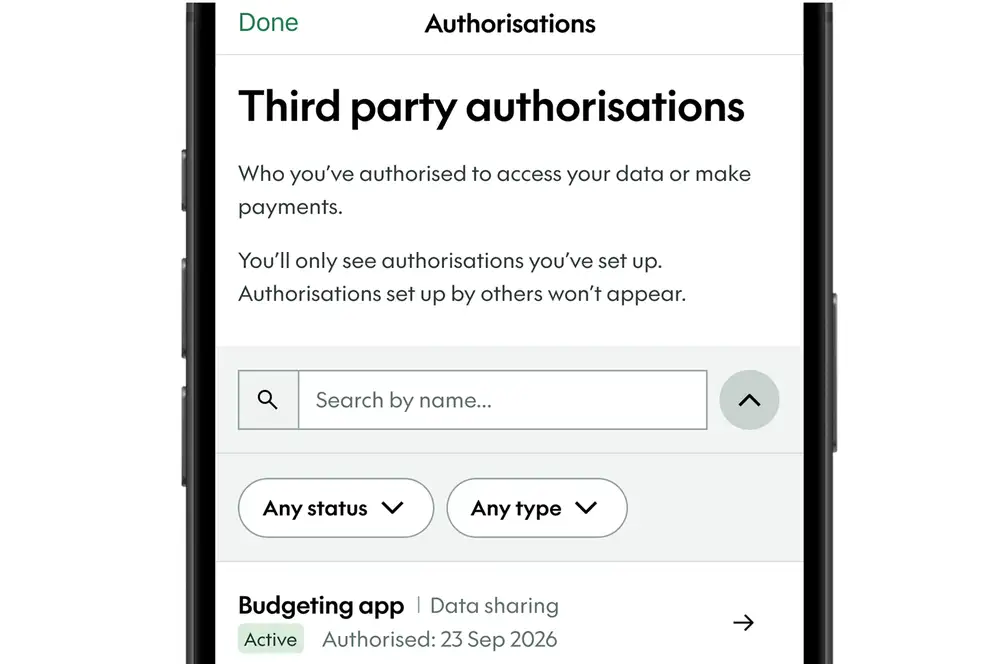
    1. Log in to the mobile app or internet banking.
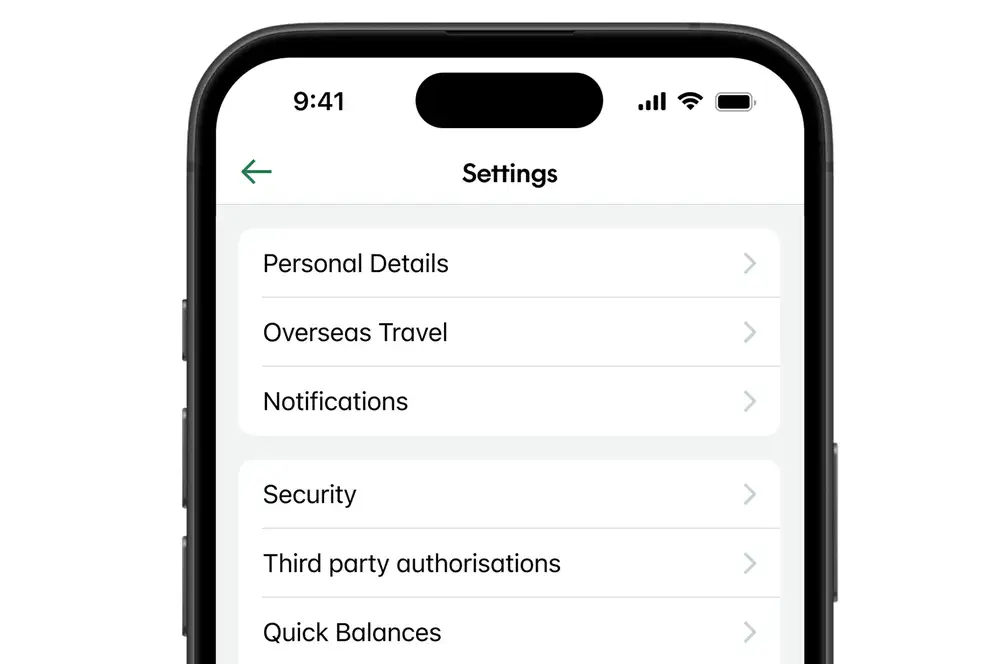
    2. Go to ‘Settings’ .
    3. Select ‘Third party authorisations’.
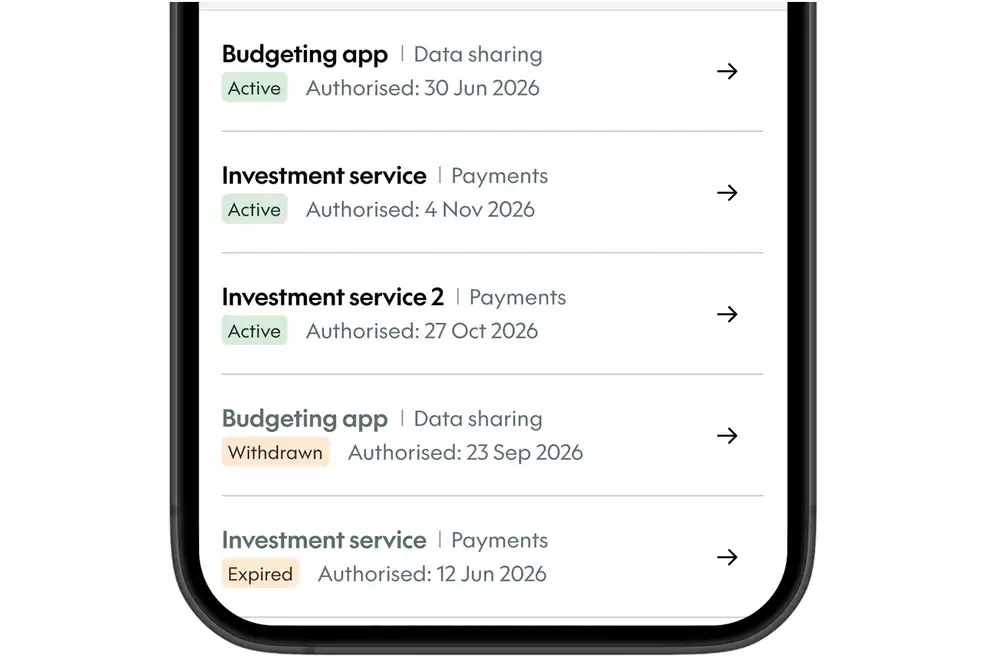
    4. You’ll see a list of apps or services you’ve authorised for data sharing or payments.
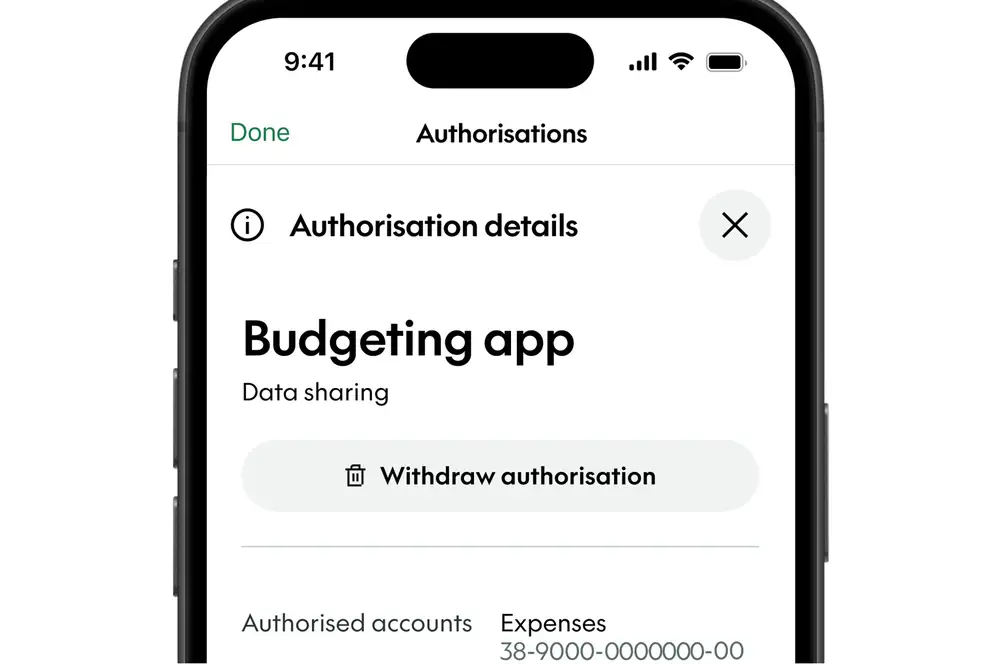
    5. Select an app or service to view more details, such as which accounts are connected and how long access lasts.

    You’ll only see and be able to withdraw authorisations that you’ve created yourself.
  1. Withdraw authorisation

    1. Log in to the mobile app or internet banking.
    2. Go to ‘Settings’ .
    3. Select ‘Third party authorisations’.
    4. Select the payment or data sharing access you want to remove.
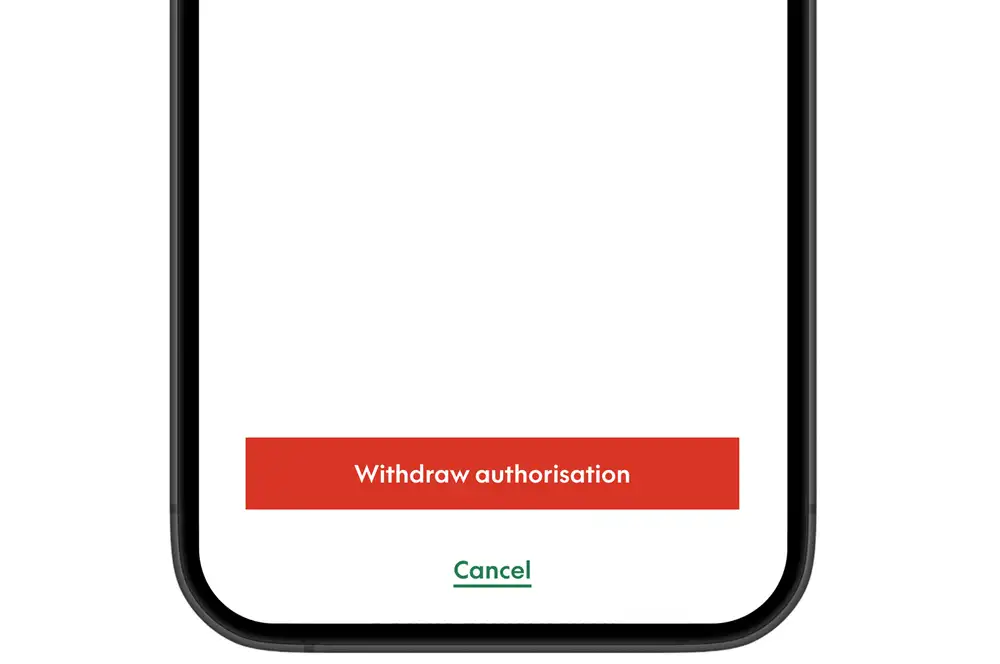
    5. Select ‘Withdraw authorisation’.
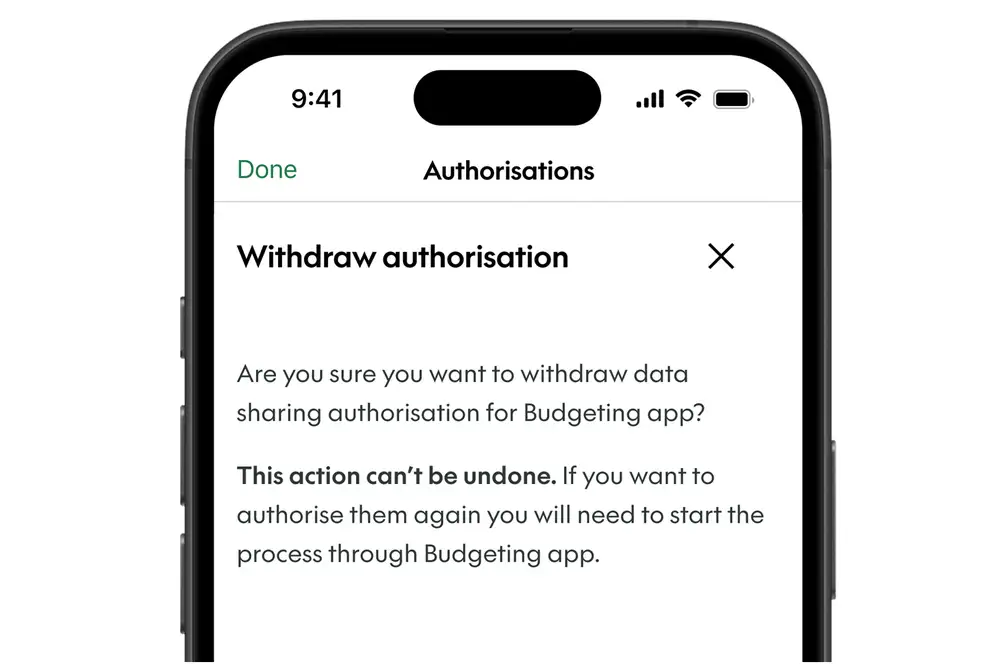
    6. You’ll see a pop‑up asking you to confirm your choice.
    7. Select ‘Withdraw authorisation’ to confirm, or select ‘Cancel’ to go back.

    Once you withdraw authorisation, it can’t be undone. To use the app or service again, you’ll need to set it up.
Common questions

Why can’t I see or manage authorisations set up by someone else on the account?

You can only view and manage the authorisations you’ve set up yourself. Each person manages their own authorisations, even on shared accounts.

What happens when I withdraw authorisation?

Withdrawing authorisation immediately stops any new payments and prevents any new information from being shared.

With data sharing, the app or service may still have information it accessed earlier. You’ll need to contact them directly if you want them to delete it.

What if I think a payment or data sharing request wasn’t authorised by me?

If something doesn’t look right, withdraw authorisation straight away. This will stop any further data sharing or payments.

For account or security concerns, contact us.

For questions about how an app or service works, contact the provider directly.