Mobile app
-
Add a new payee
- Log in to the mobile app.
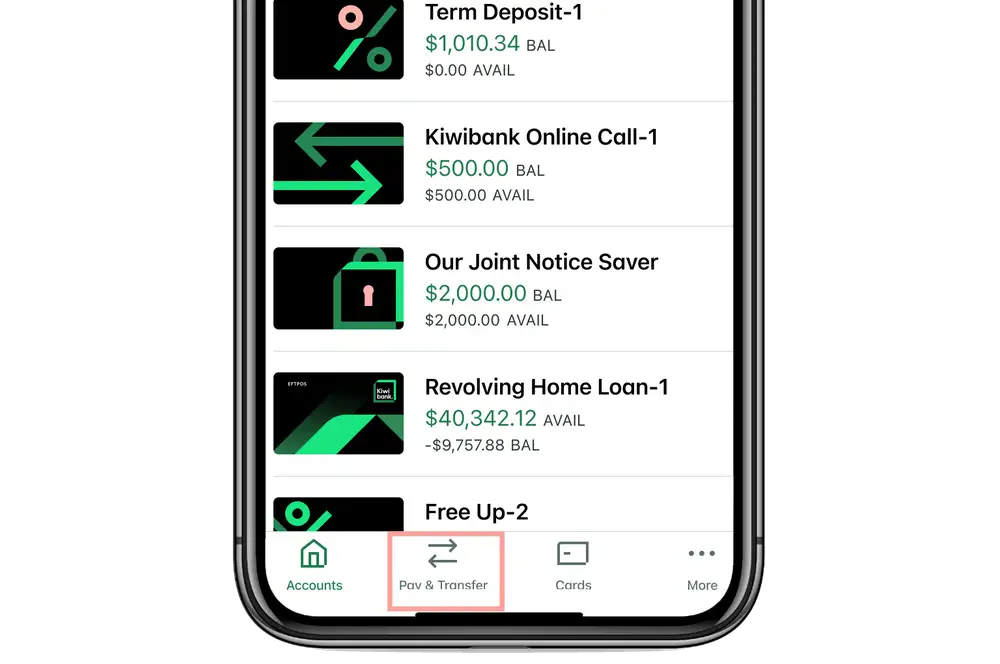
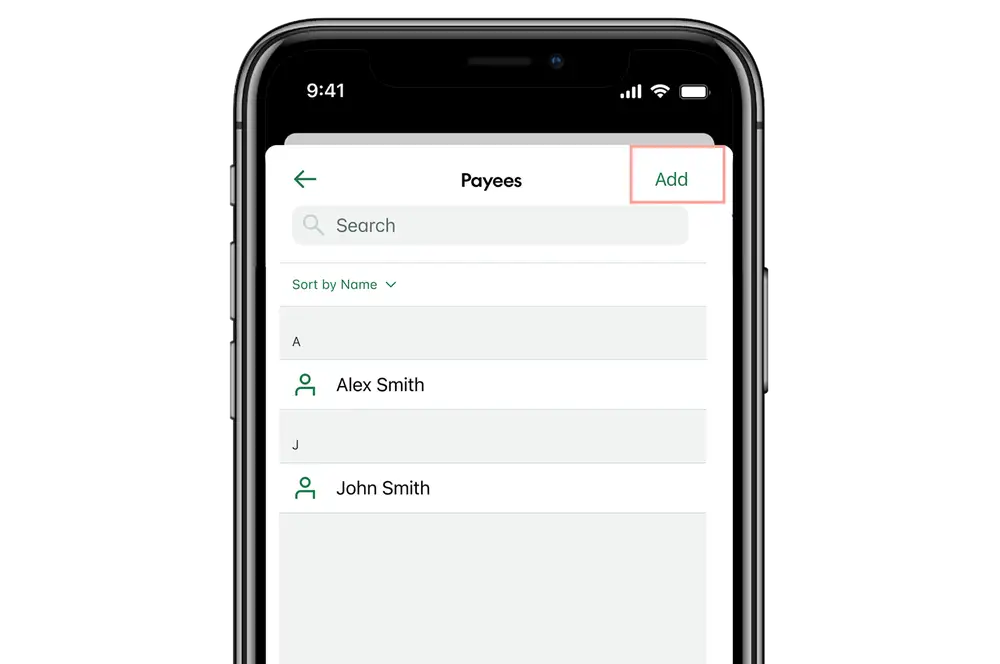
- Tap 'Pay & Transfer' at the bottom of the screen.
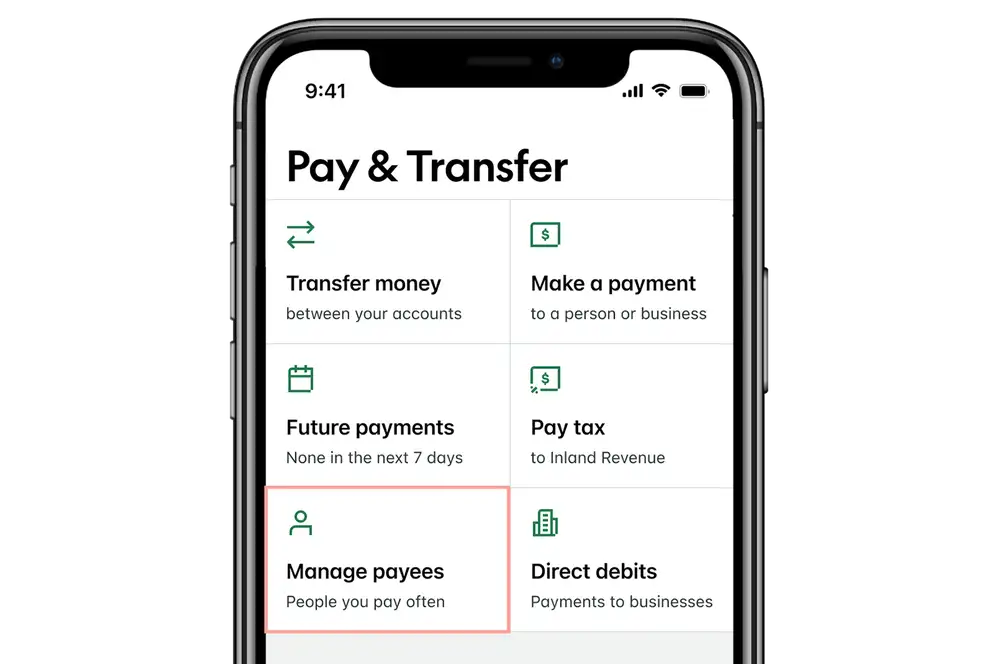
- Select 'Manage payees'.
- Tap 'Add'.
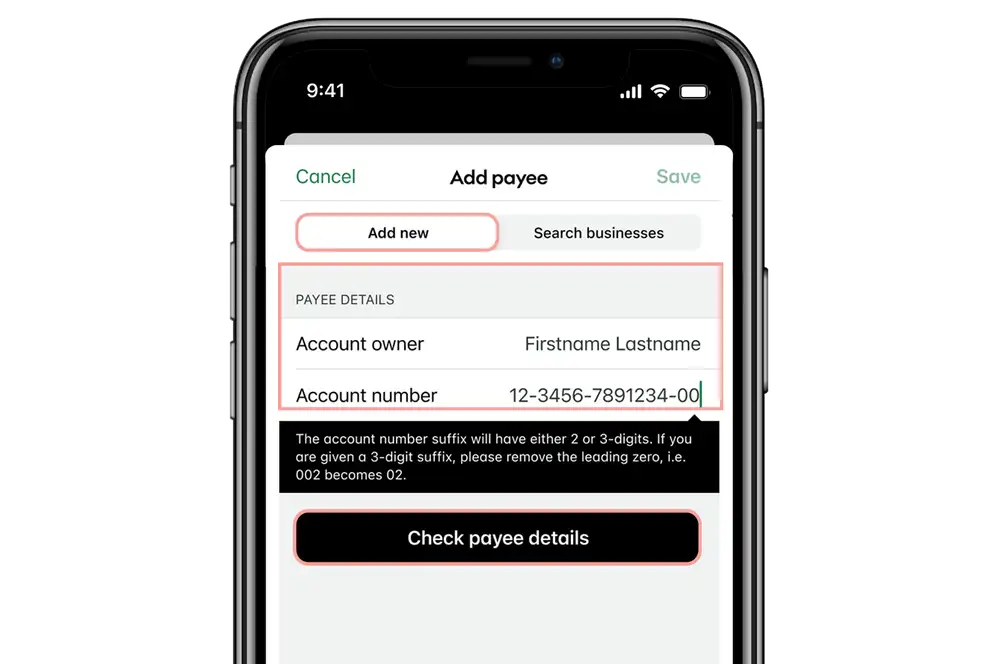
- Enter the account owner name.
- Enter the account number.
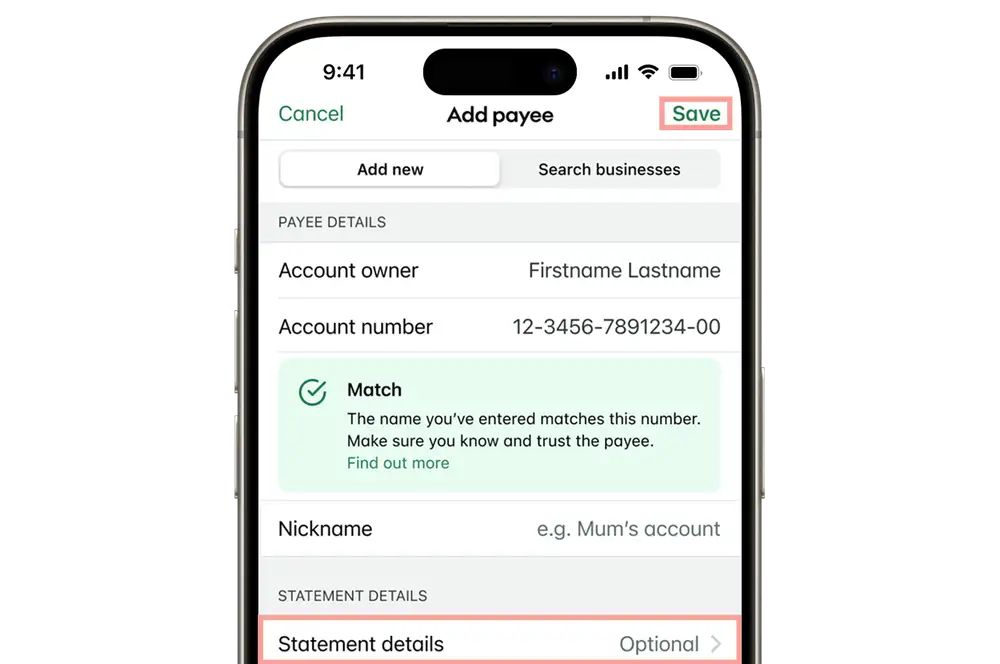
- Tap 'Check payee details'*.
- Enter the statement details.
- Tap 'Save'.
- Answer one of your KeepSafe questions.
- Tap 'Continue'.
*To find out more about checking payee details, visit our Confirmation of Payee page.

-
Add a business as a payee
For some businesses or organisations we already have their account details so you won't need to manually enter them. If you can't find the business you're looking for, you'll need to add them as a new payee.
- Log in to the mobile app.
- Tap 'Pay & Transfer' at the bottom of the screen.
- Select 'Manage payees'.
- Tap 'Add'.
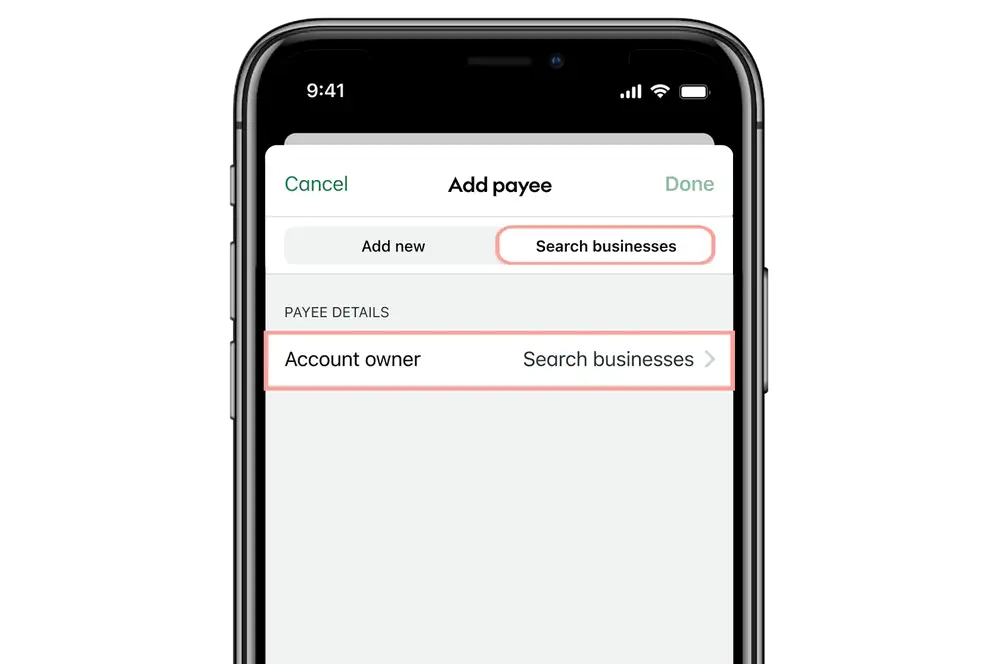
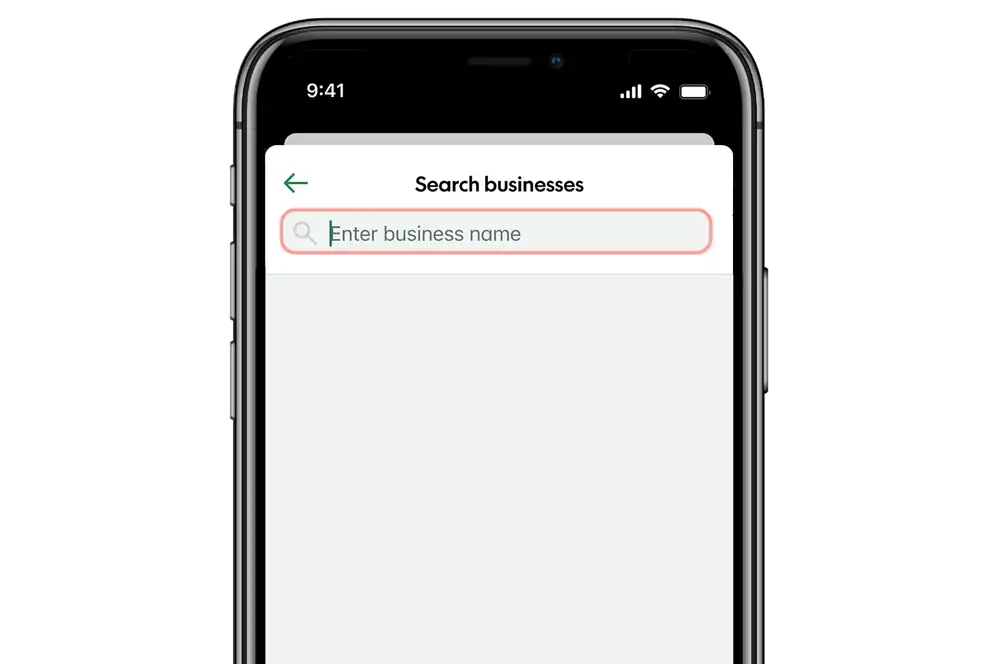
- Select 'Search businesses'.
- Tap 'Account owner - search businesses'.
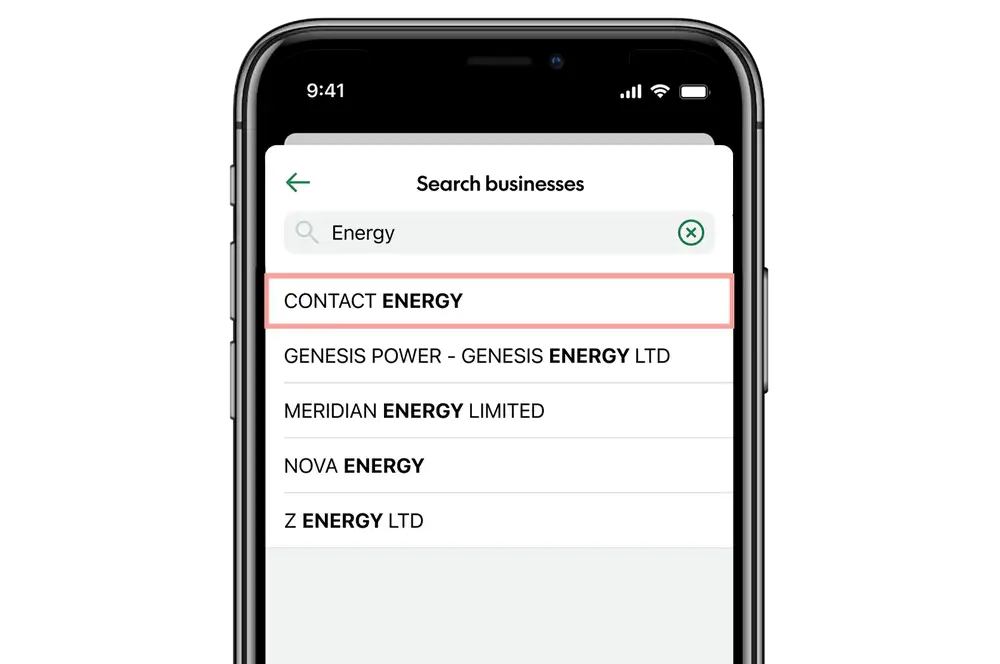
- Enter the business name.
- From the search results, tap on the business you're wanting to add.
- Tap 'Done'.
- Answer one of your KeepSafe questions.
- Tap 'Continue'.
-
Edit an existing payee
- Log in to the mobile app.
- Tap 'Pay & Transfer' at the bottom of the screen.
- Select 'Manage payees'.
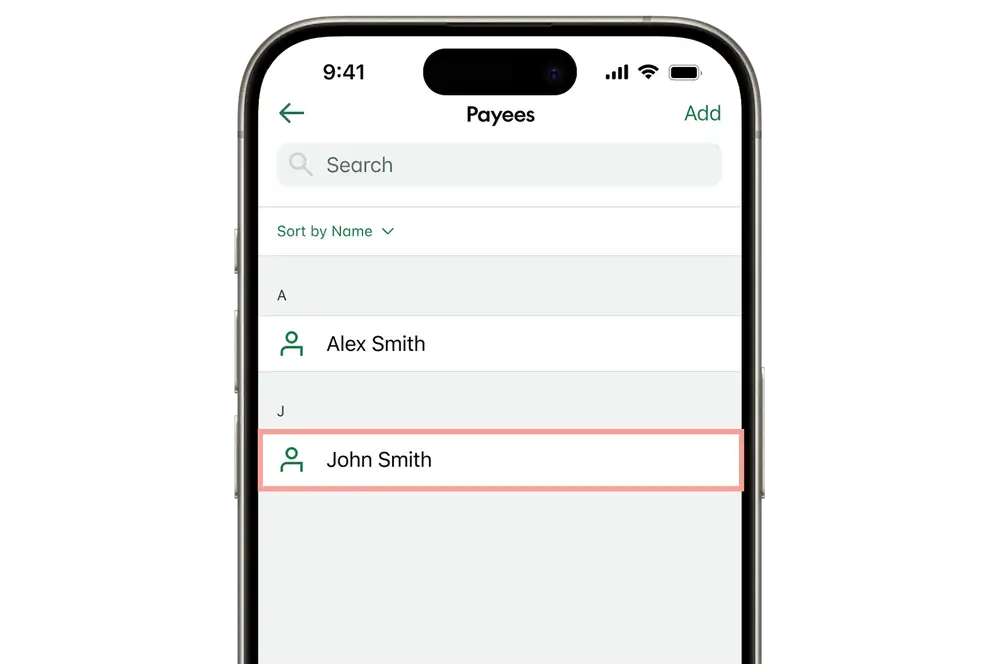
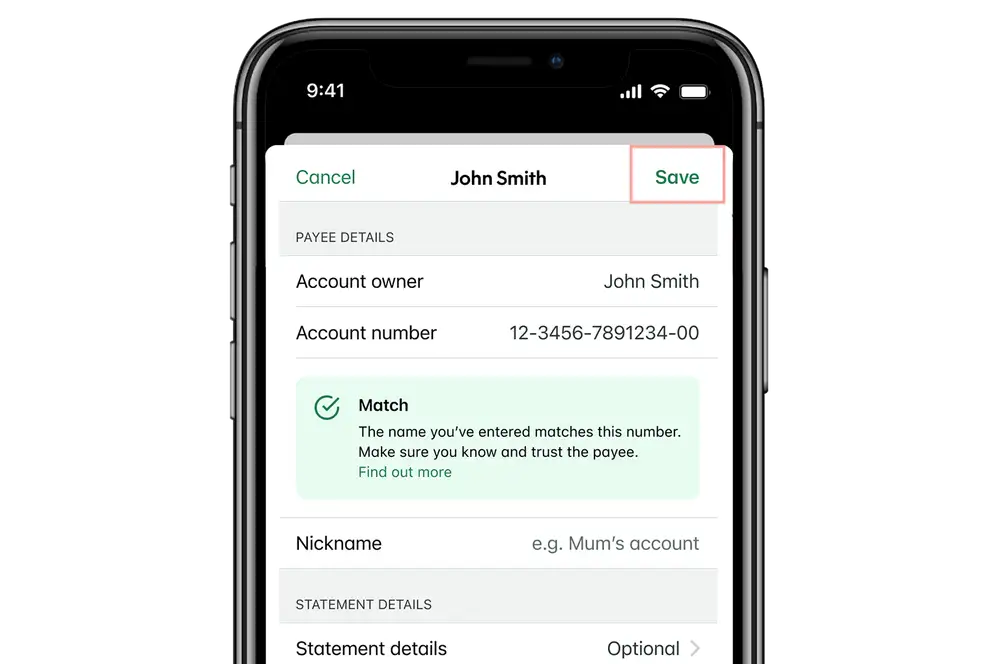
- Tap the payee you'd like to edit.
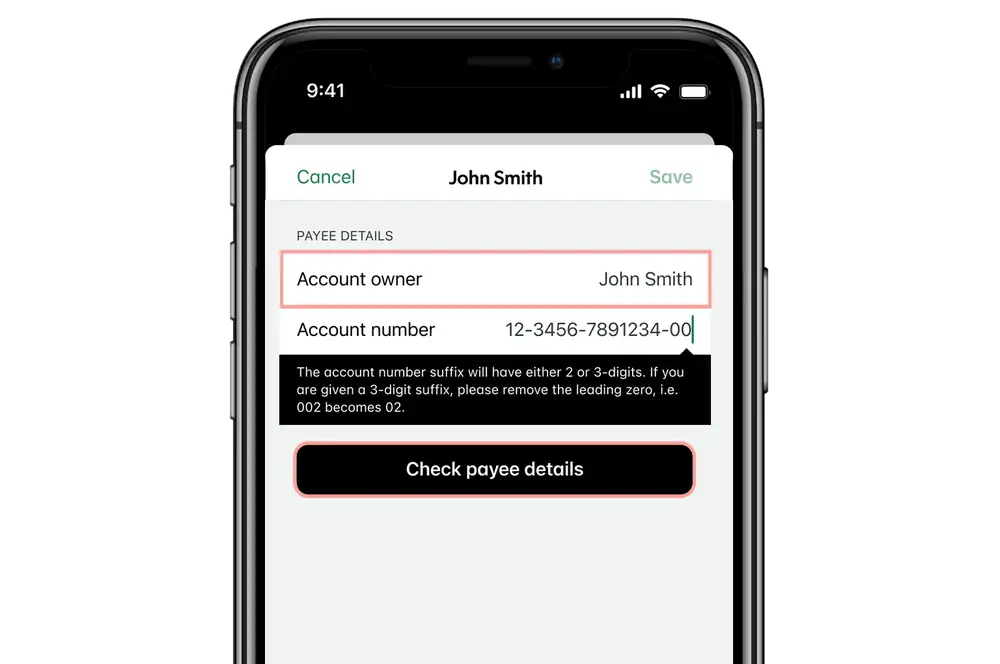
- Update the payee details.
- Tap 'Check payee details'*.
- Tap 'Save'.
- Answer one of your KeepSafe questions.
- Tap 'Continue'.
*To find out more about checking payee details, visit our Confirmation of Payee page.
-
Delete a payee
- Log in to the mobile app.
- Tap 'Pay & Transfer' at the bottom of the screen.
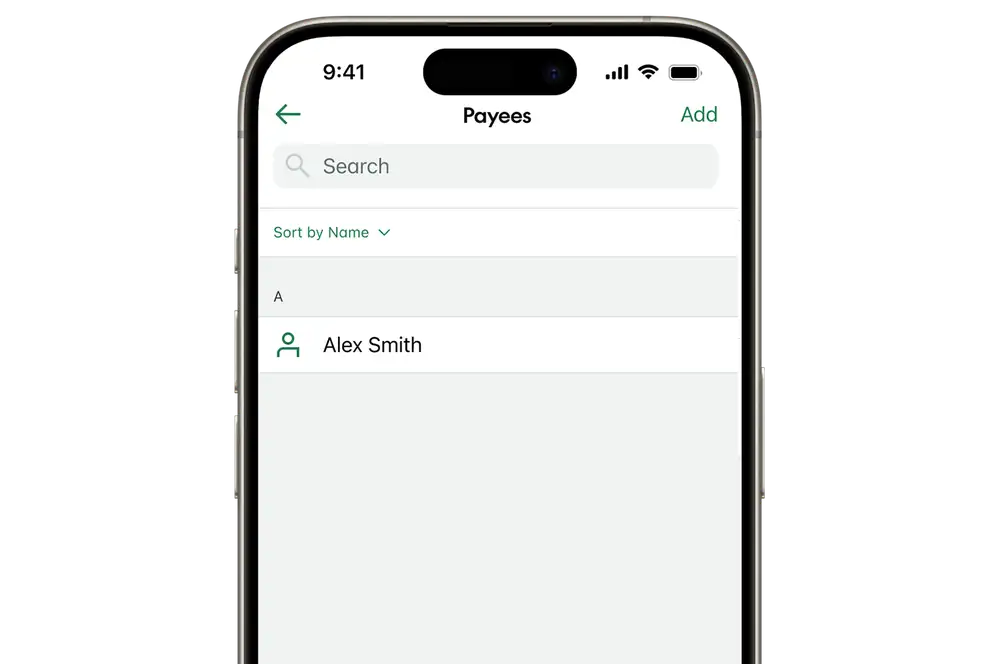
- Select 'Manage payees'.
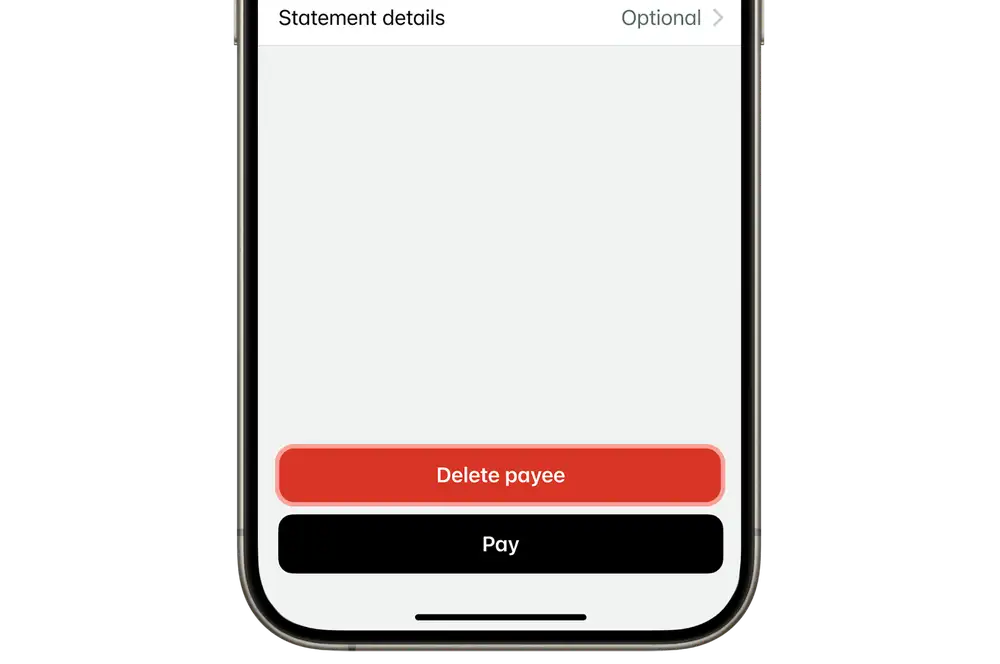
- Tap the payee you'd like to delete.
- Select 'Delete payee'.
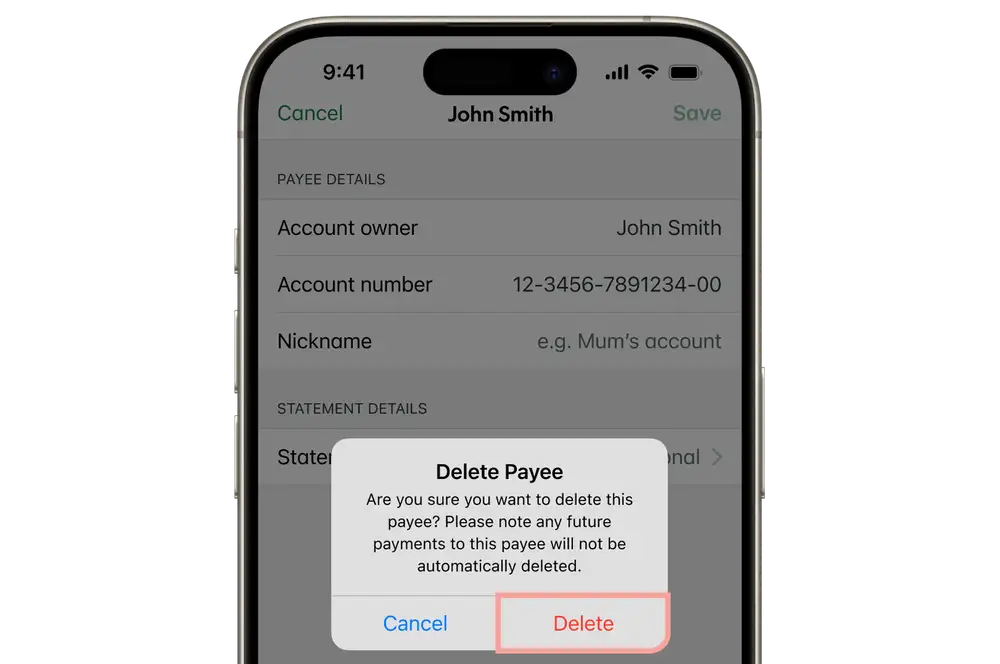
- Tap 'Delete'.
Internet banking
-
If your internet banking looks a little different, see the steps in our 'New look' tab — you're using our refreshed experience.
-
Add a new payee
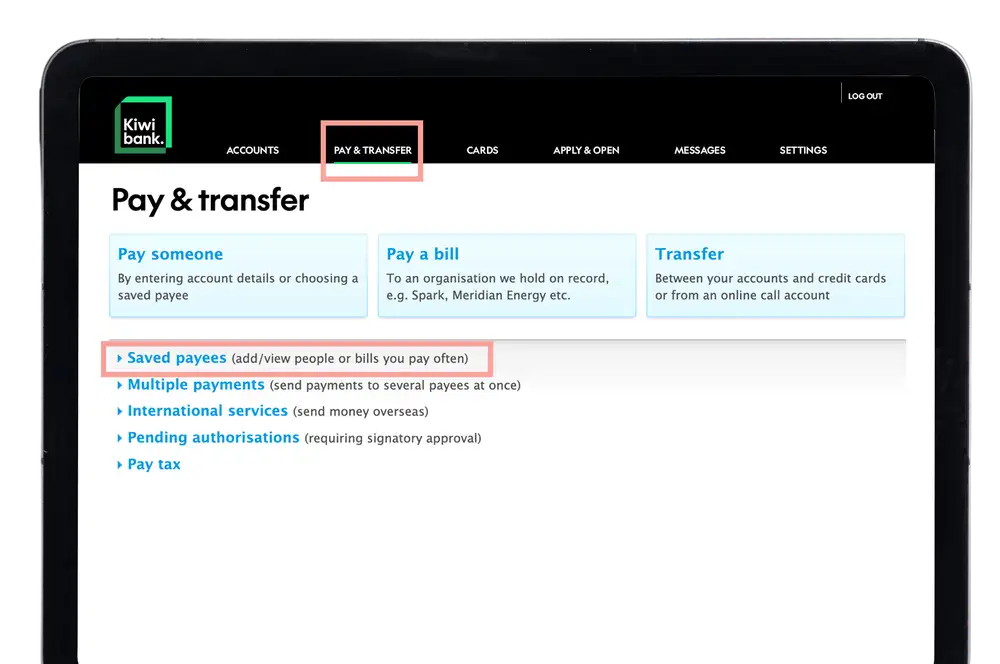
- Log in to internet banking.
- Click 'Pay & Transfer' at the top of the screen.
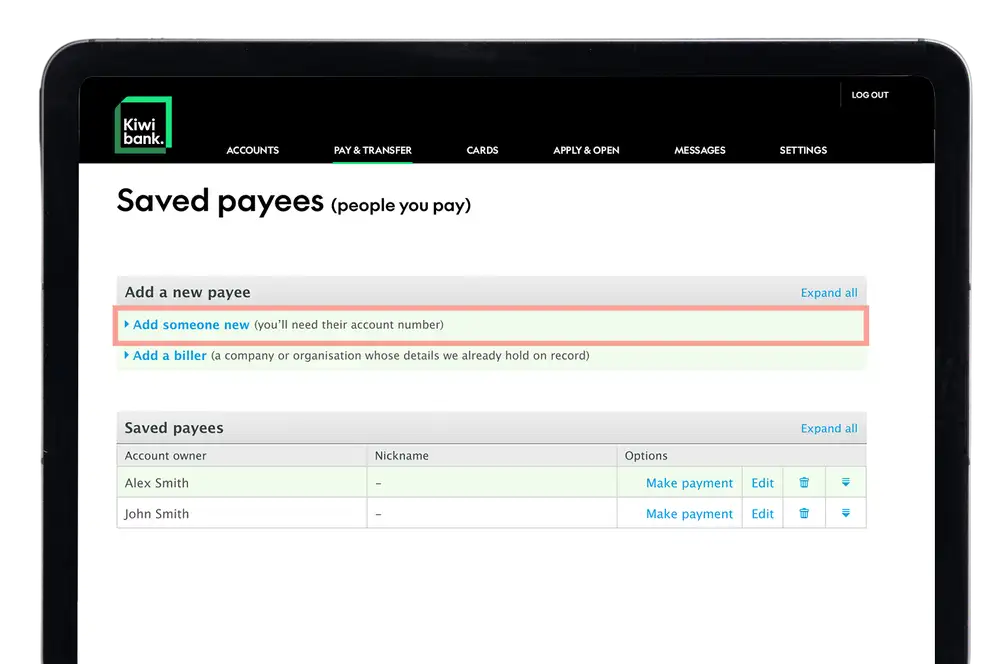
- Select 'Saved payees'.
- Click 'Add someone new'.
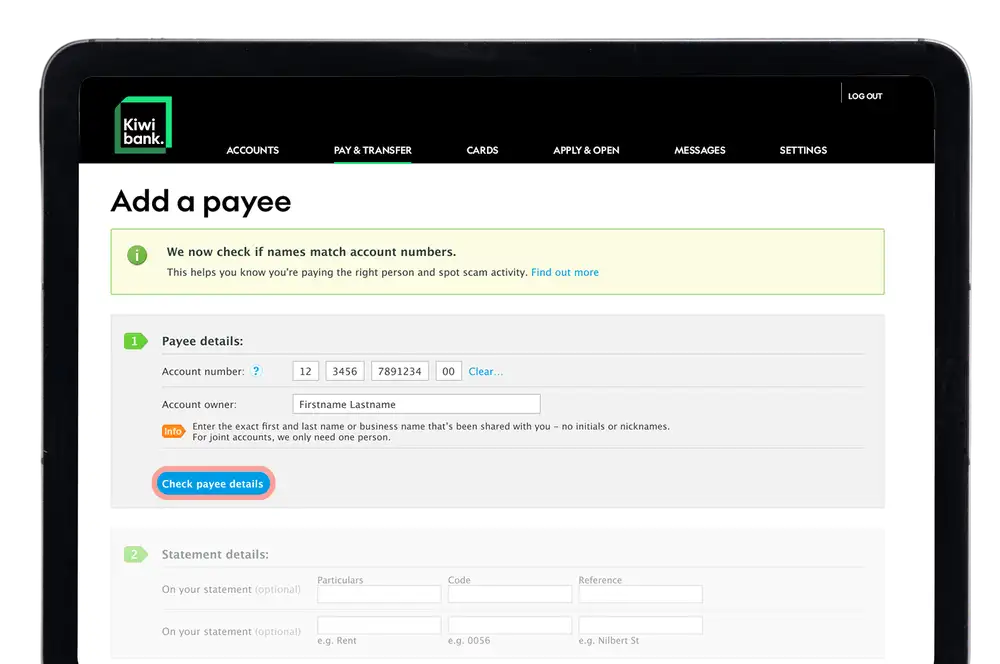
- Enter the account number.
- Enter the account owner name.
- Click 'Check payee details'*.
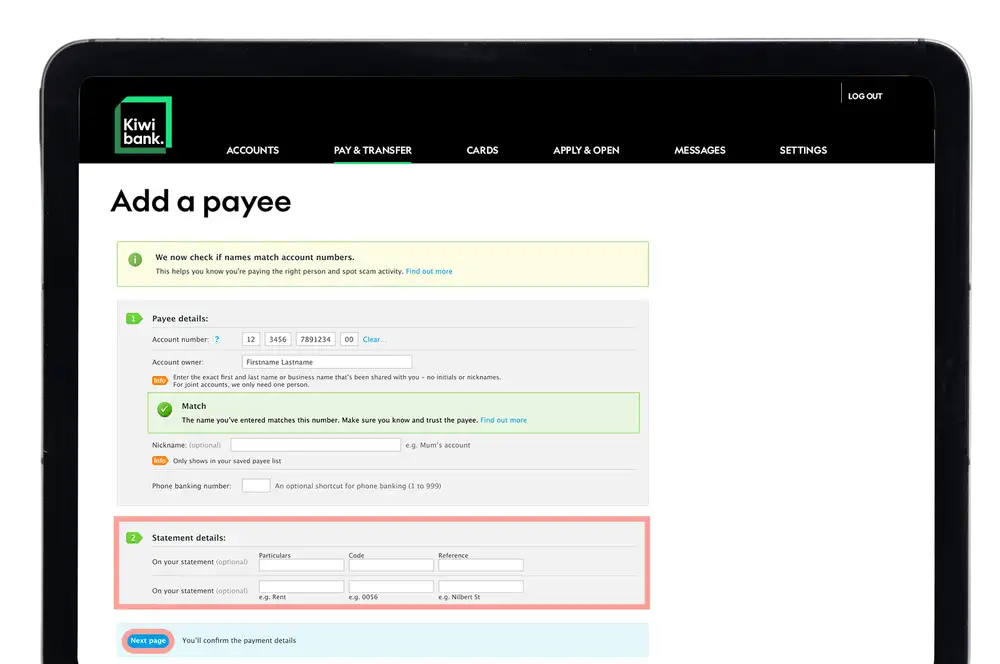
- Enter the statement details.
- Click 'Next page'.
- Click 'Add payee'.
*To find out more about checking payee details, visit our Confirmation of Payee page.
-
Add a business as a new payee
For some businesses or organisations we already have their account details so you won't need to manually enter them. If you can't find the business you're looking for, you'll need to add them as a new payee.
- Log in to internet banking.
- Click 'Pay & Transfer' at the top of the screen.
- Select 'Saved payees'.
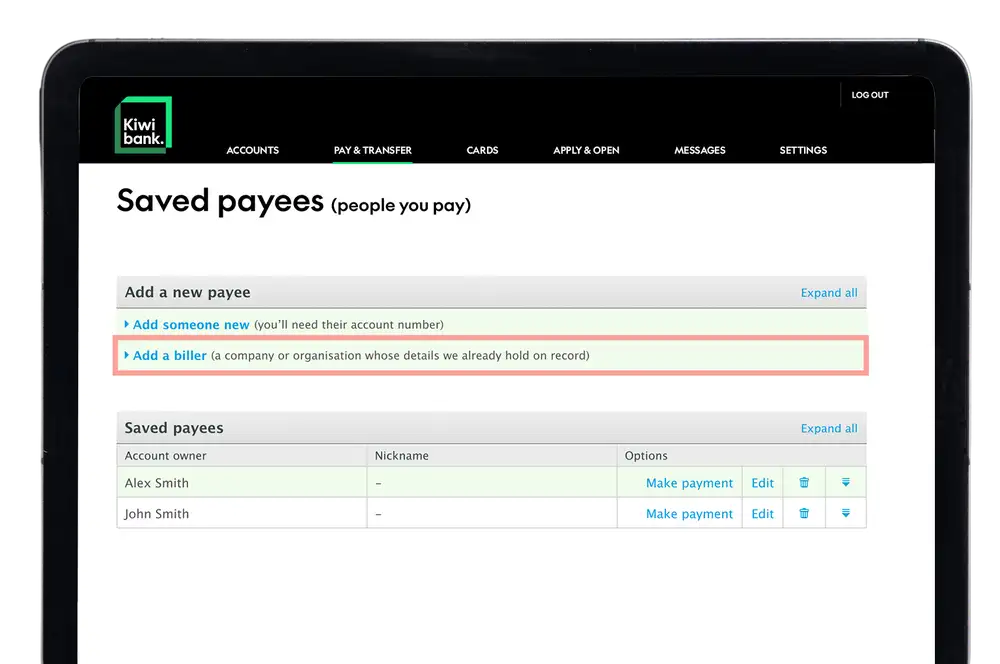
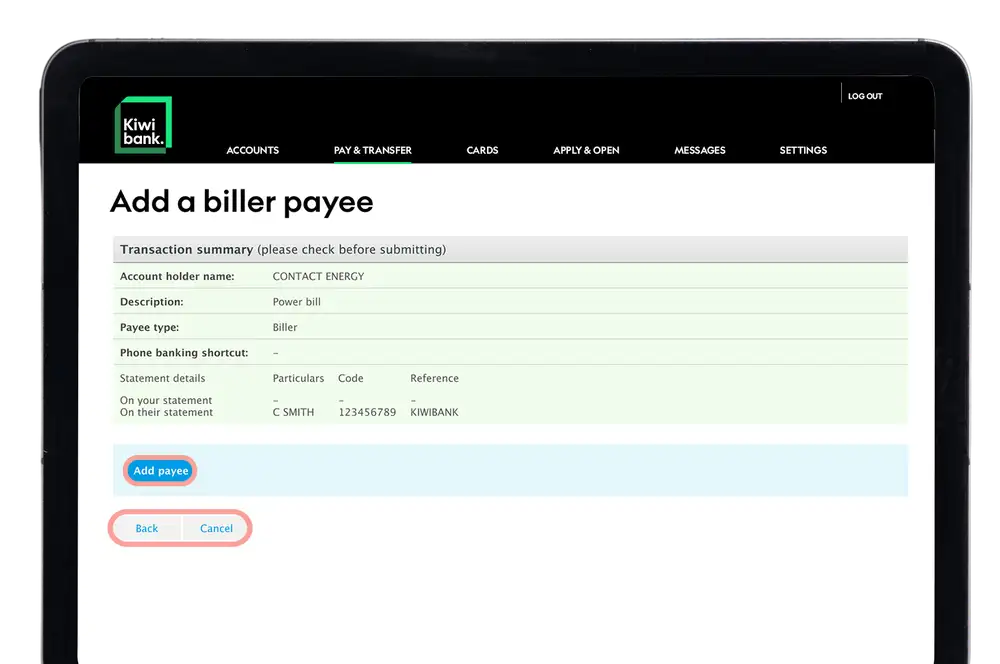
- Click 'Add a biller'.
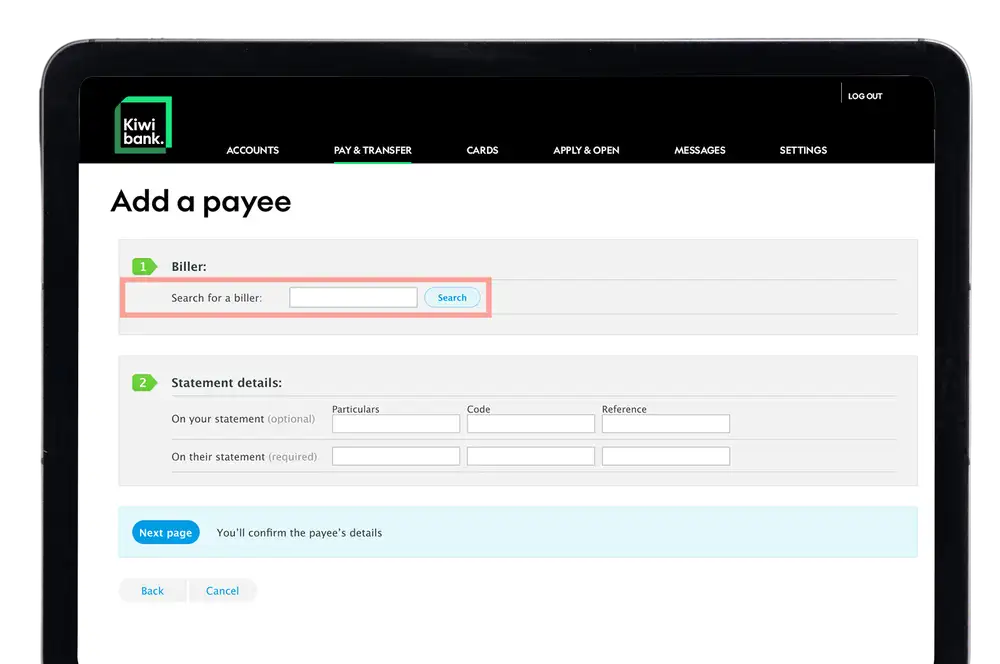
- Enter the business name.
- Click 'Search'.
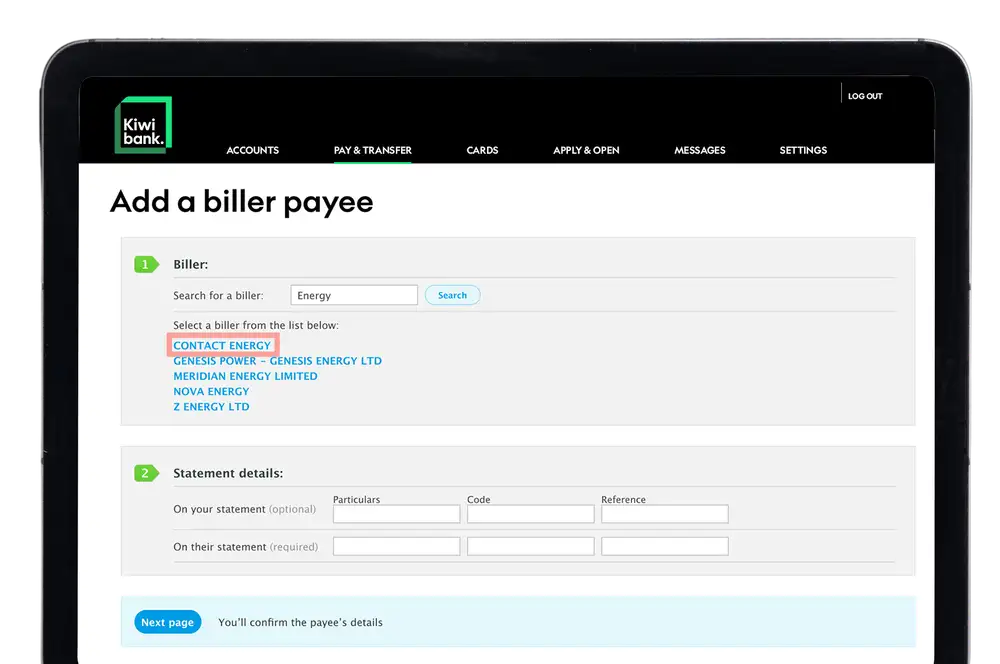
- From the search results, click the business you're wanting to add.
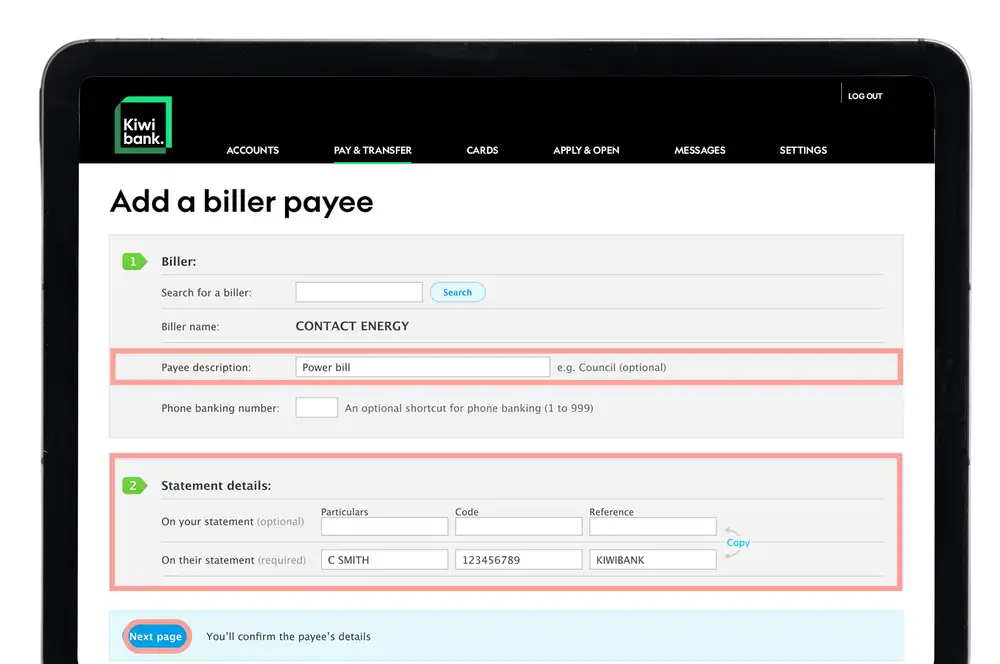
- Enter the payee description.
- Enter the statement details.
- Click 'Next page'.
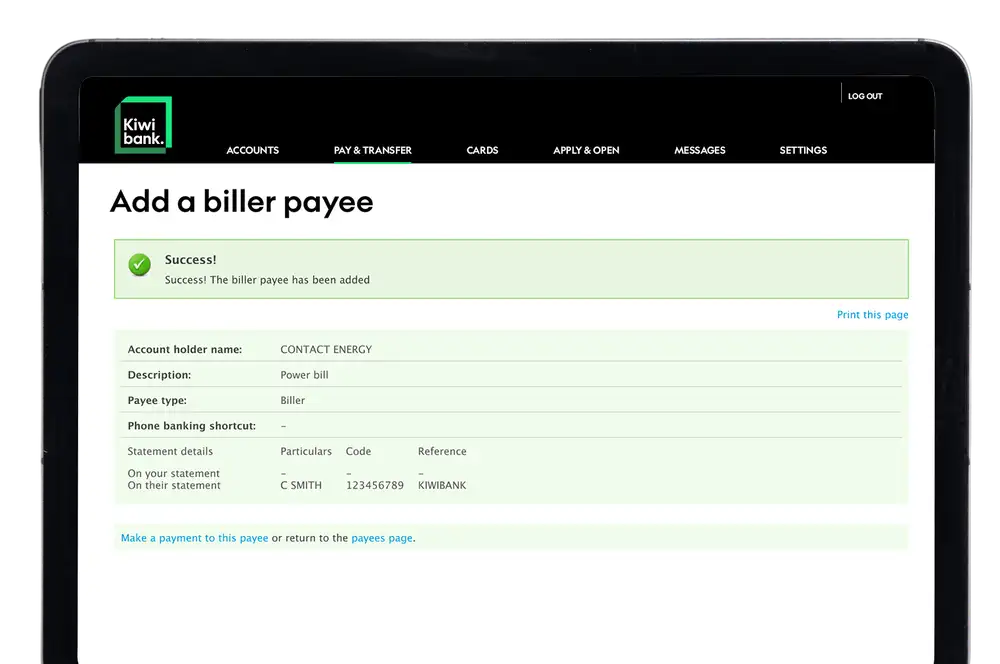
- Once you've checked the details are correct, click 'Add payee'.
-
Edit an existing payee
- Log in to internet banking.
- Click 'Pay & Transfer' at the top of the screen.
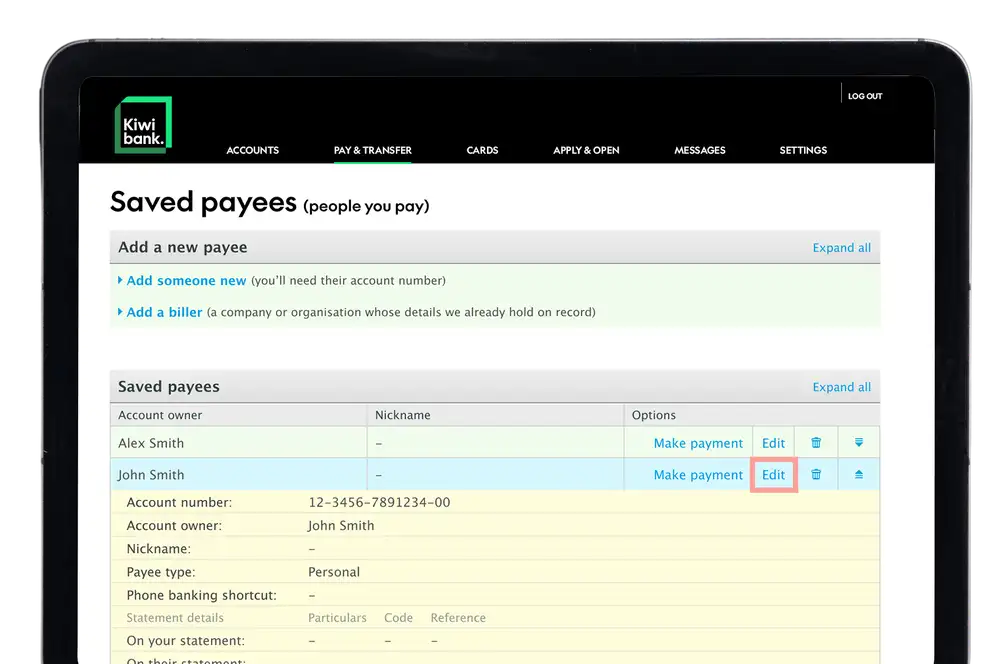
- Select 'Saved payees'.
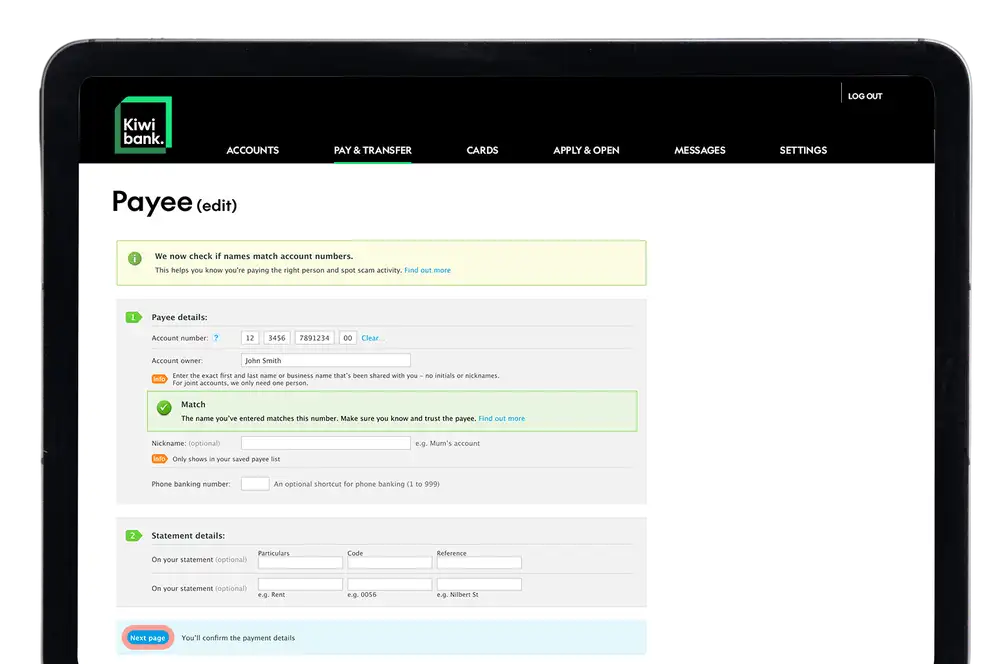
- Click 'Edit' on the payee you'd like to edit.
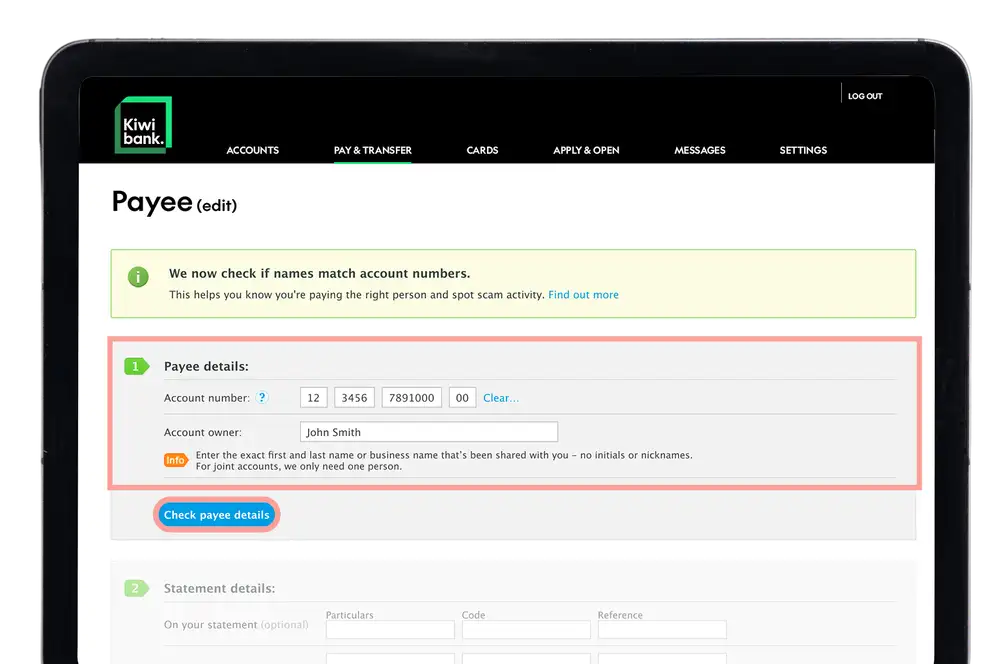
- Update the details.
- Click 'Check payee details'*..
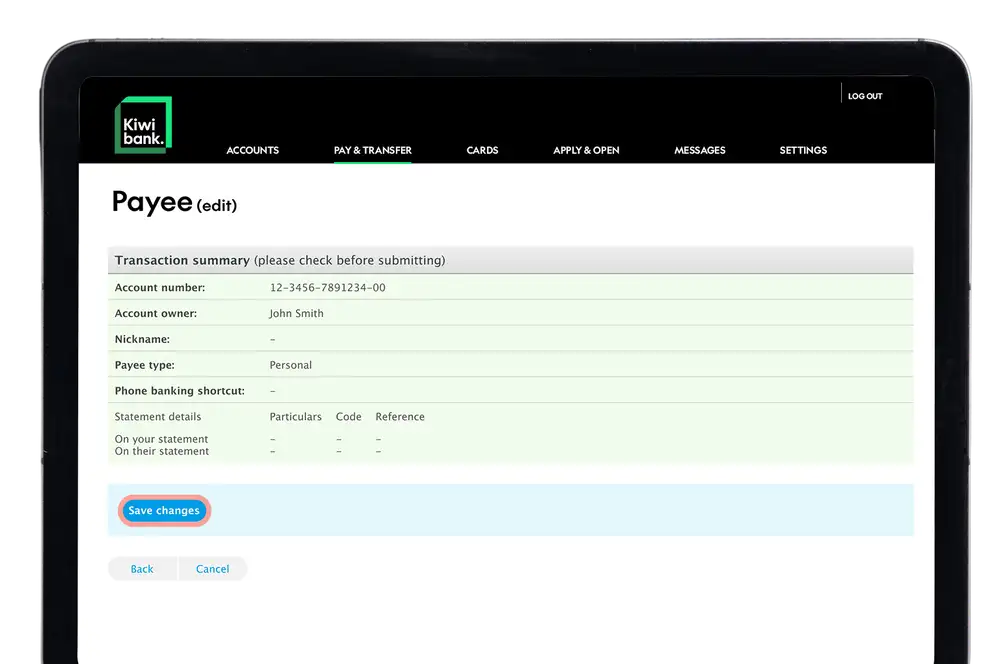
- Click 'Next page'.
- Once you've checked all the details are correct click 'Save changes'.
*To find out more about checking payee details, visit our Confirmation of Payee page.
-
Delete a payee
- Log in to internet banking.
- Click 'Pay & Transfer' at the top of the screen.
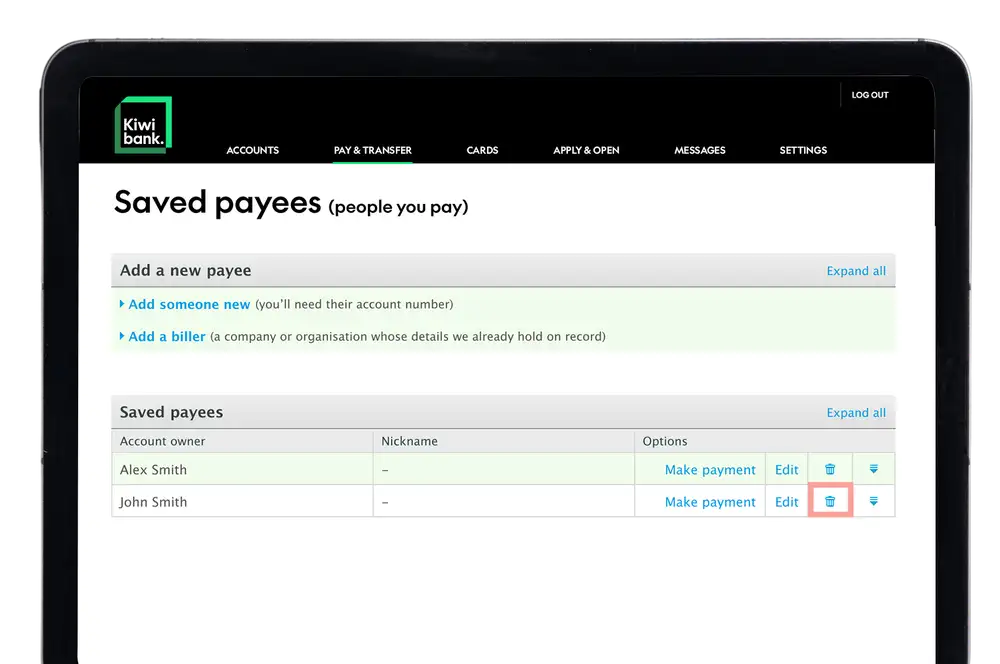
- Select 'Saved payees'.
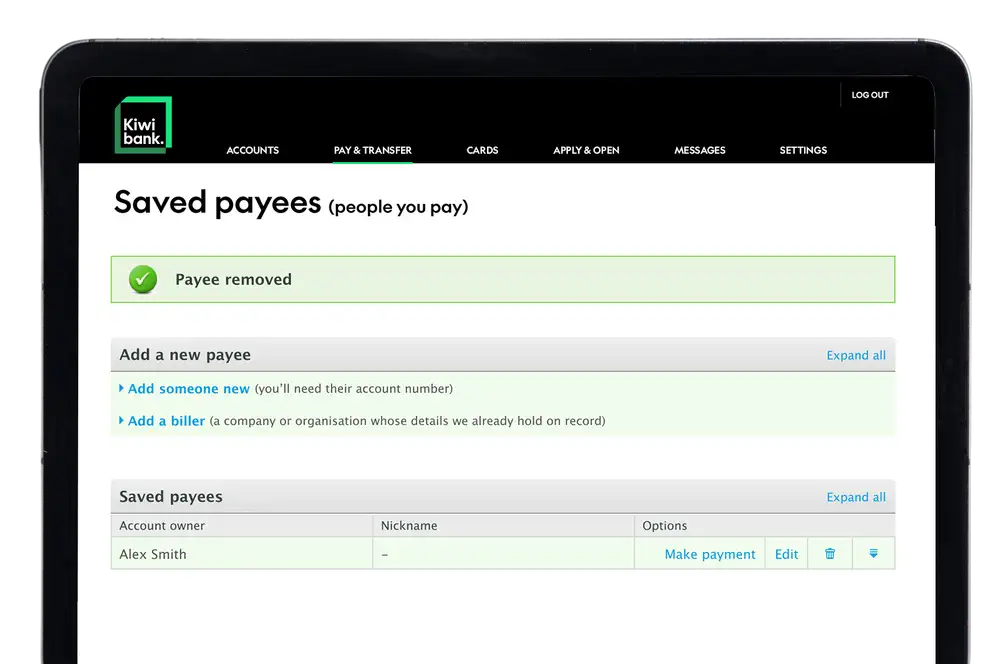
- Click on the bin next to the payee you'd like to delete.
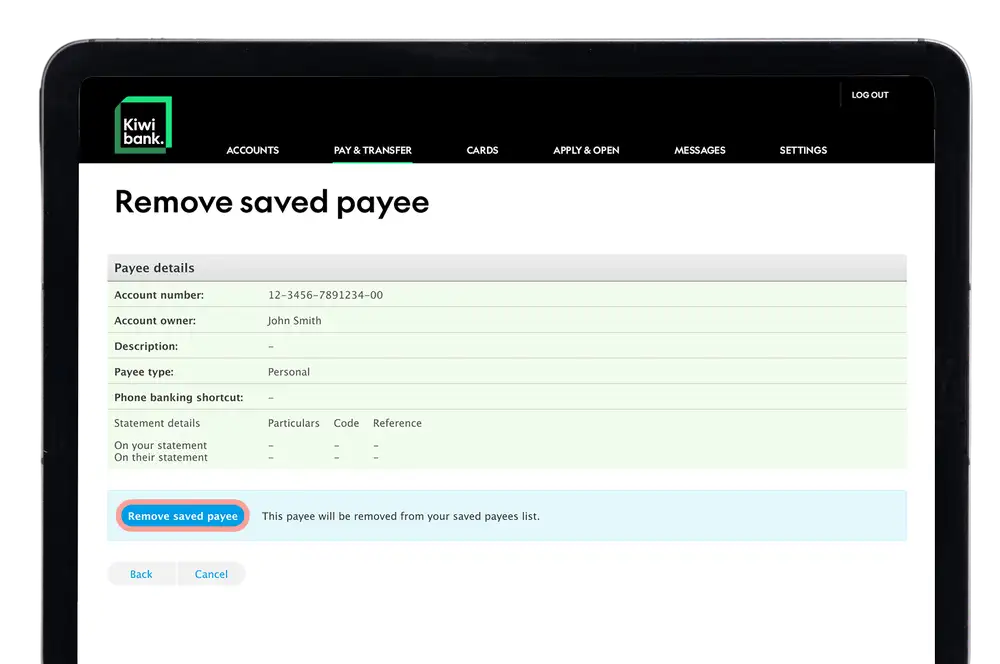
- Click 'Remove saved payee'.
New look
-
These steps are for our refreshed internet banking experience.
If your screens don't look like this, switch to the 'Internet banking' tab. We're gradually moving everyone to this new look
-
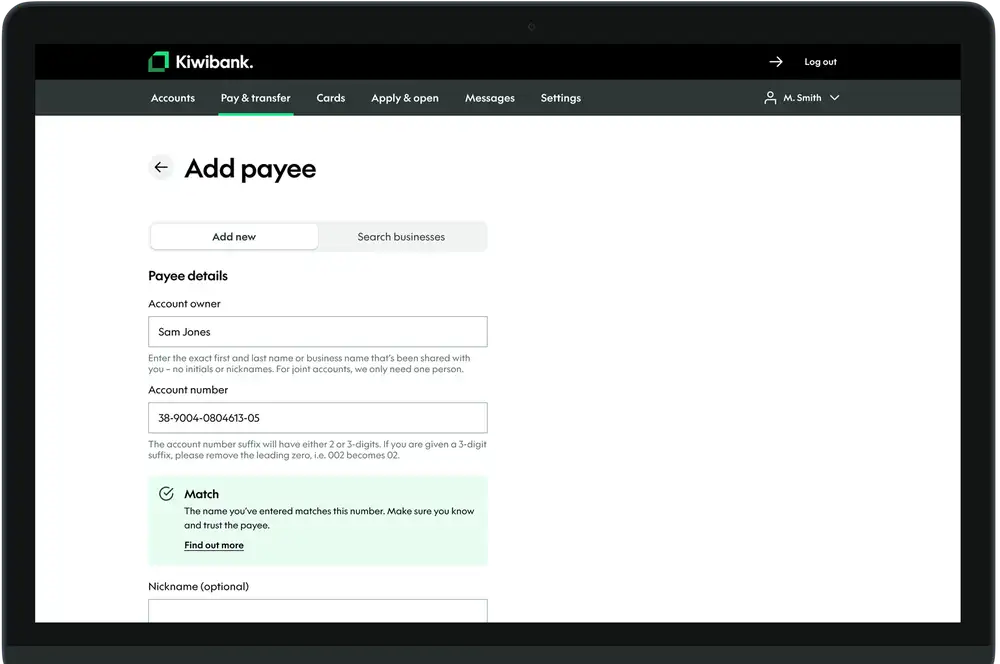
Add a new payee
- Log in to internet banking.
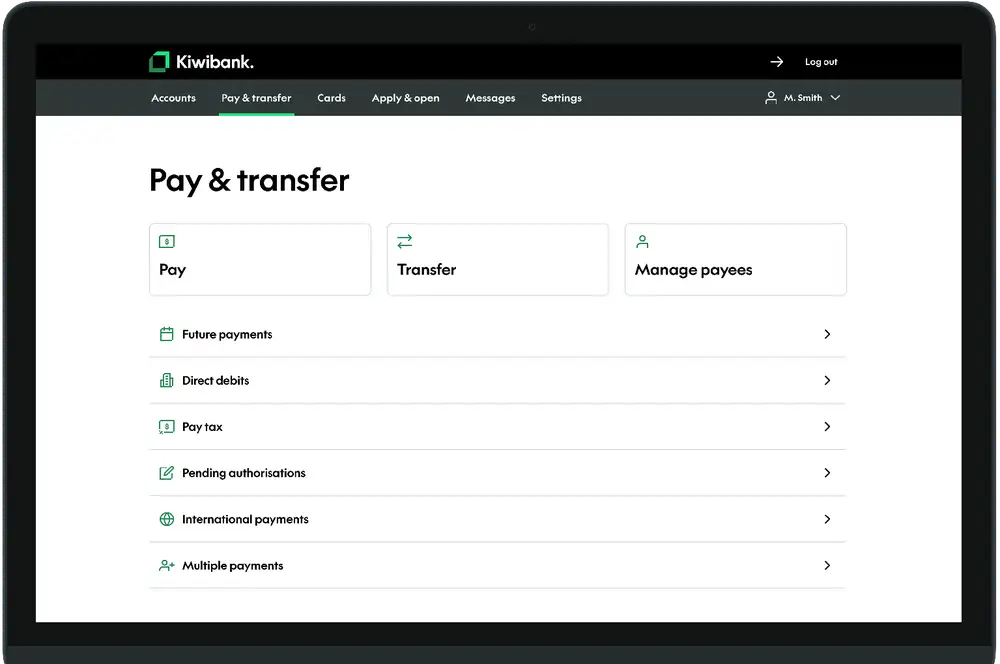
- Click 'Pay & Transfer' at the top of the screen.
- Click 'Manage payees'.
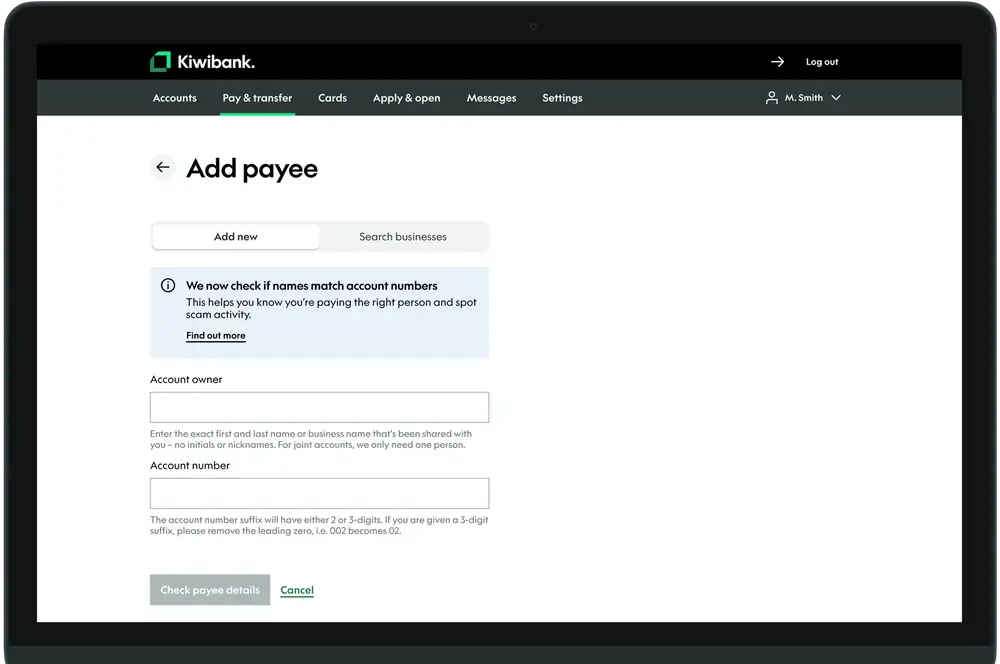
- Click 'Add payee'.
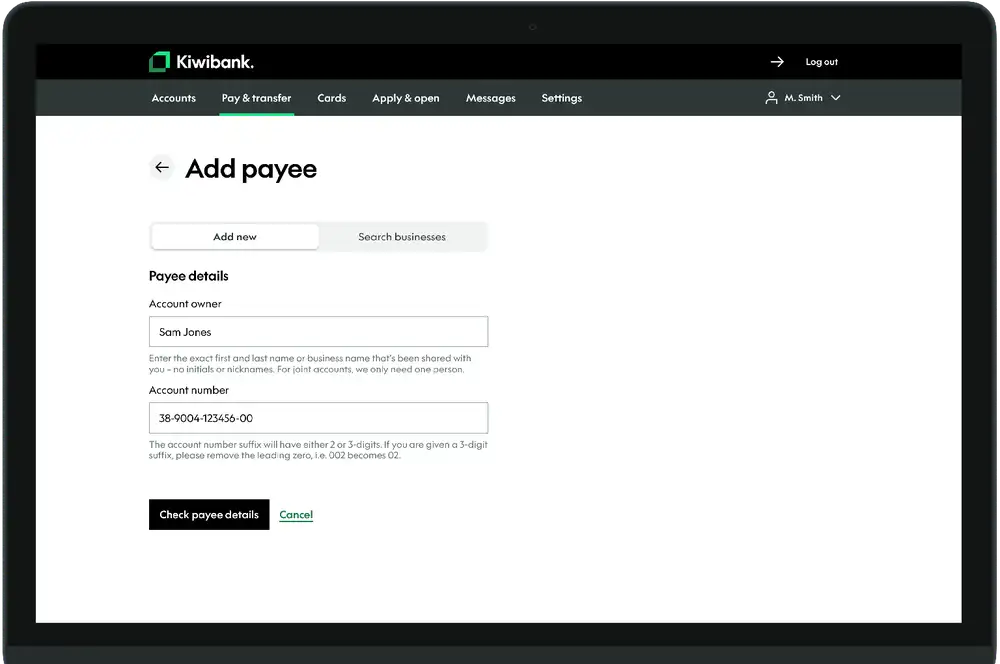
- Enter the account owner name.
- Enter the account number.
- Click 'Check payee details'* to see if account owner name matches the account number.
- Enter the statement details.
- Click 'Save payee'.
*For more information about checking payee details, see Confirmation of Payee.
-
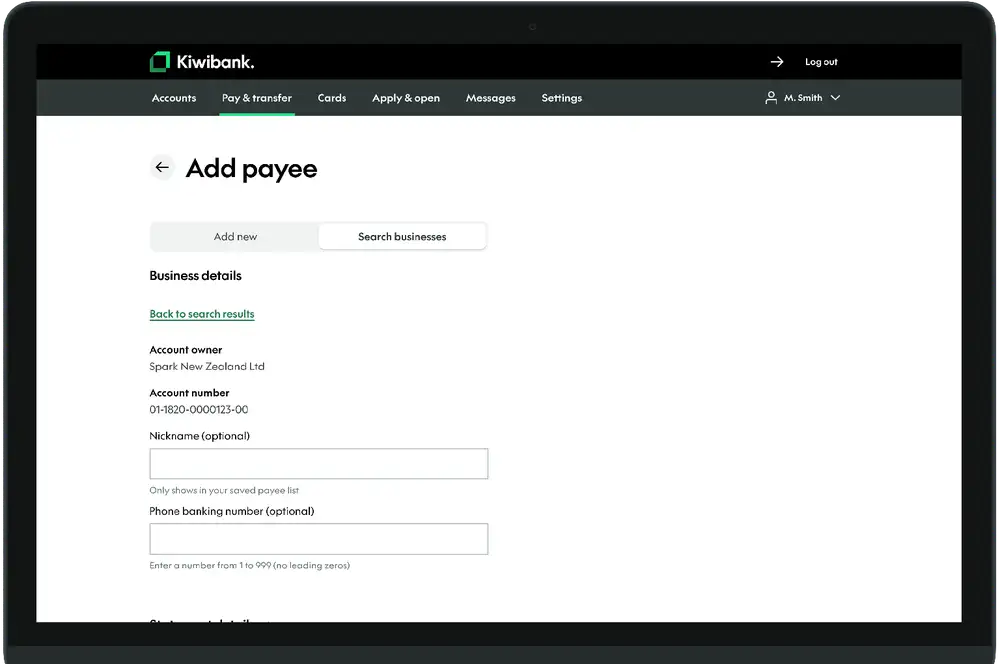
Add a business as a new payee
For some businesses or organisations we already have their account details so you won't need to manually enter them. If you can't find the business you're looking for, you'll need to add them as a new payee.
- Log in to internet banking.
- Click 'Pay & Transfer' at the top of the screen.
- Click 'Manage payees'.
- Click 'Add a payee'.
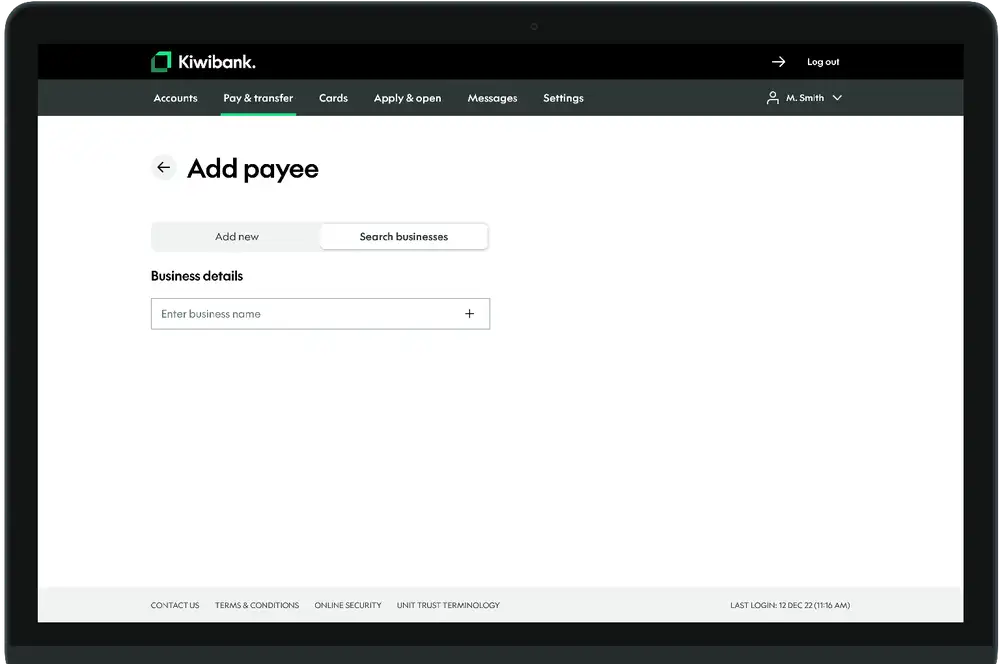
- Select 'Search businesses'.
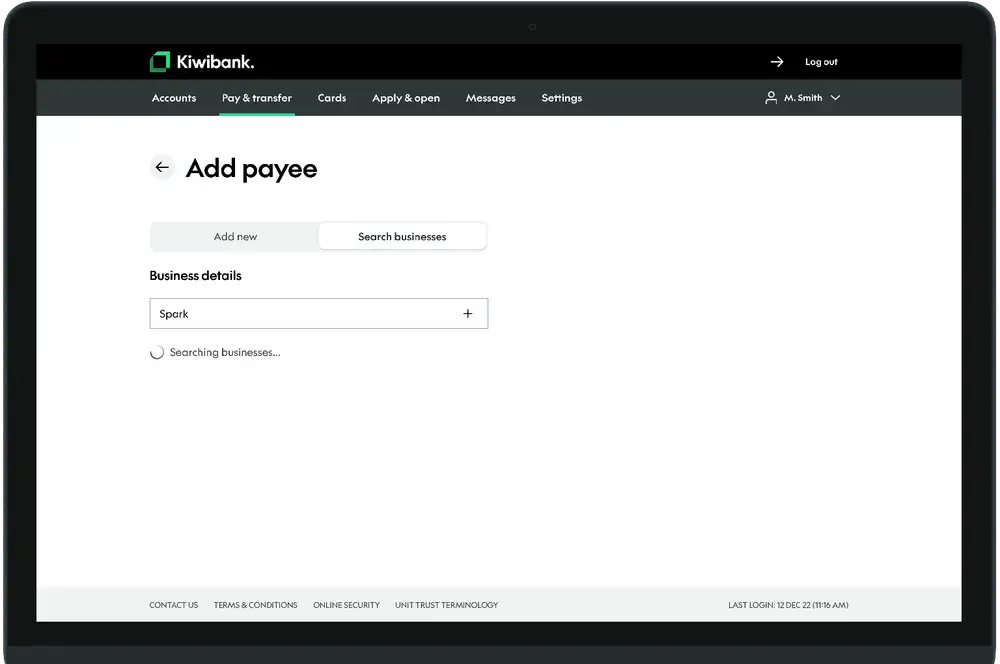
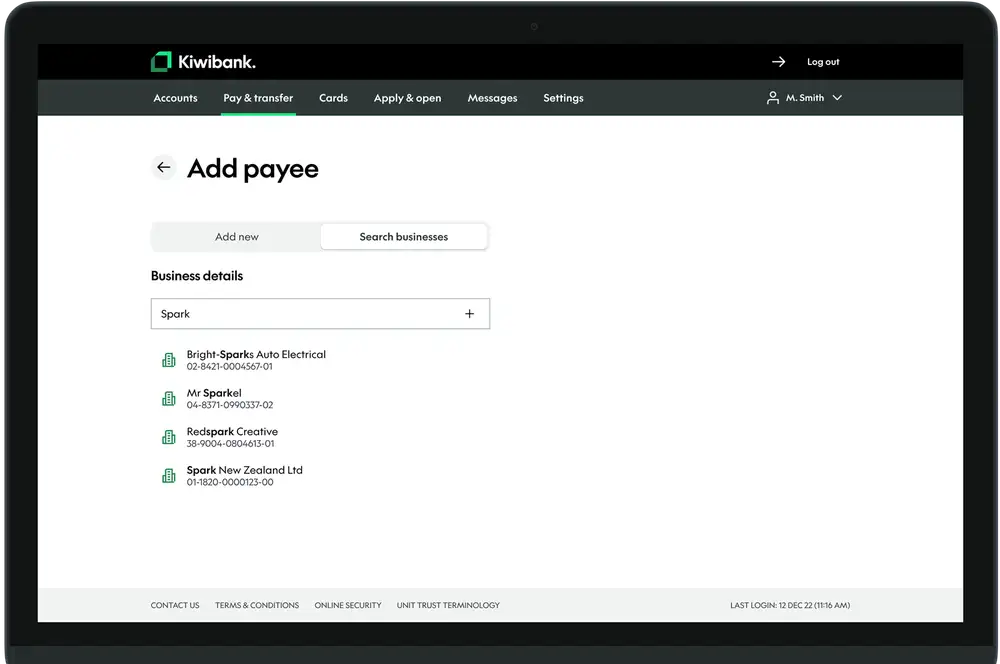
- Enter the business name.
- From the search results, click the business you're wanting to add.
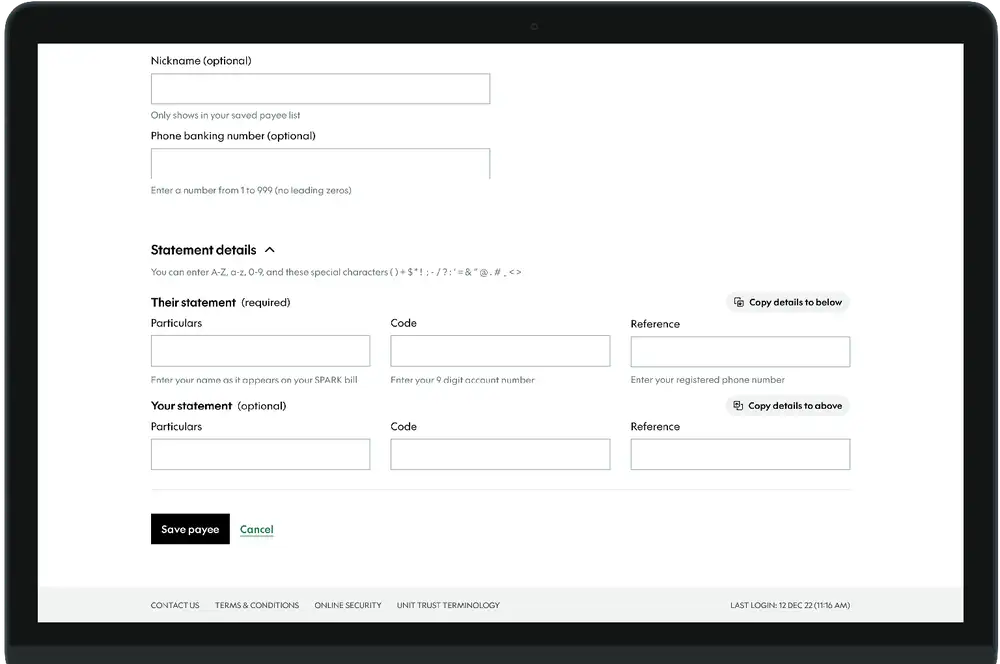
- Enter the payee description.
- Enter the statement details.
- Once you've checked the details are correct, click 'Save payee'.
-
Edit an existing payee
- Log in to internet banking.
- Click 'Pay & Transfer' at the top of the screen.
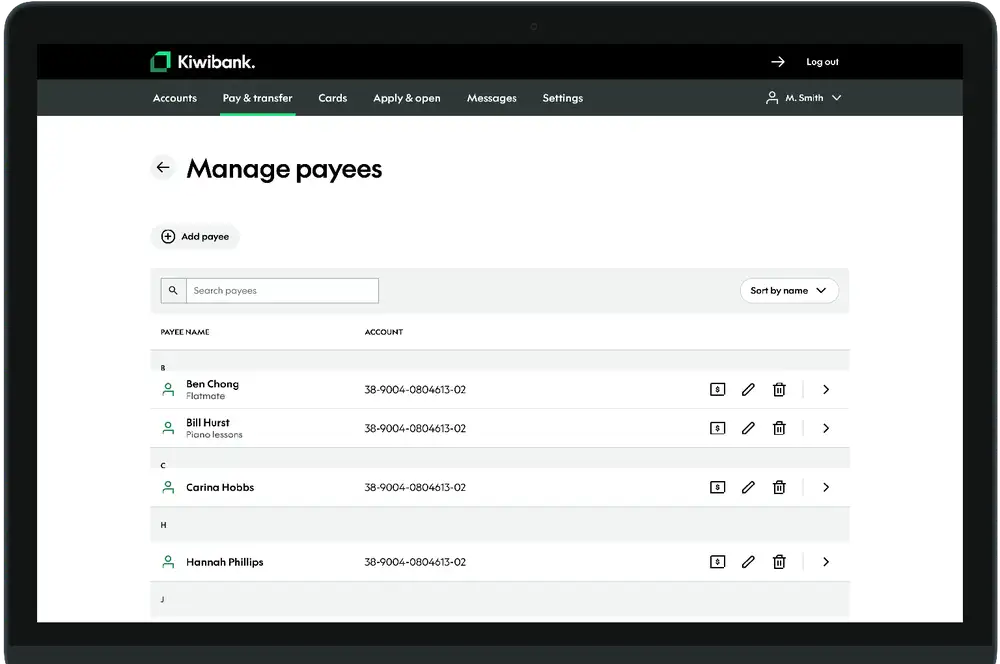
- Click 'Manage payees'.
- Find the payee you'd like to edit. You can use search to find a saved payee.
- Click the 'Edit' icon.
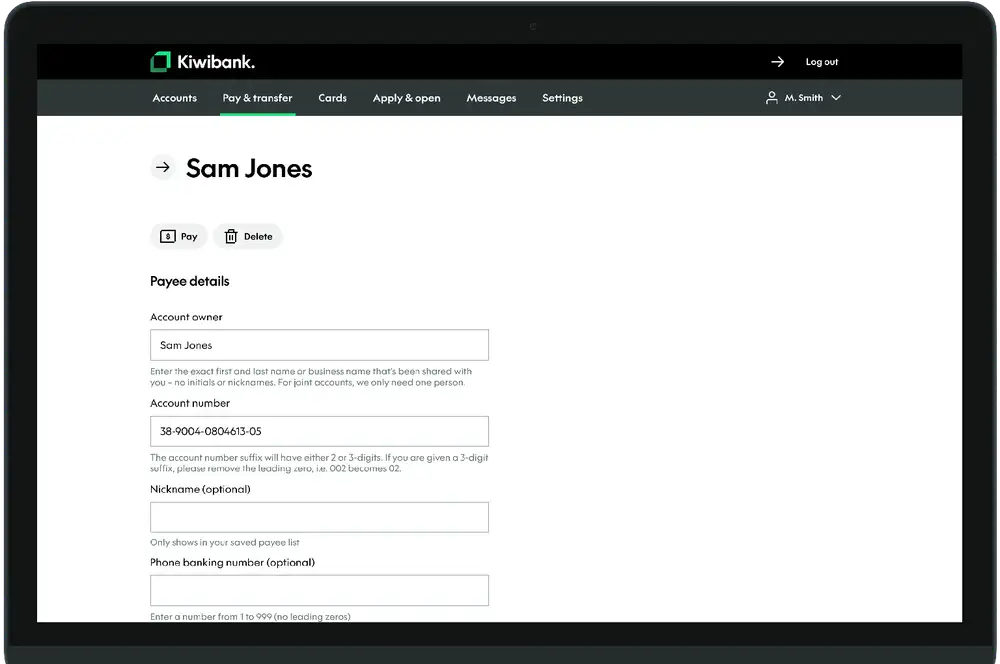
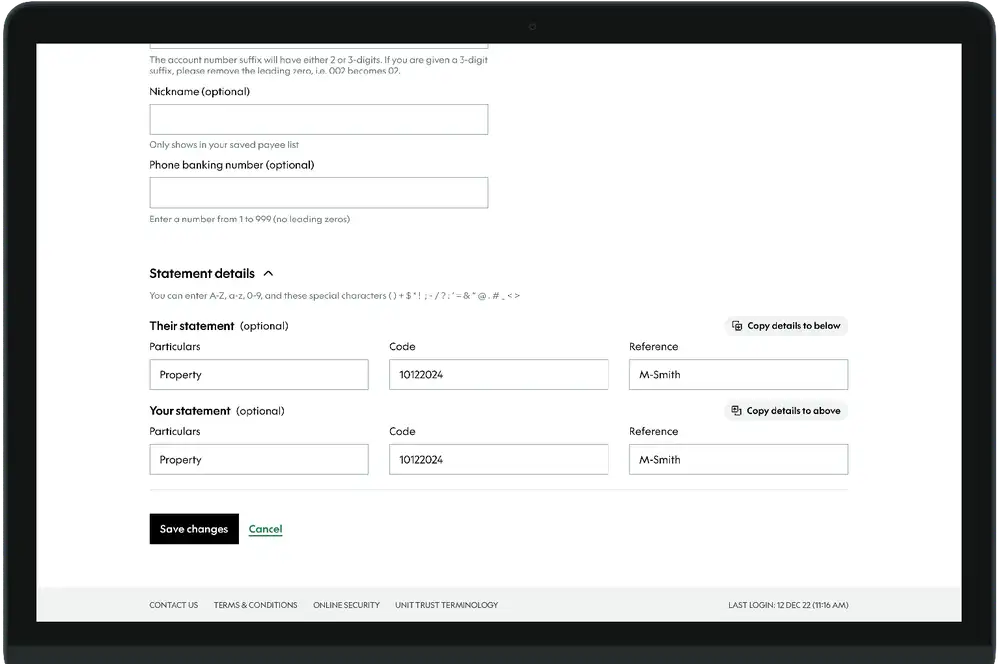
- Update the details.
- Click 'Check payee details'* if you're updating the account owner or name.
- Once you've checked all the details are correct click 'Save changes'.
*For more information about checking payee details, see Confirmation of Payee.
-
Delete a payee
- Log in to internet banking.
- Click 'Pay & Transfer' at the top of the screen.
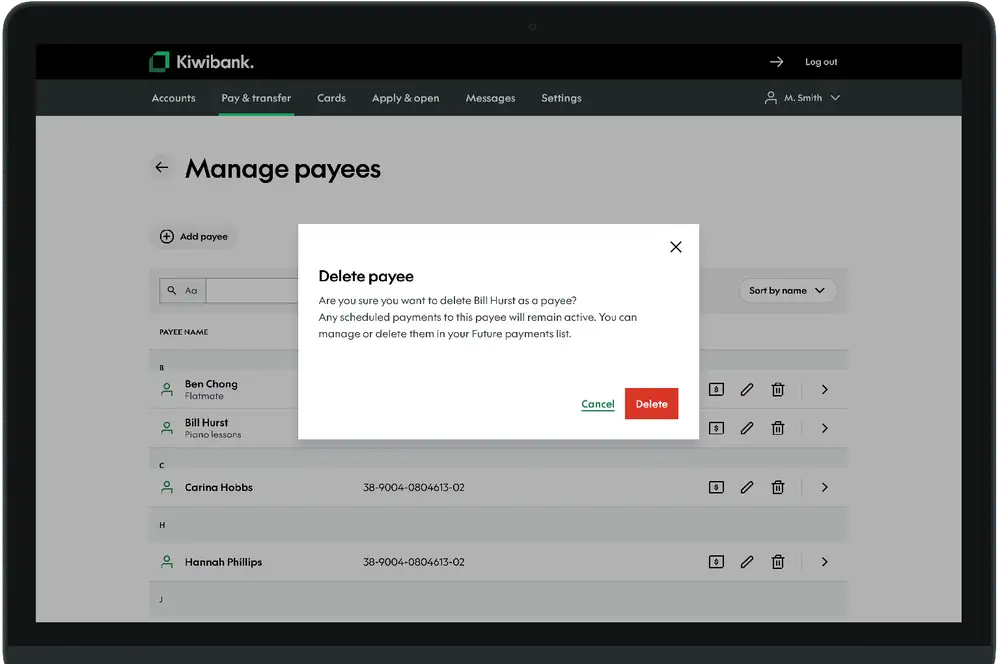
- Select 'Manage payees'.
- Find the payee you'd like to delete. You can use search to find a saved payee.
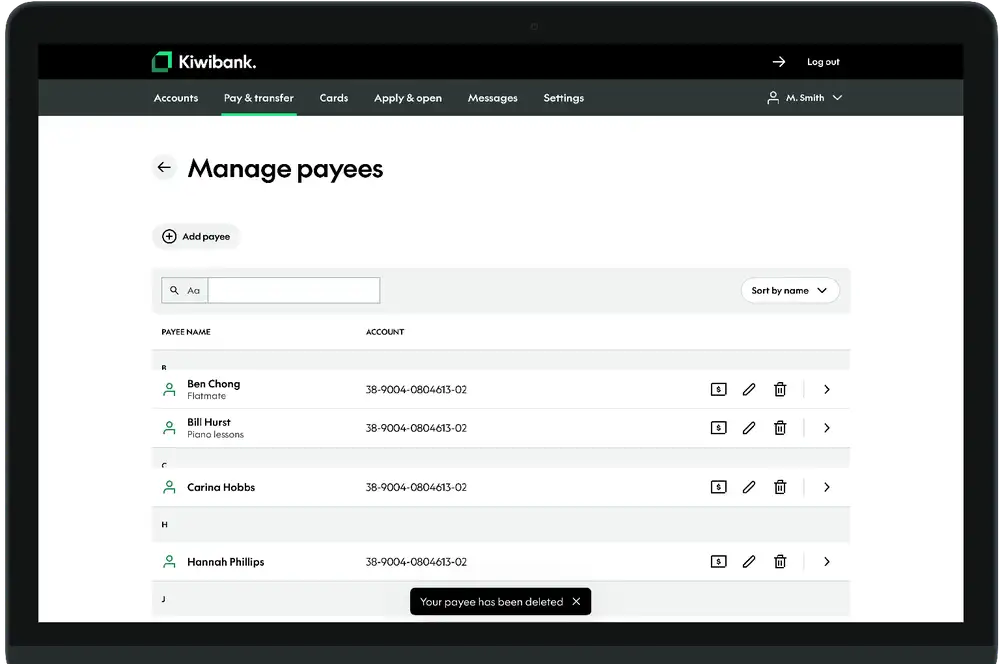
- Click on the bin next to the payee you'd like to delete.
- Click 'Delete' to confirm you want to delete the payee.