Mobile app
-
Transfer money now or later
Make a one-off transfer, schedule a transfer, or set up a recurring transfer in the mobile app.
- Log in to the mobile app.
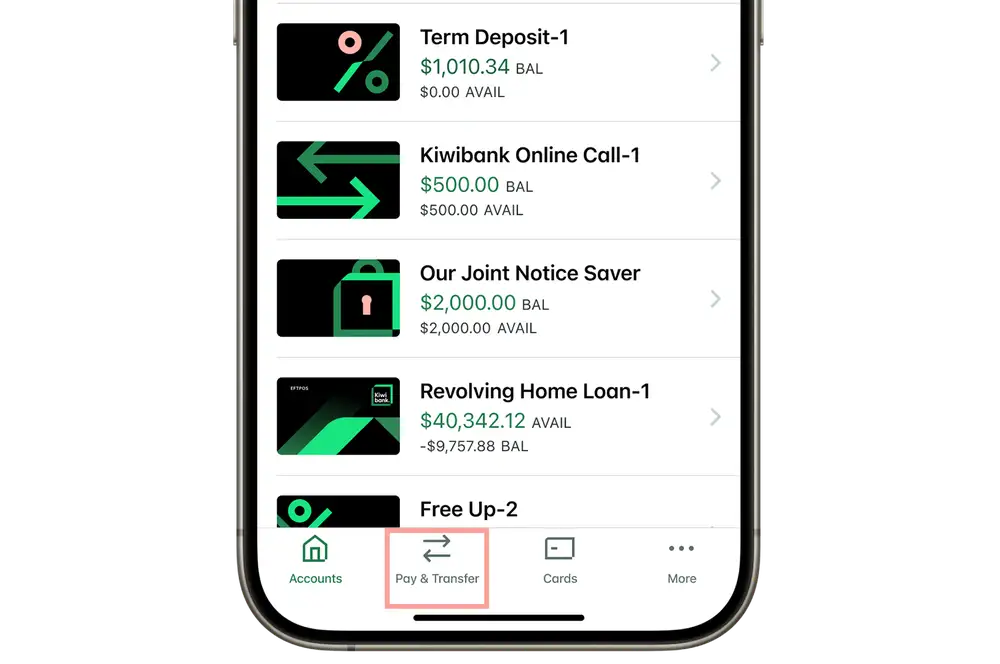
- Tap 'Pay & transfer' at the bottom of the screen.
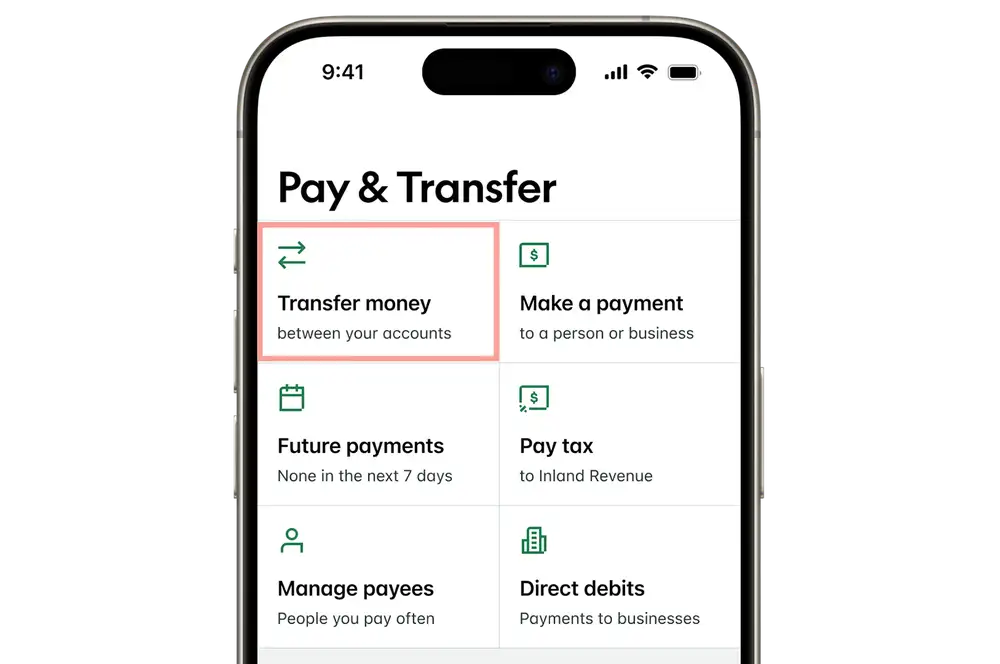
- Select 'Transfer money'.
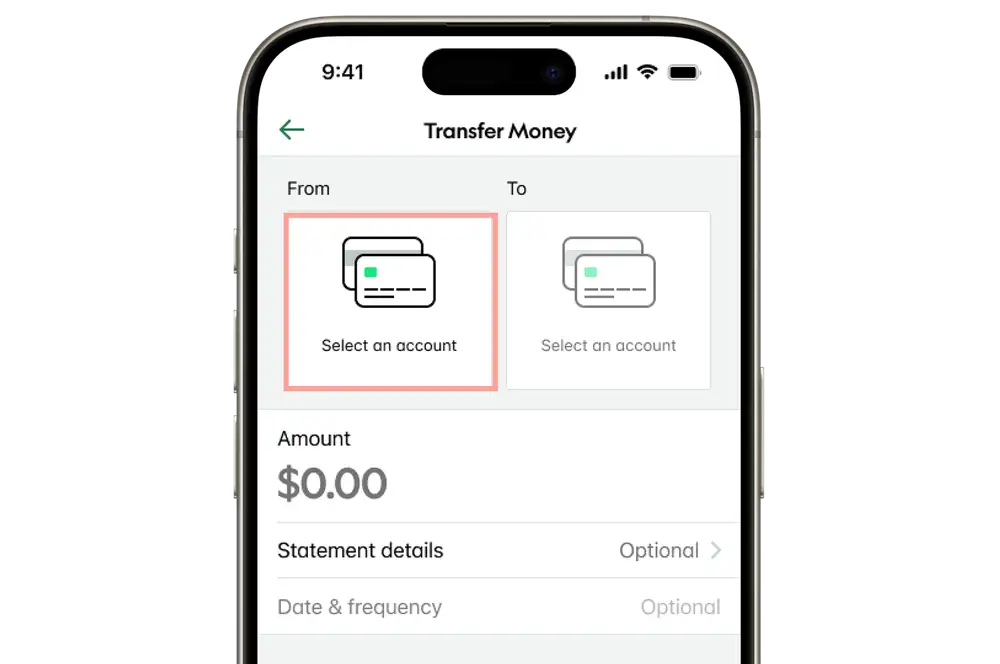
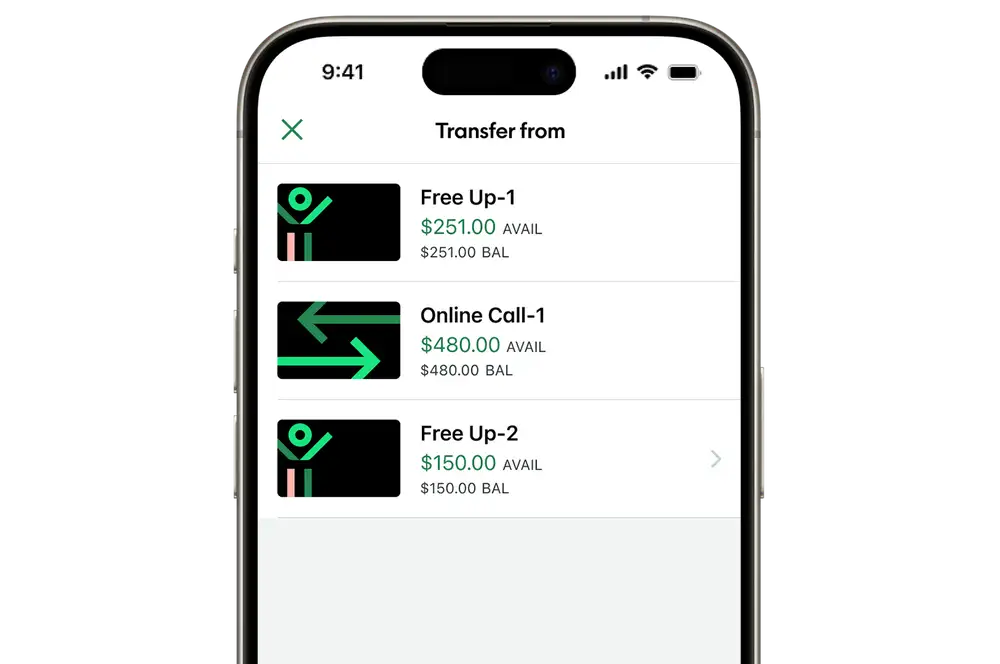
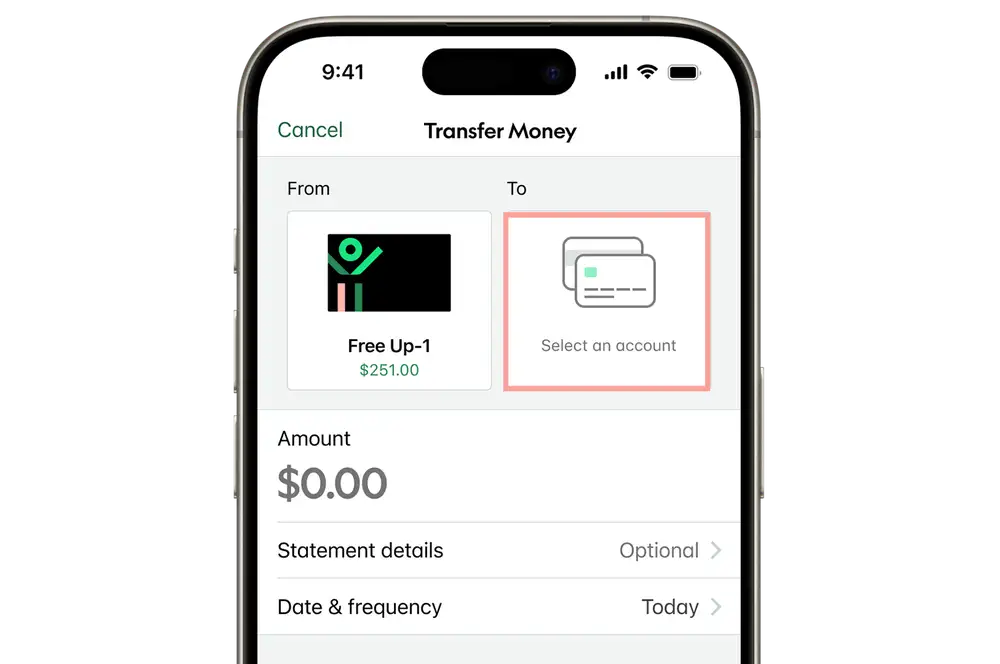
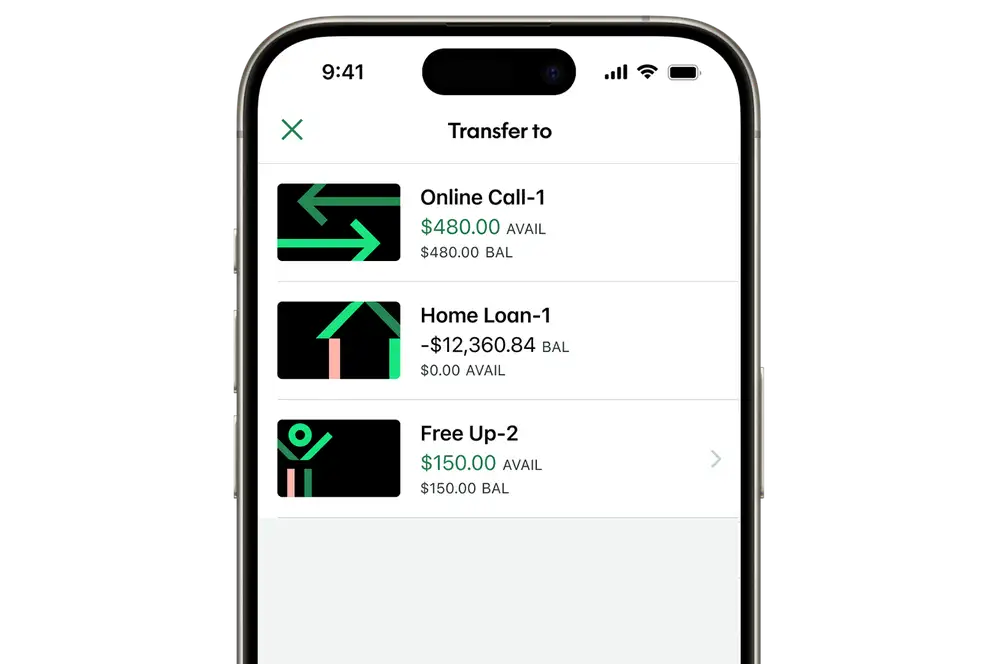
- Under ‘From’, tap ‘Select an account’, then select the account you'd like to transfer money from.
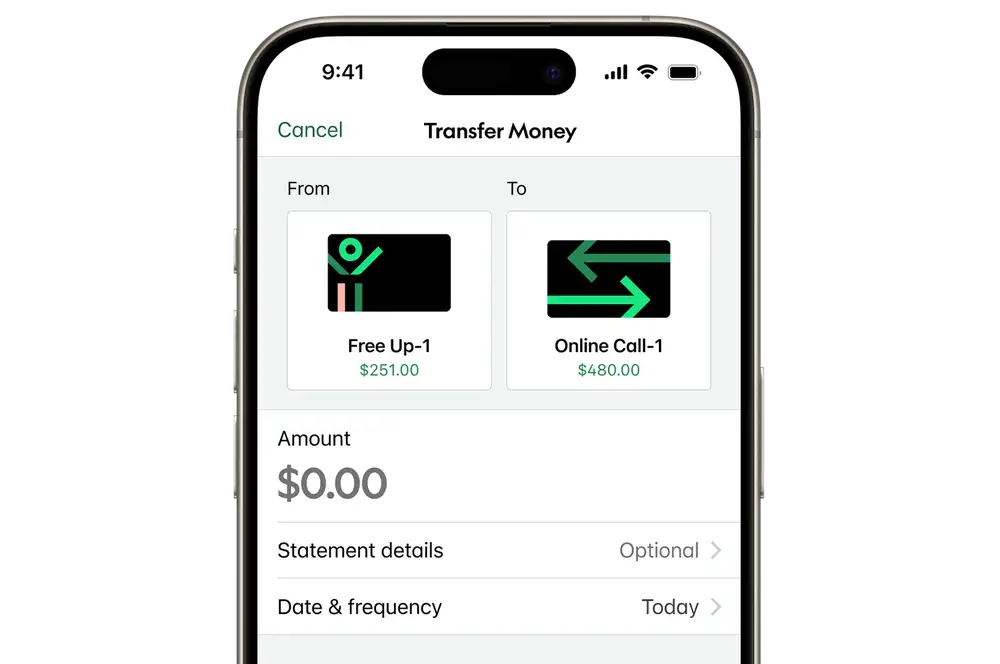
- Under ‘To’, tap ‘Select an account’, then select the account you'd like to transfer money to.
- Enter the amount to transfer.
- Tap 'Statement details' to enter any info you'd like to appear on the transaction, then tap 'Done'.
- To set up a recurring transfer or schedule this transfer for a future date, tap 'Date & frequency', choose a payment date and frequency, then tap 'Done'.
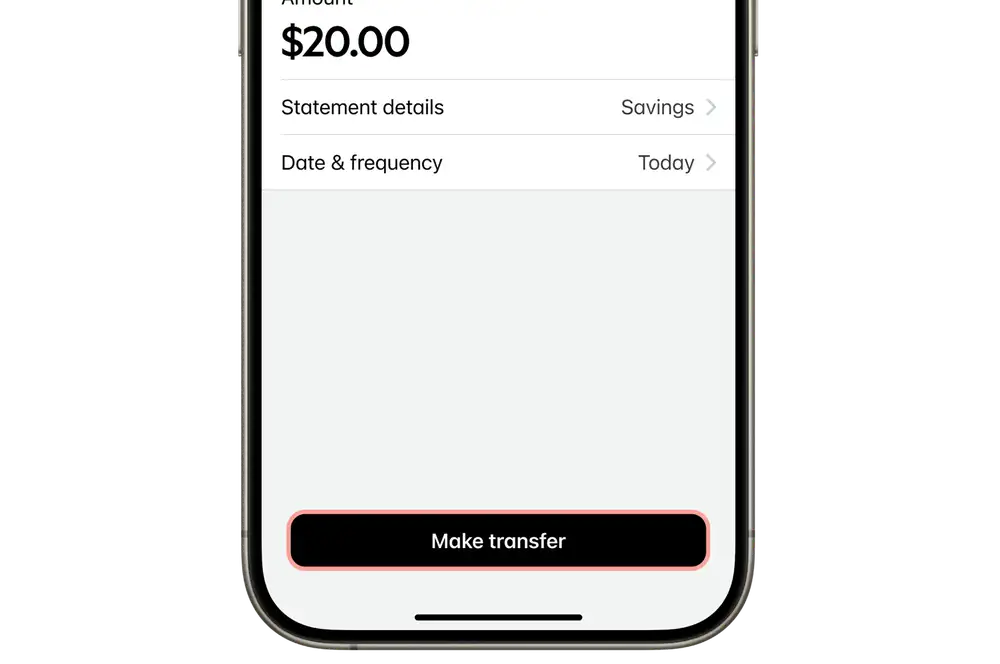
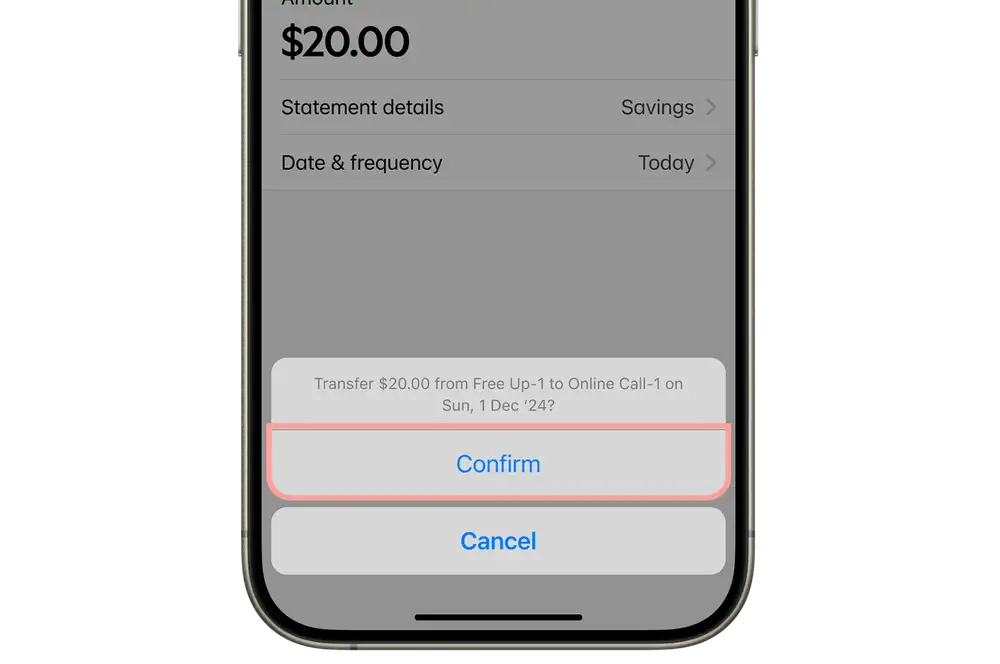
- Tap 'Make transfer'.
- Select ‘Confirm’.
-
Edit or delete a future dated transfer
The mobile app shows your scheduled transfers for the next seven days. If you want to make changes to a transfer that is further in the future, use internet banking.
- Log in to the mobile app.
- Tap 'Pay & transfer' at the bottom of the screen.
- Tap 'Future payments'.
- Tap the upcoming transfer that you want to edit.
- Tap 'Edit', then:
- Tap 'Edit' to change details. You can change the 'From' and 'To' accounts, the amount, the statement details, the date and frequency, and the last scheduled transfer.
- Tap 'Skip' to skip the next scheduled transfer.
- Tap 'Delete' to stop or cancel all future transfers.
- Confirm or save your changes.
Internet banking
-
Transfer money now or later
Make a one-off transfer, schedule a transfer, or set up a recurring transfer in internet banking.
- Log in to internet banking.
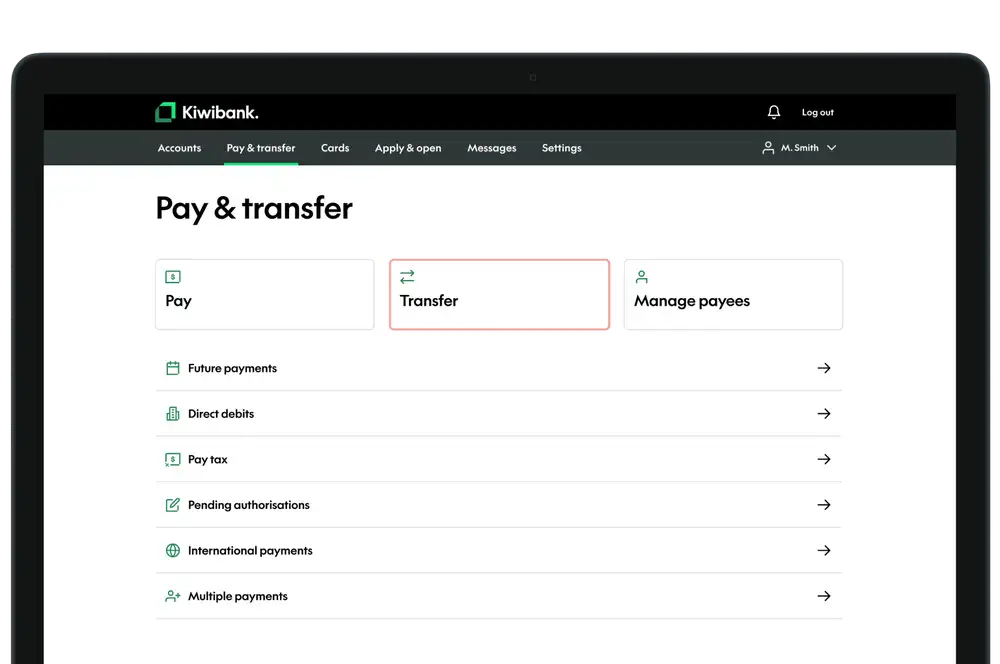
- Click 'Pay & transfer'.
- Select 'Transfer'.
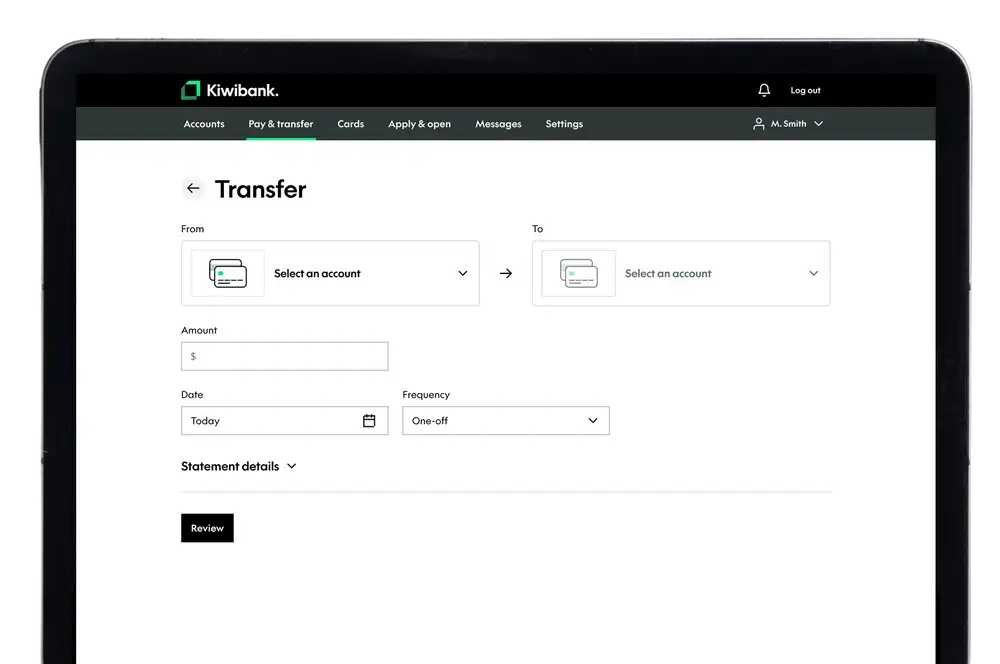
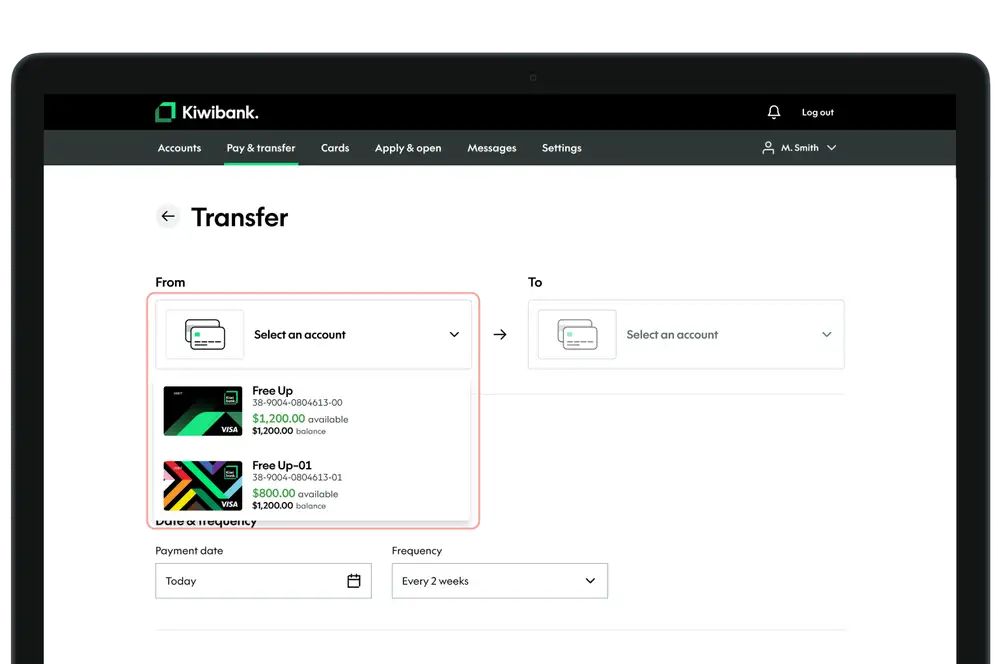
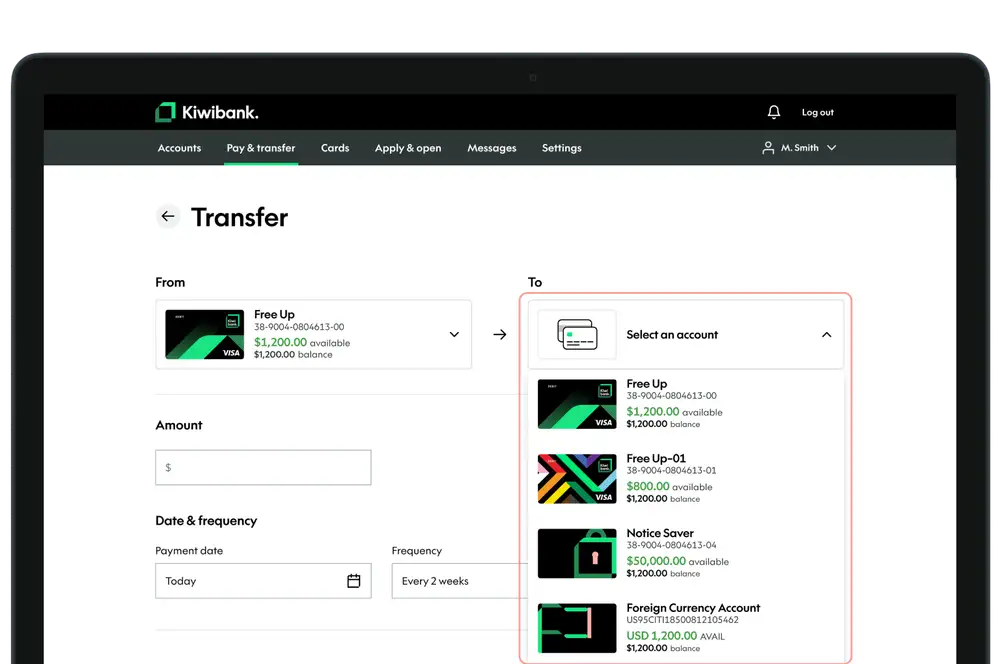
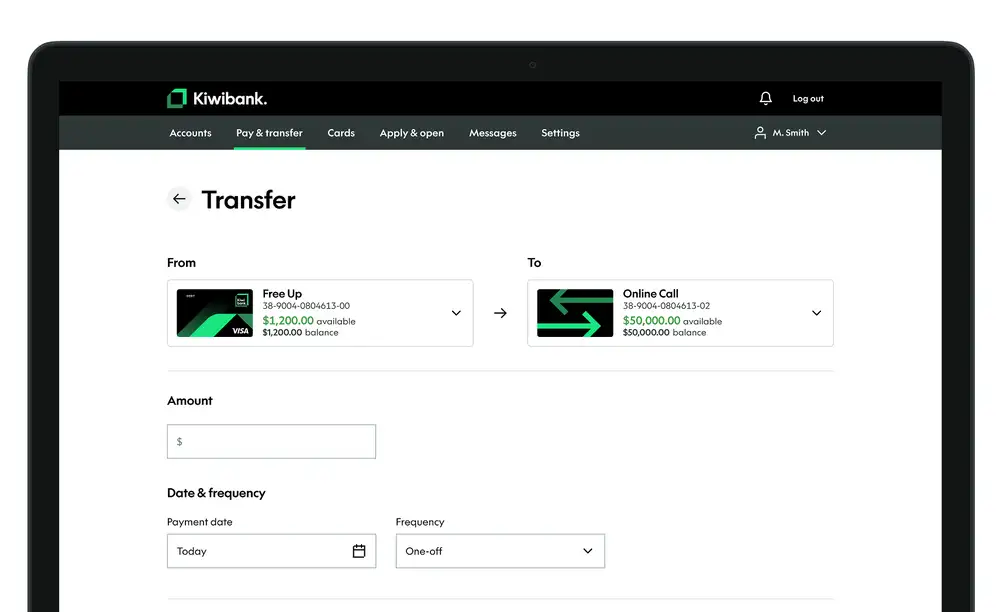
- Select the account you want to transfer money from.
- Select the account you want to transfer money to.
- Enter the amount to transfer.
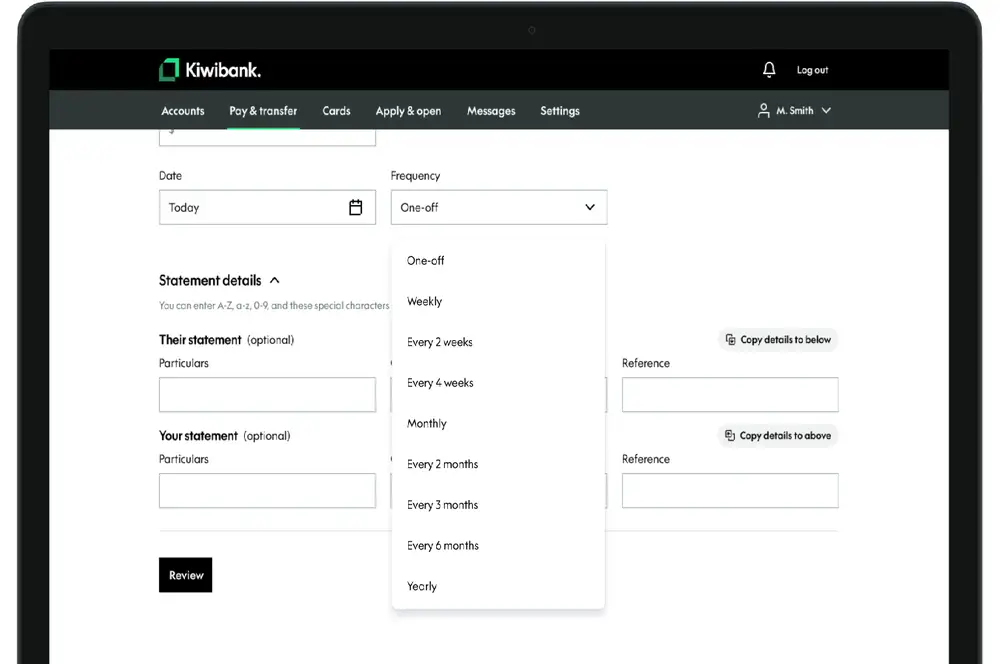
- To set up a recurring transfer, or schedule this transfer for a future date, select a payment date and frequency.
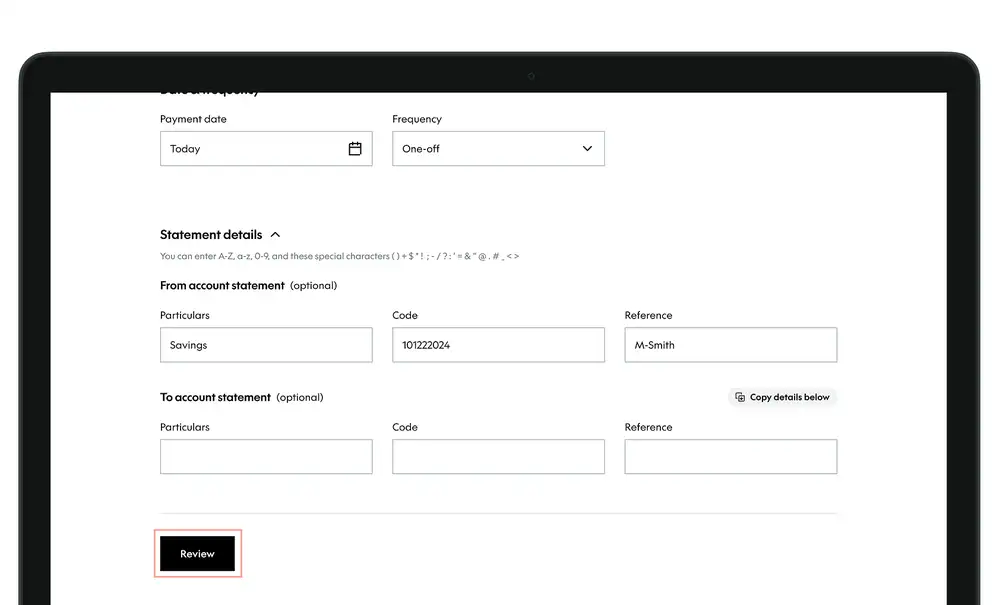
- Enter any statement details you'd like to appear on the transaction.
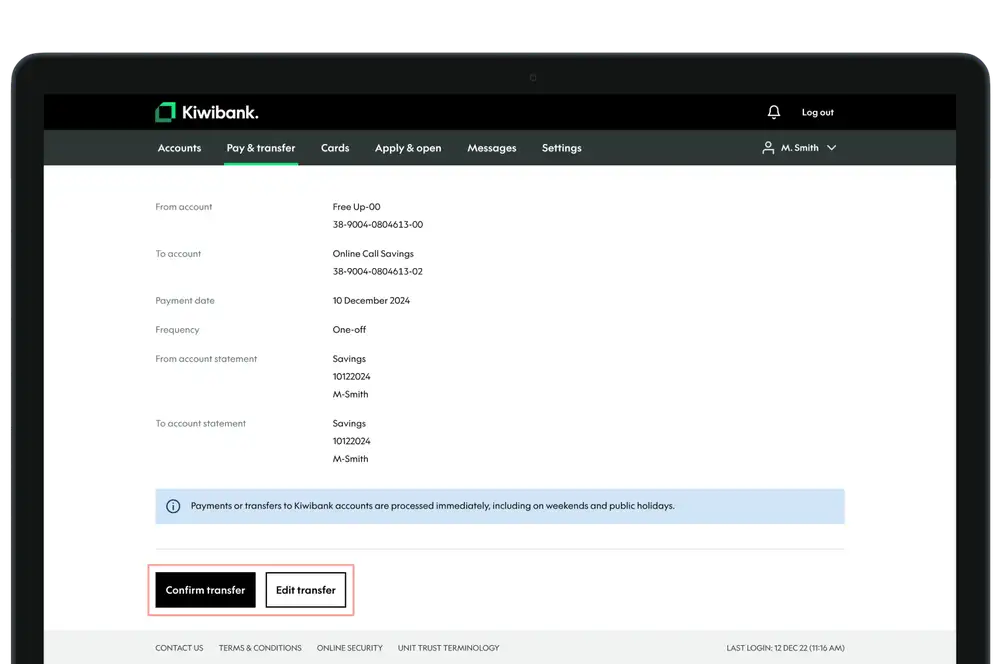
- Click 'Review'.
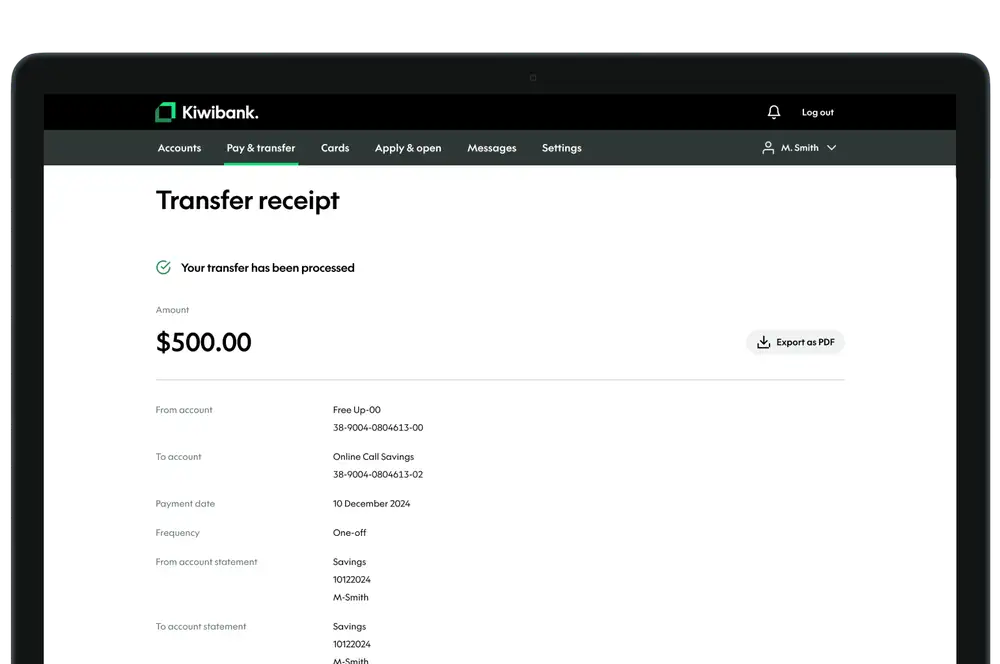
- Click 'Confirm transfer'.
-
Edit or delete a future dated transfer
All your future dated transfers are listed in internet banking.
- Log in to internet banking.
- Click 'Pay & Transfer'.
- Select 'Future payments'.
- Select the upcoming transfer that you want to edit or delete, then:
- Click 'Edit' to change the 'From' account, the amount, the statement details, the date and frequency, and the last scheduled transfer.
- Click 'Delete' to delete the transfer going forward.
- Review, confirm and save your changes.