-
1 / 4
Log in to internet banking
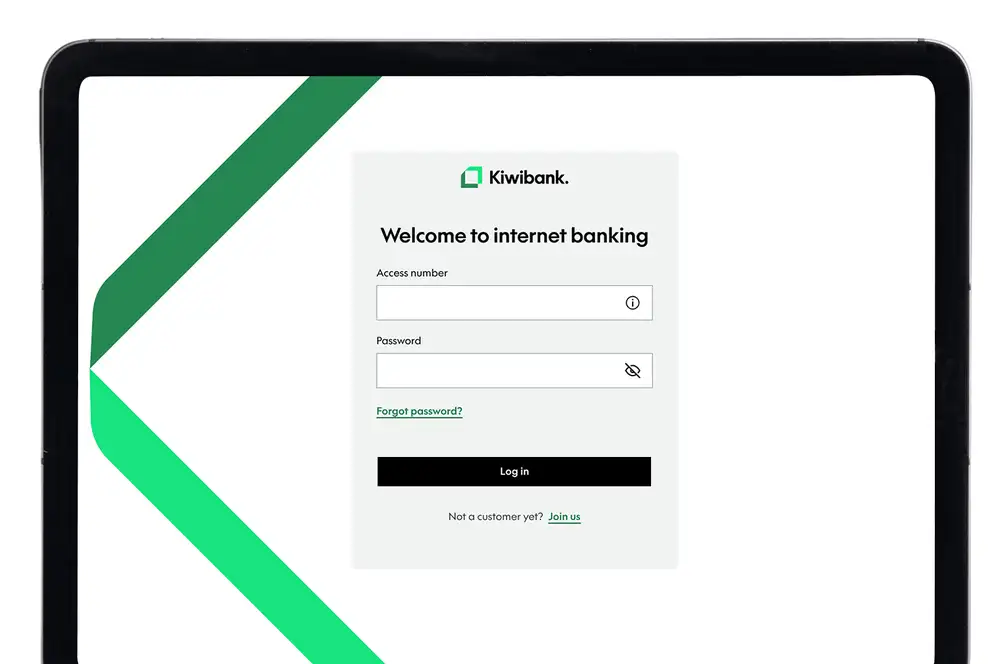
- Go to the internet banking login page.
- Enter your access number and the temporary password sent via SMS to your registered mobile when you joined online. Click 'Log in'.
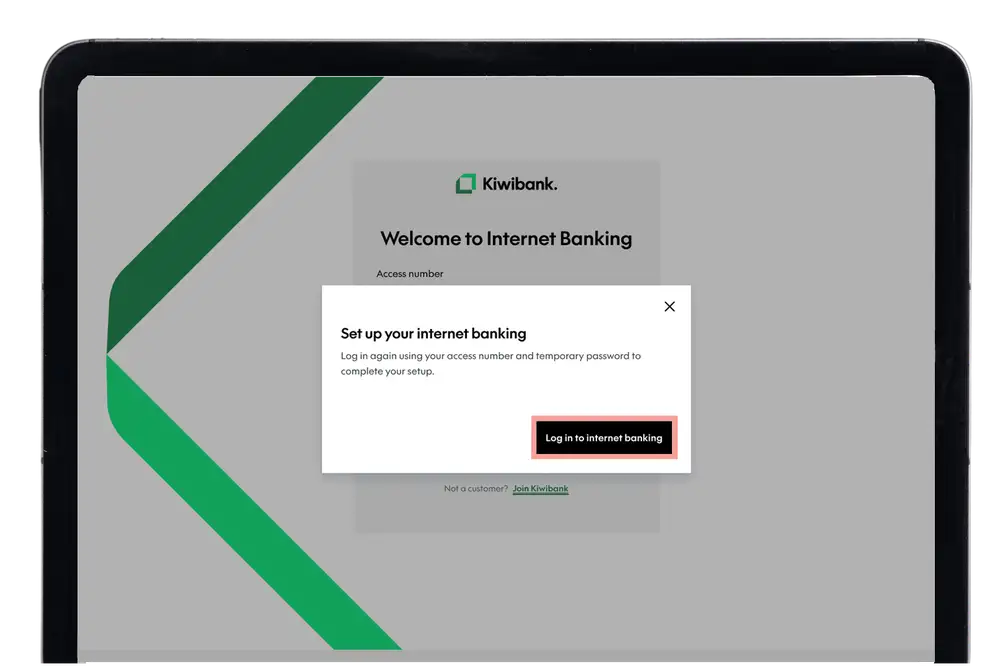
- A pop-up will ask you to log in again - this is expected. Click 'Log in to internet banking' to continue, and you'll be redirected to a new page.
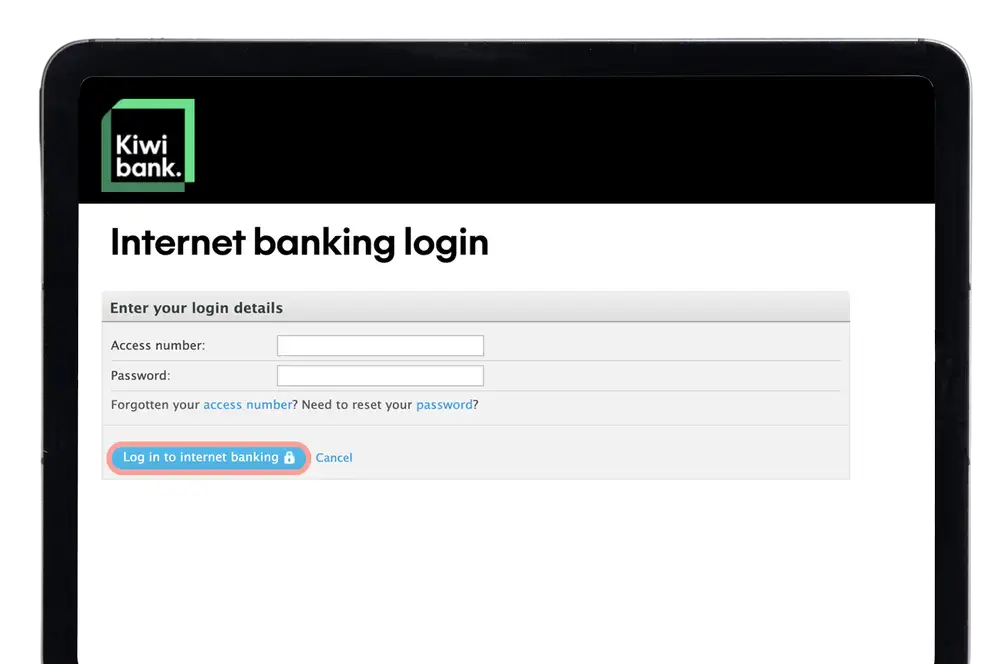
- Re-enter your access number and temporary password, and click 'Log in to internet banking'.
You need to log in and change your password within seven days of receiving your temporary password. If it expires, please contact us.
-
2 / 4
Change your password
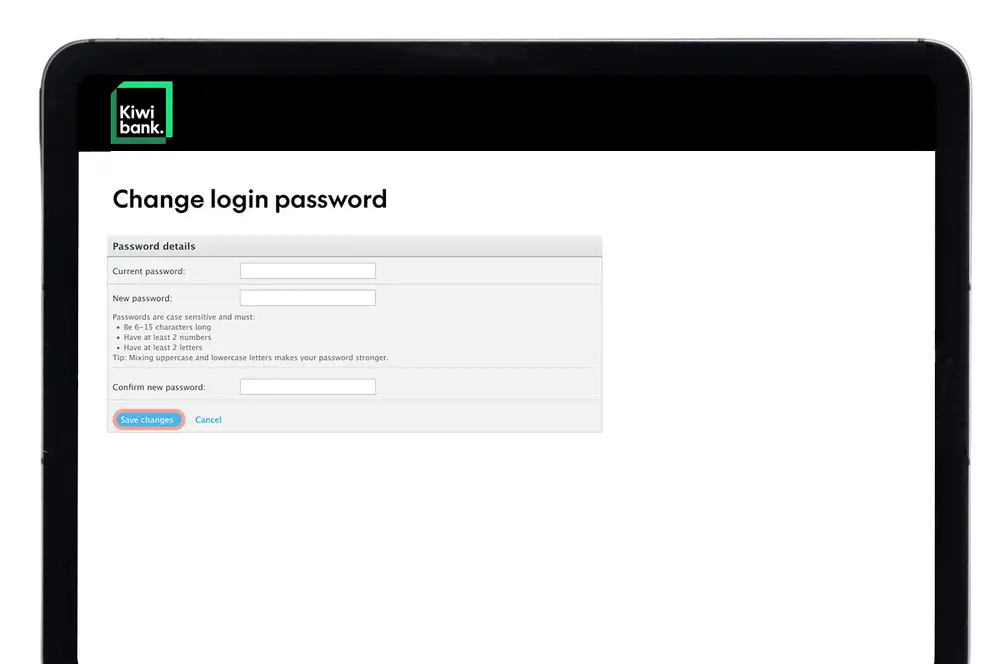
- Enter your temporary password.
- Enter your new password.
- Re-enter your new password to confirm it.
- Click 'Save changes'.
To stay protected, choose a password that includes symbols and spaces, and avoid using personal information that could be found on social media. Make sure it’s completely different from passwords you’ve used before.
Remember to keep your password secure by never disclosing what it is to anyone.
You can change your password at any time.
-
3 / 4
Set up KeepSafe
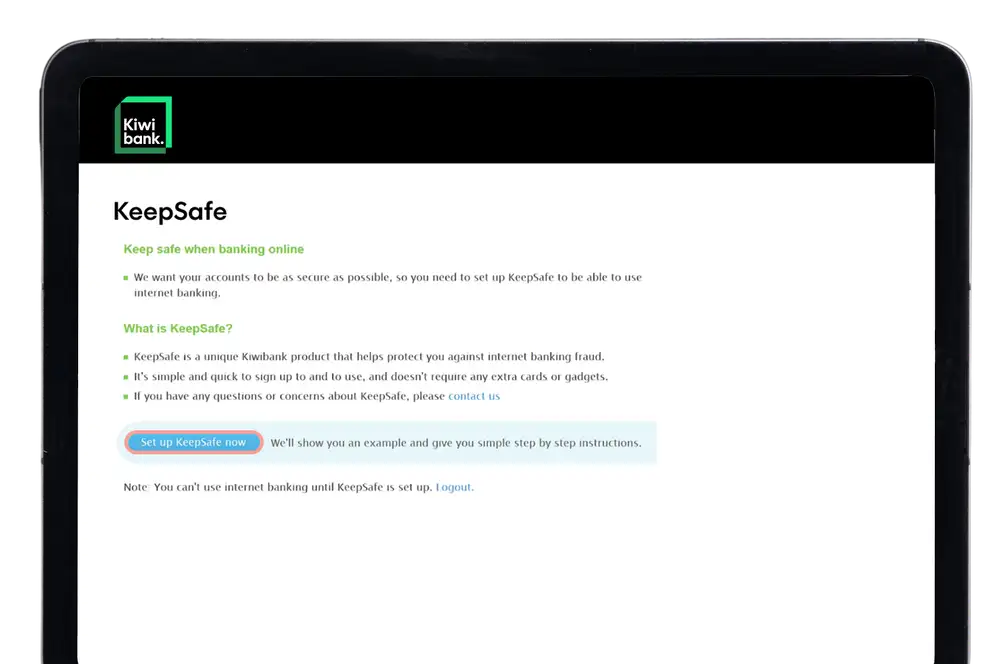
KeepSafe is an extra layer of security used when you log in to internet banking.
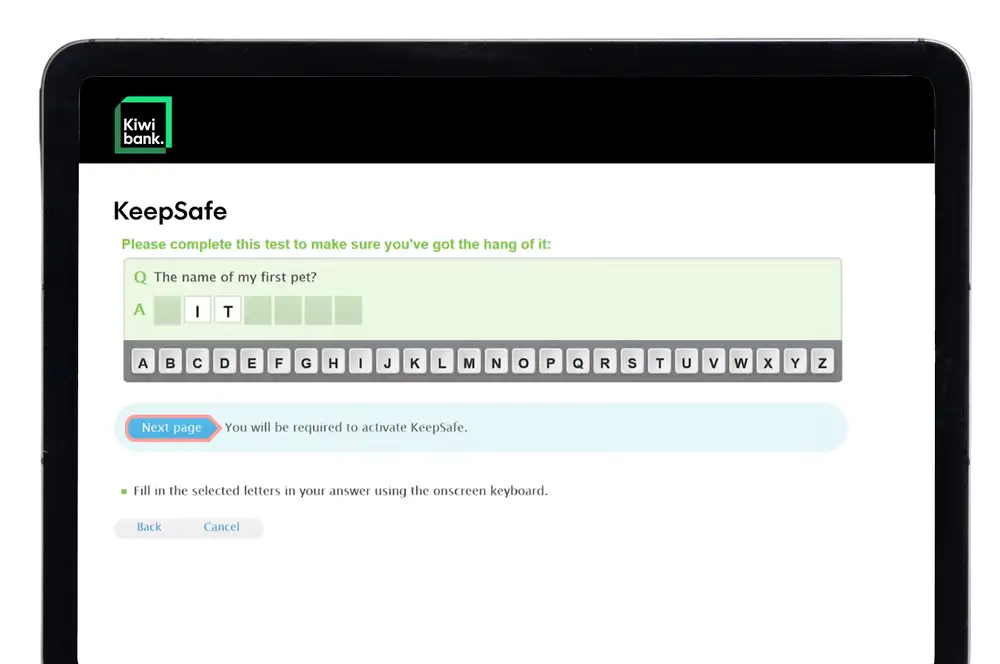
- Once you've read through the KeepSafe information, click 'Set up KeepSafe now'.
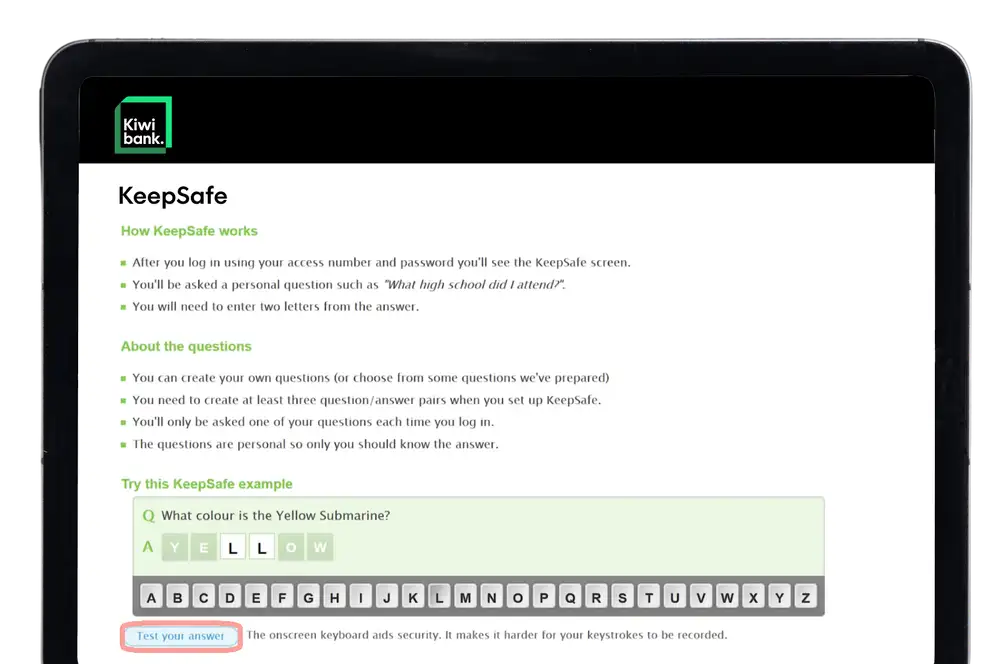
- Enter the missing letters in the white boxes using the on-screen keyboard.
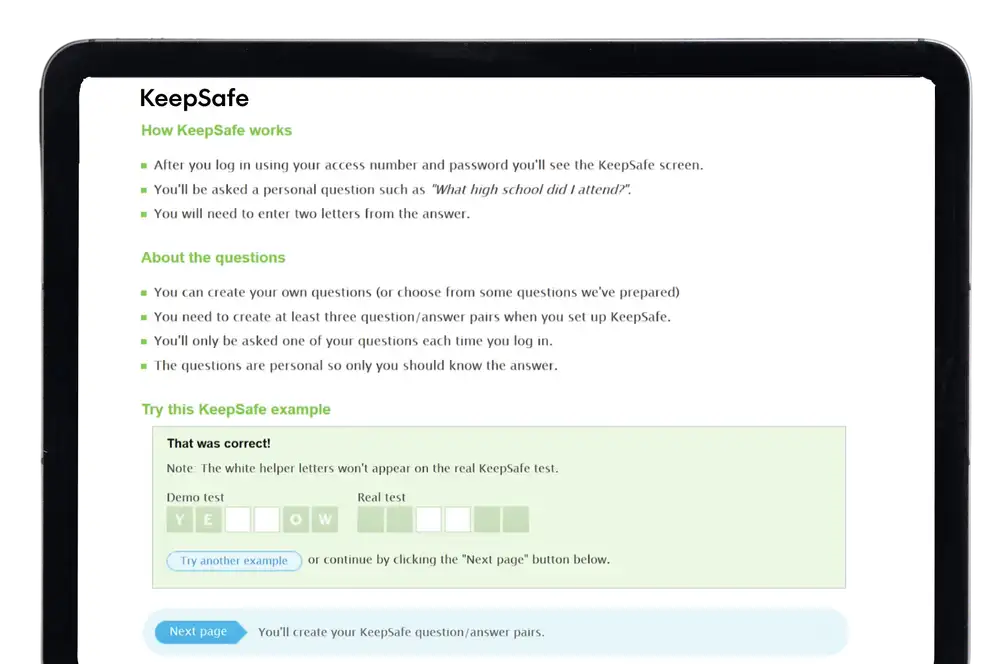
- Click 'Test your answer' to complete the KeepSafe example.
- When you're comfortable with how KeepSafe works and ready to set up your own questions, click 'Next page'.
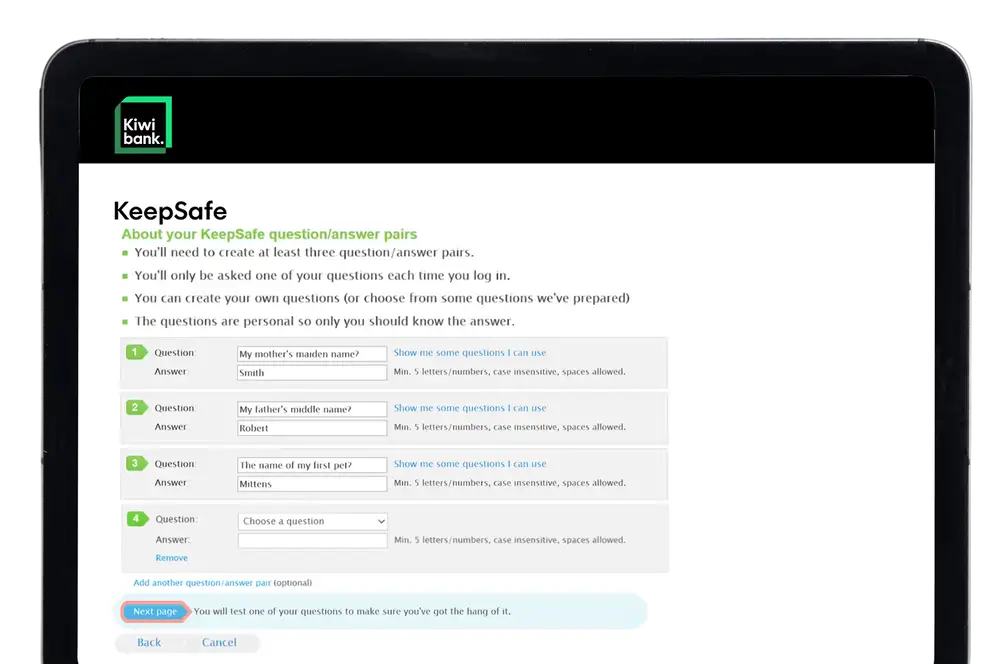
- Select a minimum of three KeepSafe questions and fill in answers for each. To see a pre-made list of questions, click 'Show me some questions I can use'. To add another question, click 'Add another question/answer pair'.
- Once you've added your questions and answers, click 'Next page'.
- Click the on-screen keyboard to test your own questions and answers.
-
4 / 4
Turn KeepSafe on
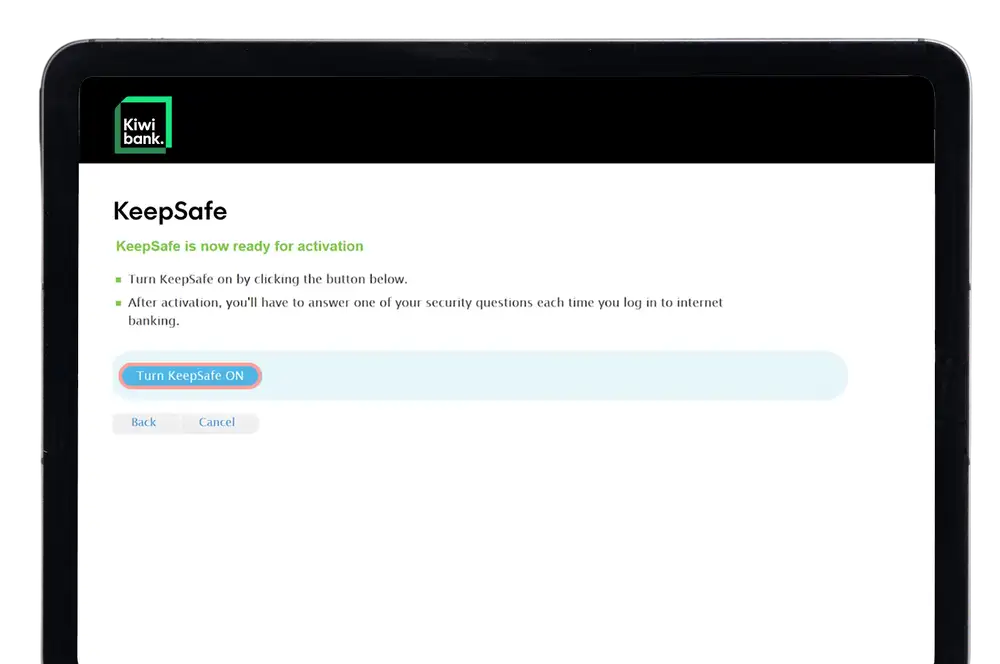
- Click 'Turn KeepSafe ON' to use internet banking.
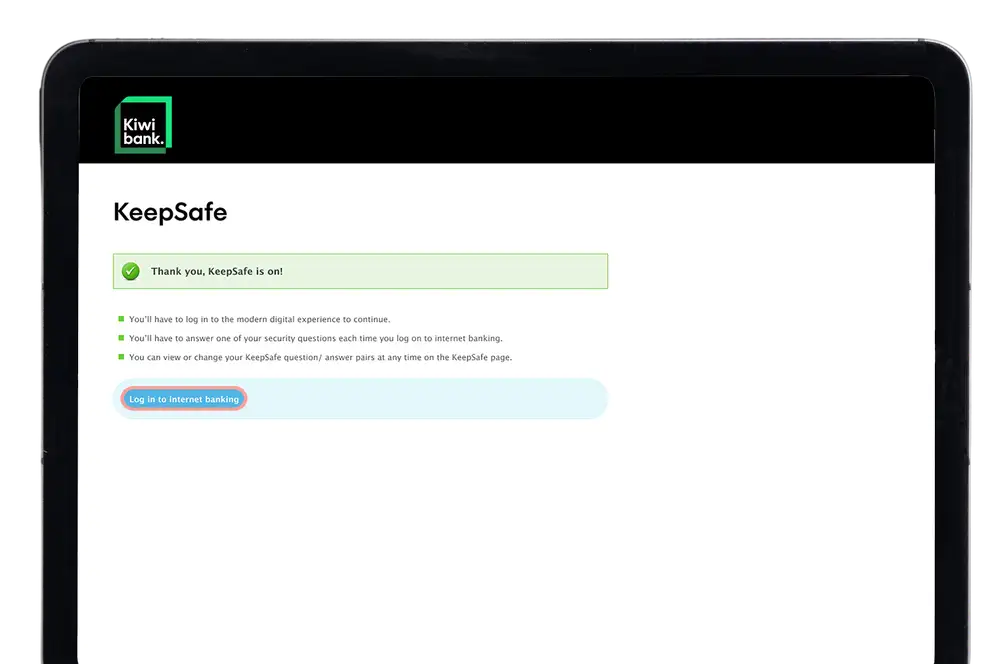
- Click 'Log in to your internet banking' - this will redirect you to a new page.
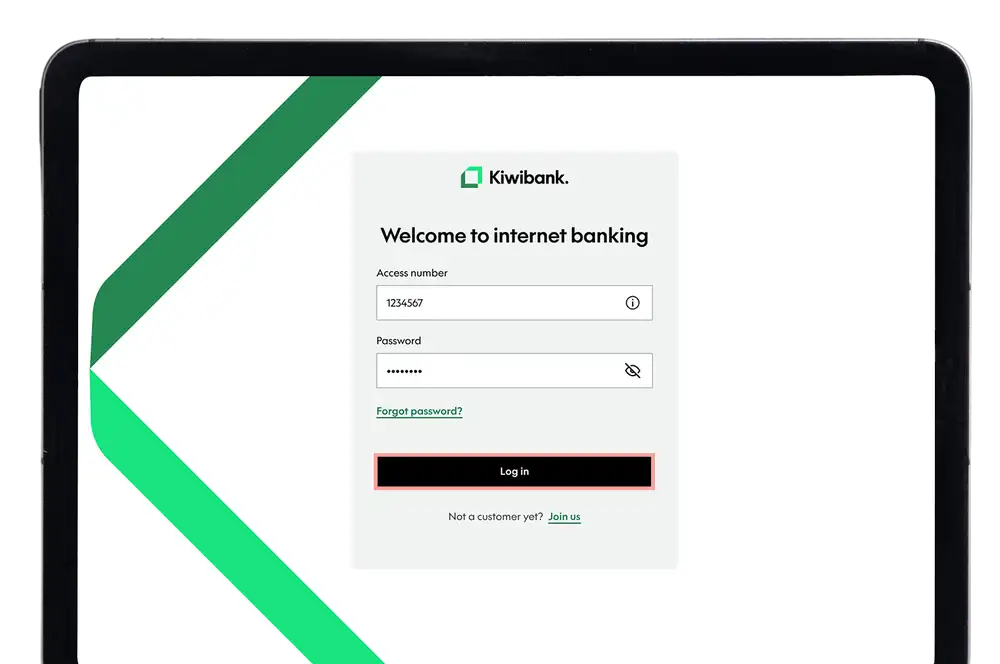
- Enter your access number and new password to log in.
Supported browsers
For the best and most secure experience, use the latest version of a supported browser.
JavaScript and cookies must be enabled to use our internet banking. If JavaScript isn't activated, you’ll see a message when you try to log in. JavaScript is normally on by default in our supported browsers.
What if I don’t use the supported browsers?
While many unsupported browsers may still work, they haven’t been fully tested. This means some parts of the site might not work correctly or securely. If you're having technical issues and you're not using a supported browser, we recommend downloading one of the browsers listed above.
How do I know which browser version I’m using?
To check which browser you’re using:
- Open your browser
- Click either ‘Help' or ‘Settings'
- Select the ‘About’ browser option e.g. ‘About Google Chrome’