Mobile app
-
1 / 6
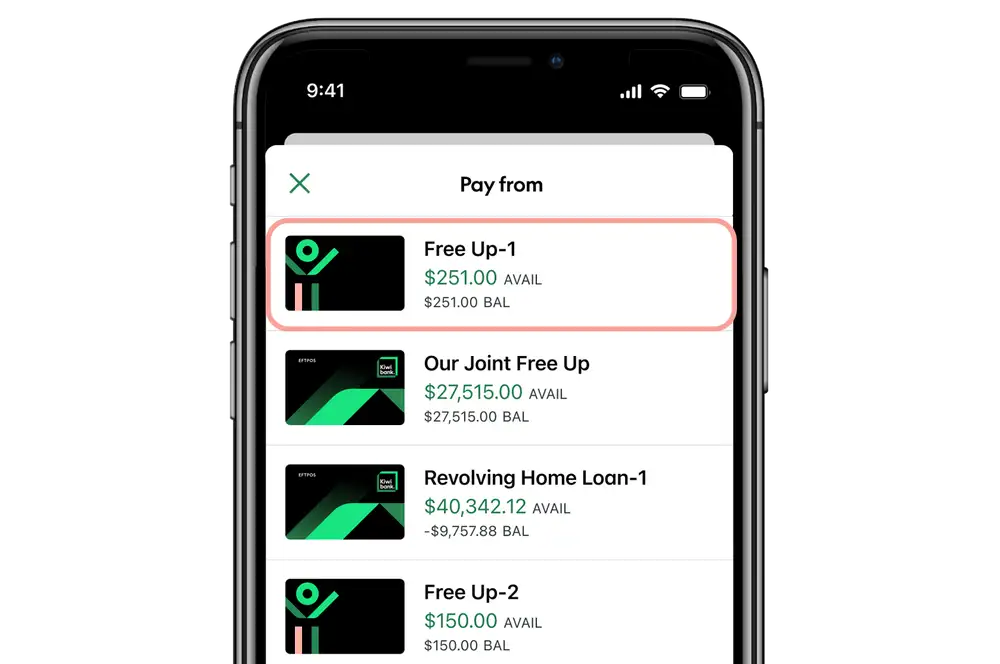
Select which account to pay from
- Log in to the mobile app.
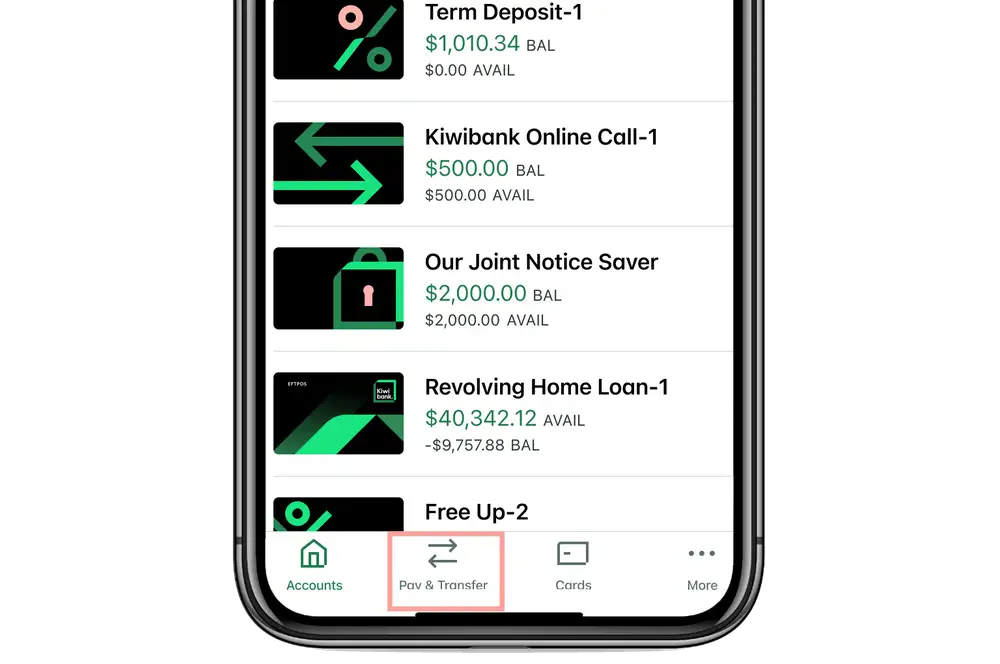
- Tap 'Pay & Transfer' at the bottom of the screen.
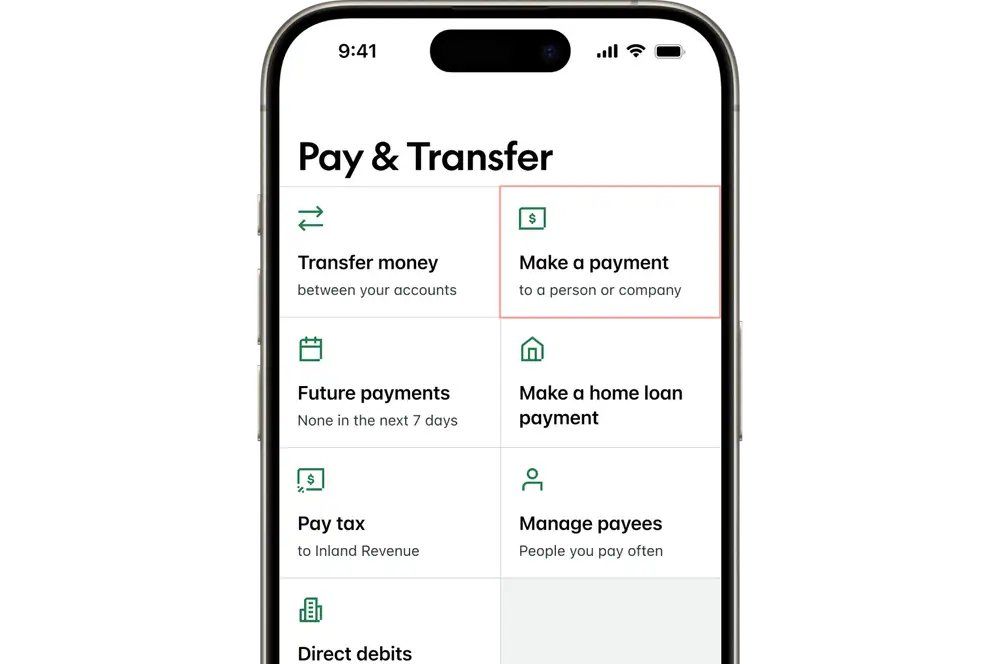
- Select 'Make a payment'.
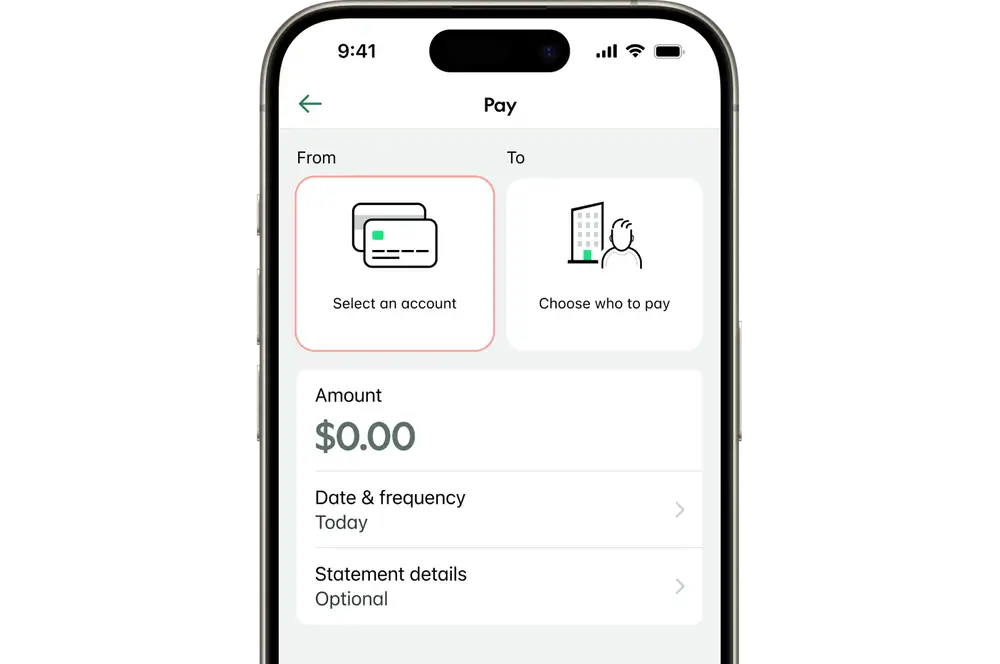
- Tap ‘Select an account’.
- Select the account you'd like the payment to come from.
-
2 / 6
Add where the payment is going
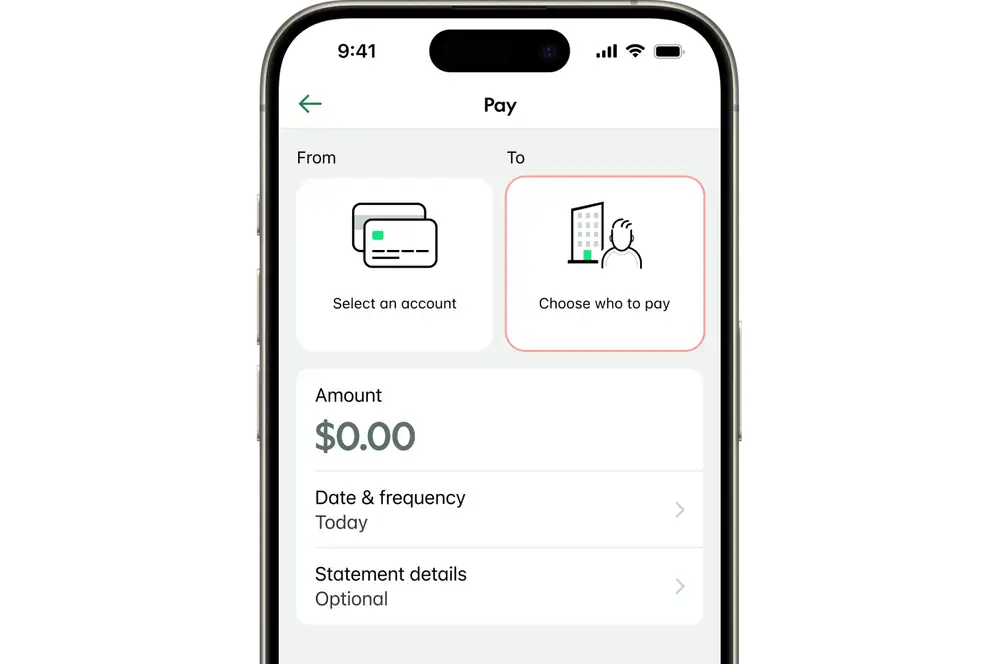
You'll need to select an account you'd like the payment to go to. This might be a saved payee from your list or a new payee.
A payee is the person or business who you're making a payment to. Each payee will have its own unique account number.
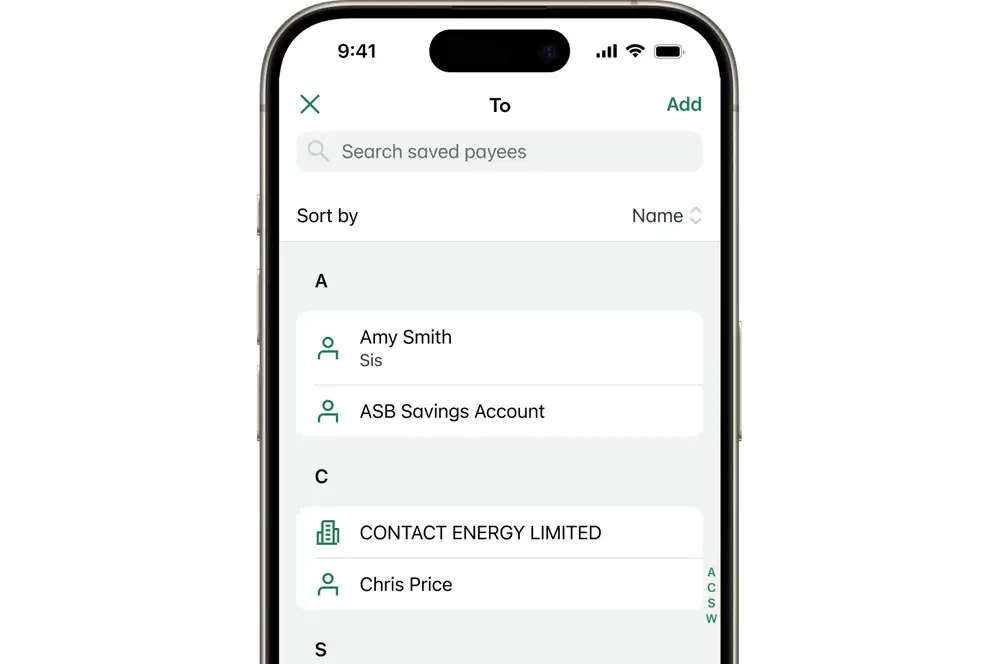
Select saved payee
- Tap ‘Choose who to pay’.
- Select from the list of saved payees.
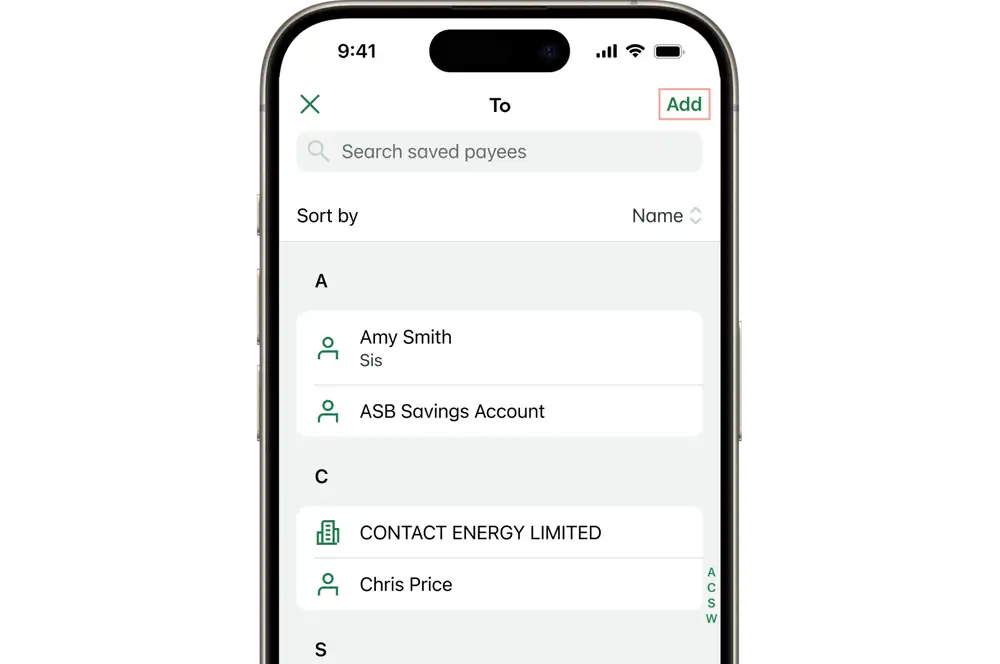
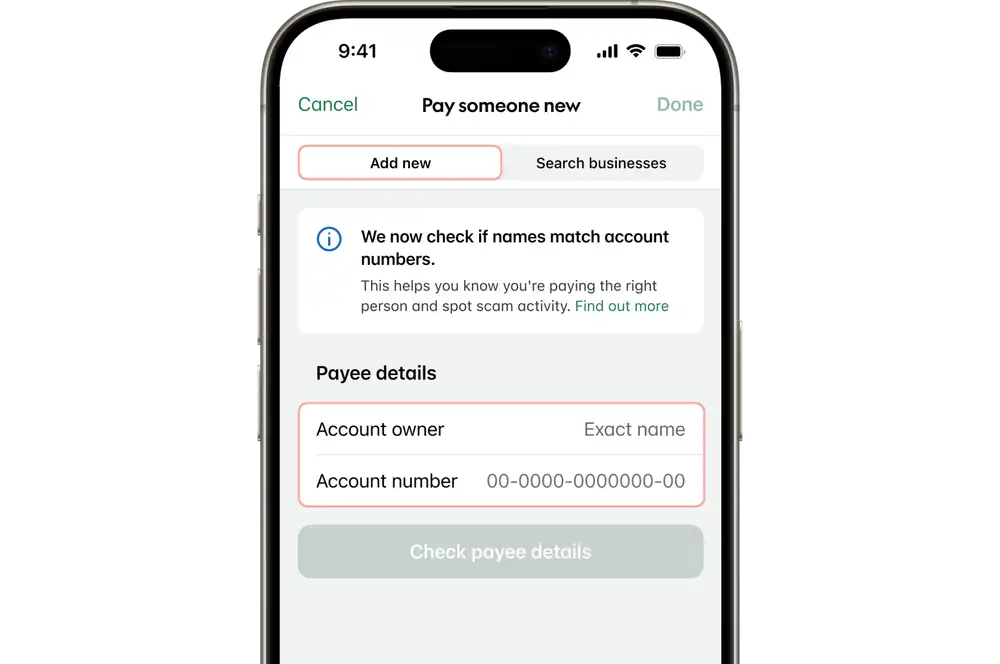
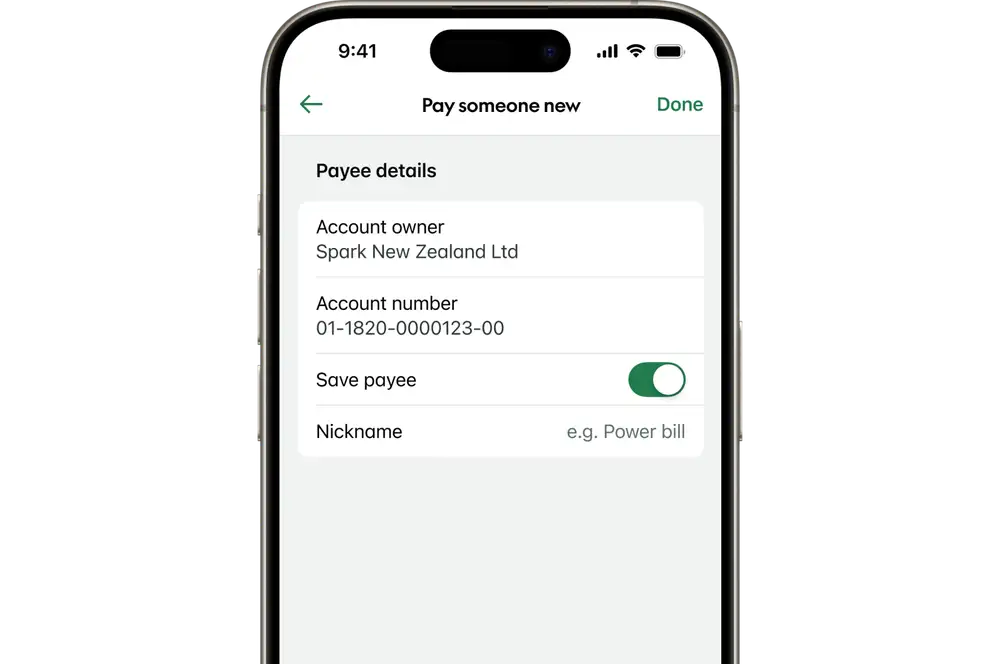
Add a new payee
- Tap 'Choose who to pay'.
- Select 'Add' at the top of the screen.
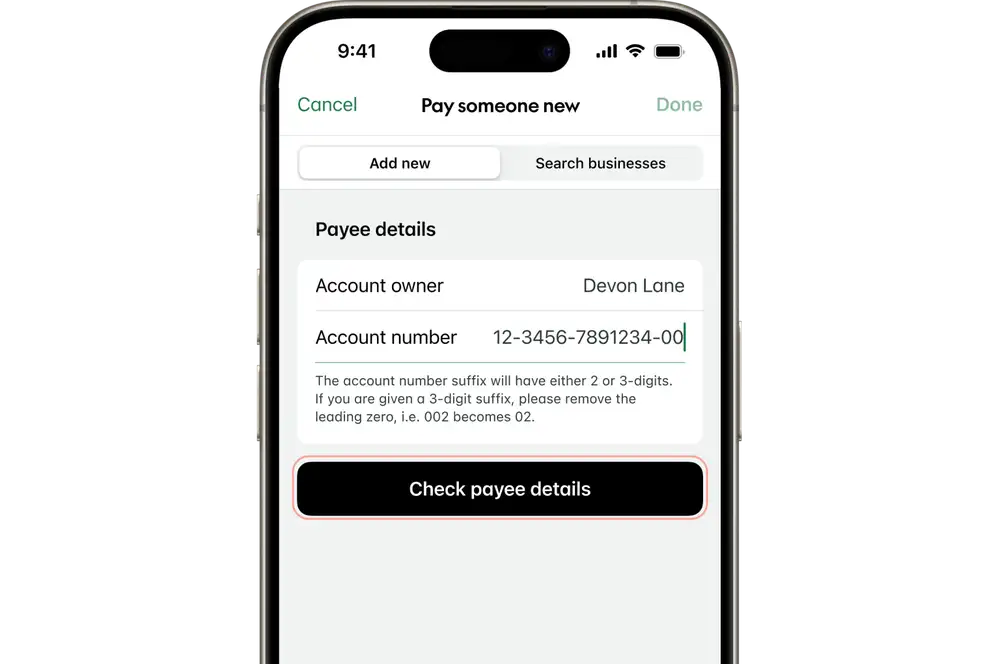
- Enter the account owner name.
- Enter the account number.
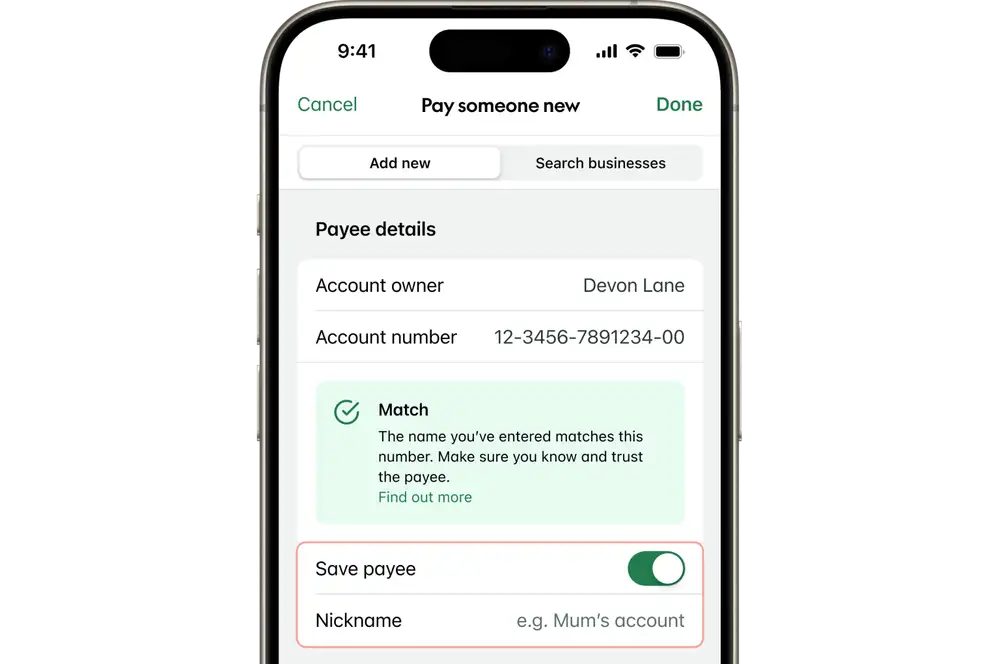
- Tap 'Check payee details'*.
- Tap the toggle off if you don't wish to save the payee details.
*To find out more about checking payee details, visit our Confirmation of Payee page.
-
3 / 6
Add a business as a payee
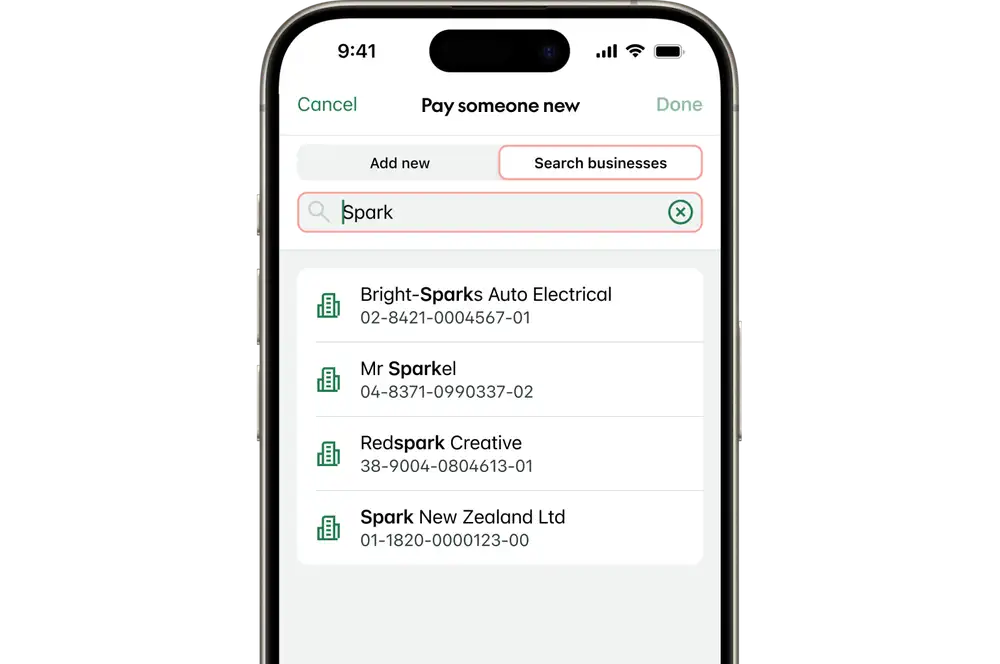
For some businesses or organisations we already have their account details so you won't need to manually enter them. If you can't find the business you're looking for, you'll need to add them as a new payee.
- Tap 'Add'.
- Select 'Search businesses'.
- Tap 'Search businesses'.
- Enter the business name.
- From the search results tap on the business you're wanting to pay.
- Tap the toggle off if you don't wish to save the payee details.
-
4 / 6
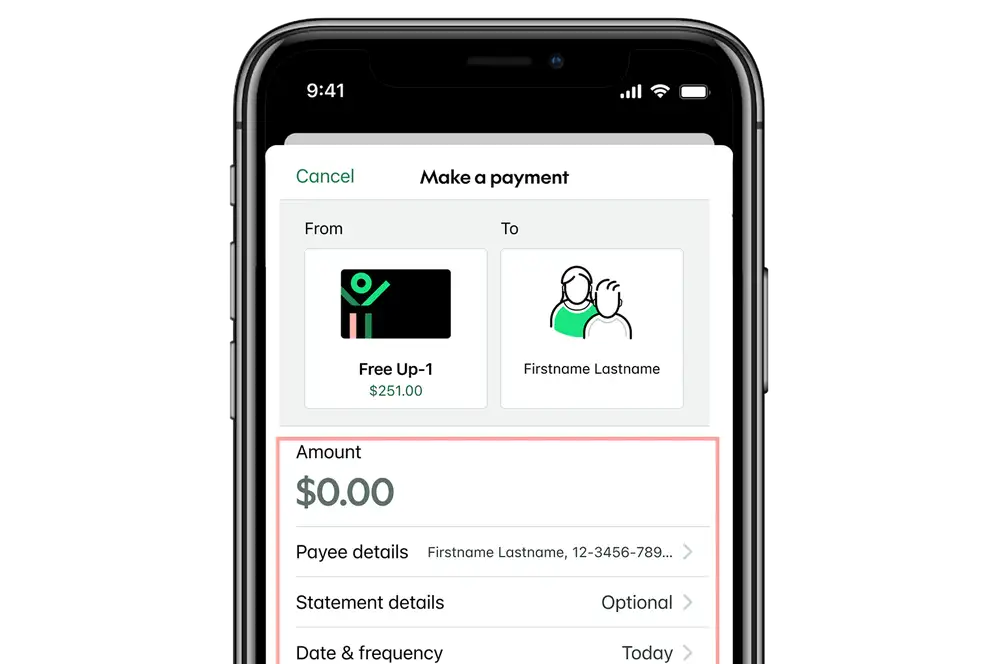
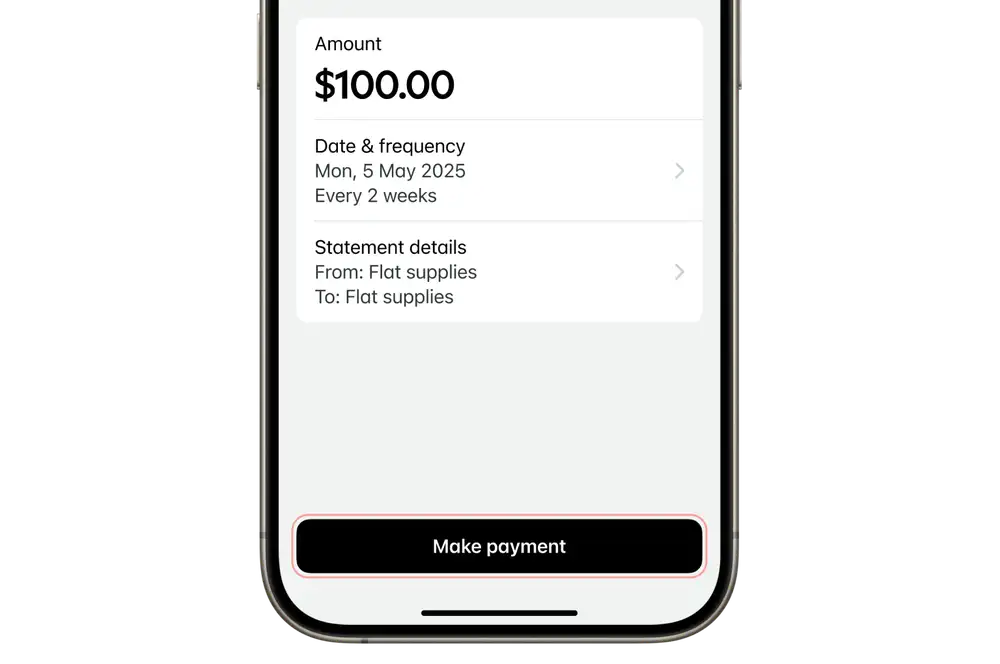
Enter the payment details
- Enter the payment amount.
- Enter the statement details.
- To make this a recurring payment, tap 'Date & frequency'.
-
5 / 6
Confirm your payment
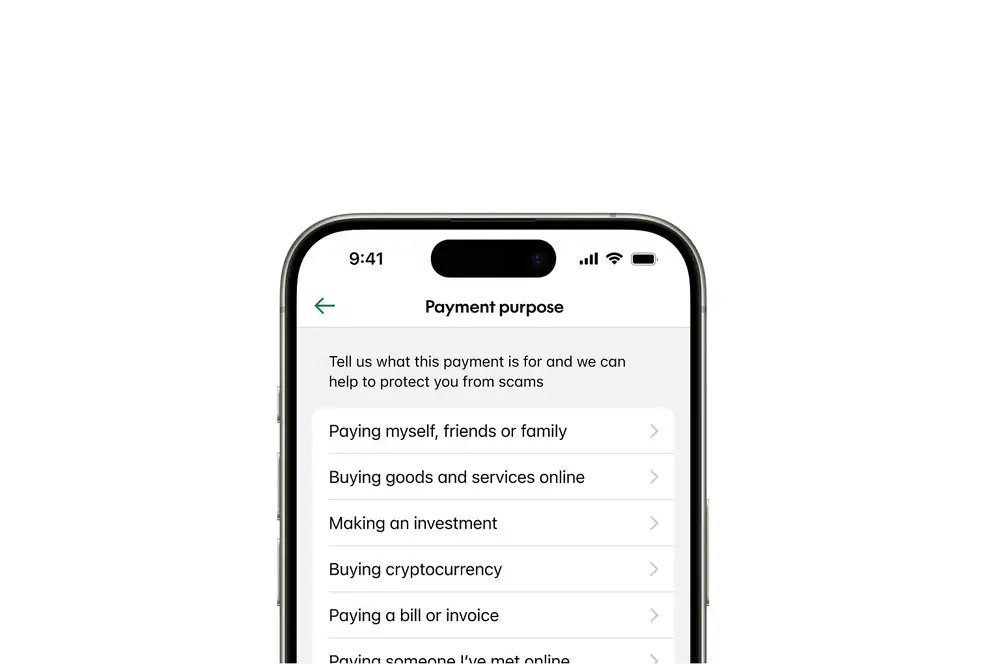
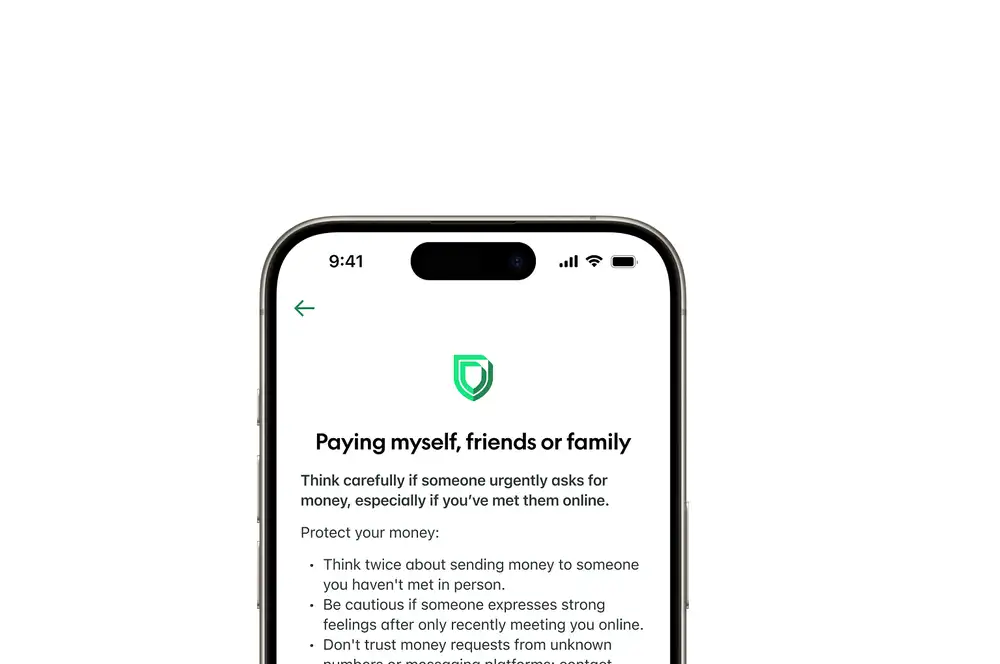
To help protect you from scams, we may ask you for a payment purpose before you confirm.- If you're asked for a payment purpose, select the option that best fits your payment, and tap 'Continue'.
- We’ll show you scam protection messages to help you decide if you want to continue with your payment. If you're ever unsure, pause and reach out, 24/7 support is available.
- Tap 'Continue' to proceed.
We'll flag potential fraud risks:
- If we detect something unusual about the payment, we'll let you know there may be a fraud risk. You'll have the option to continue or cancel the payment.
- In some cases, we may decline the payment to protect you.
Learn more about how we're making your payments safer.
-
6 / 6
Complete your payment
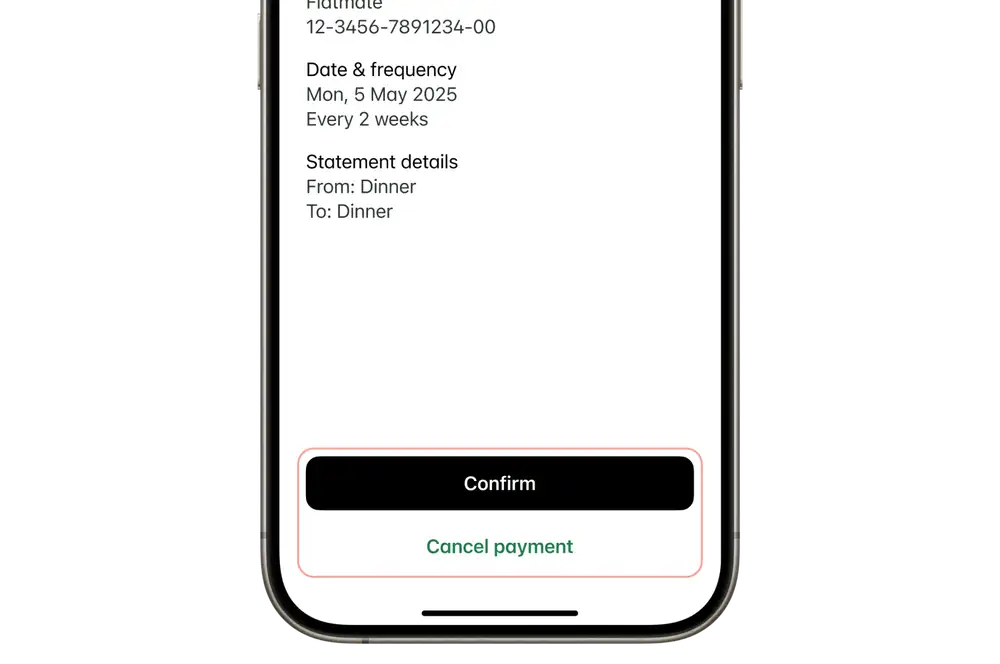
- Tap 'Make a payment'.
- Select 'Confirm', to make the payment.
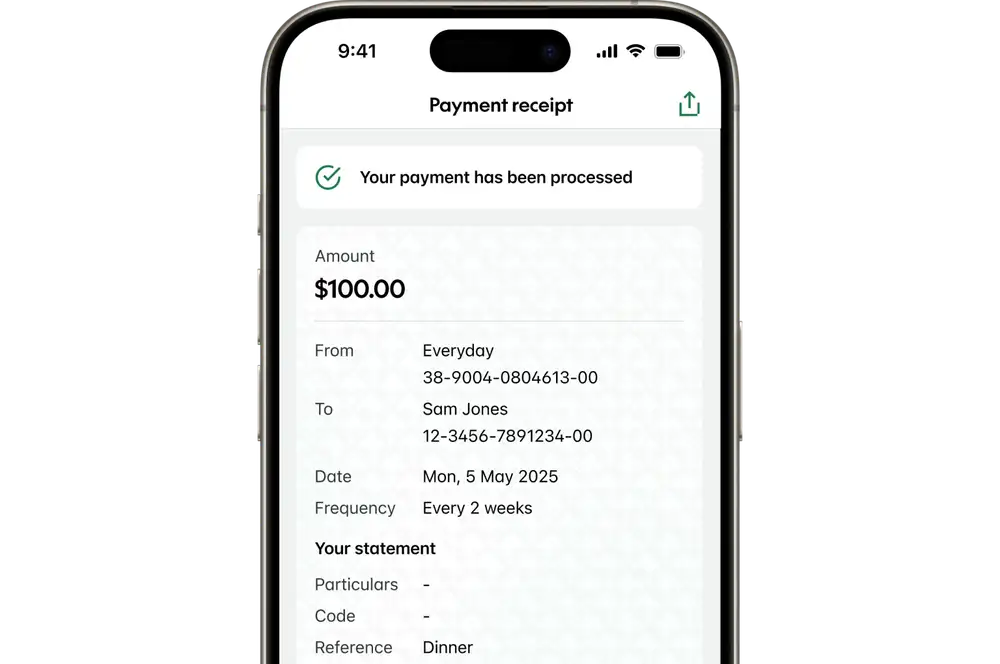
See more about when your payment will be processed.
Internet banking
-
1 / 7
Start the payment
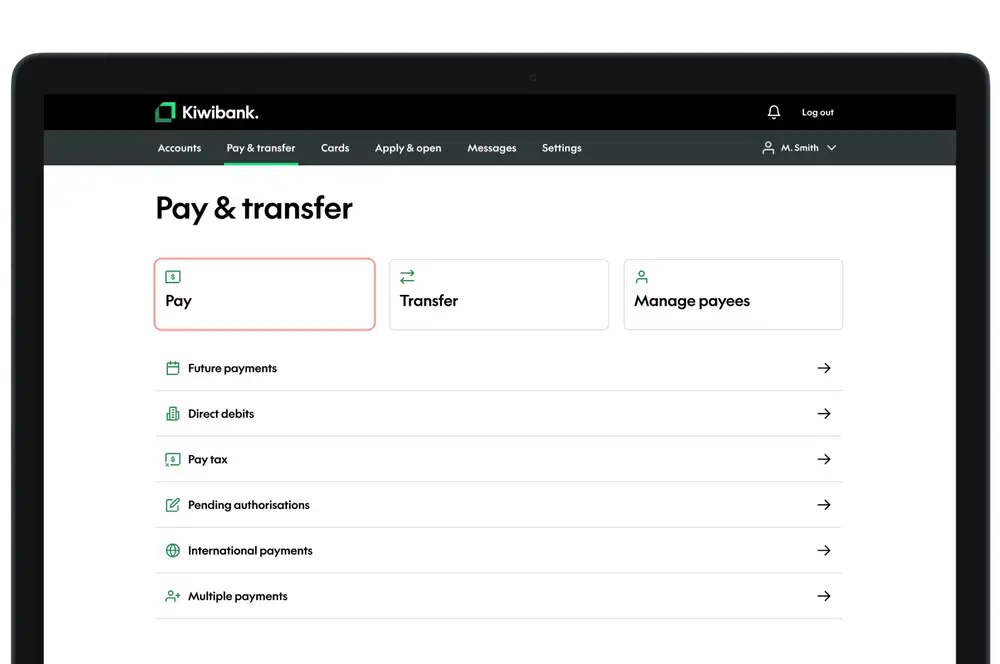
There are a few ways to start the payment, these steps show the way from 'Pay & transfer'.
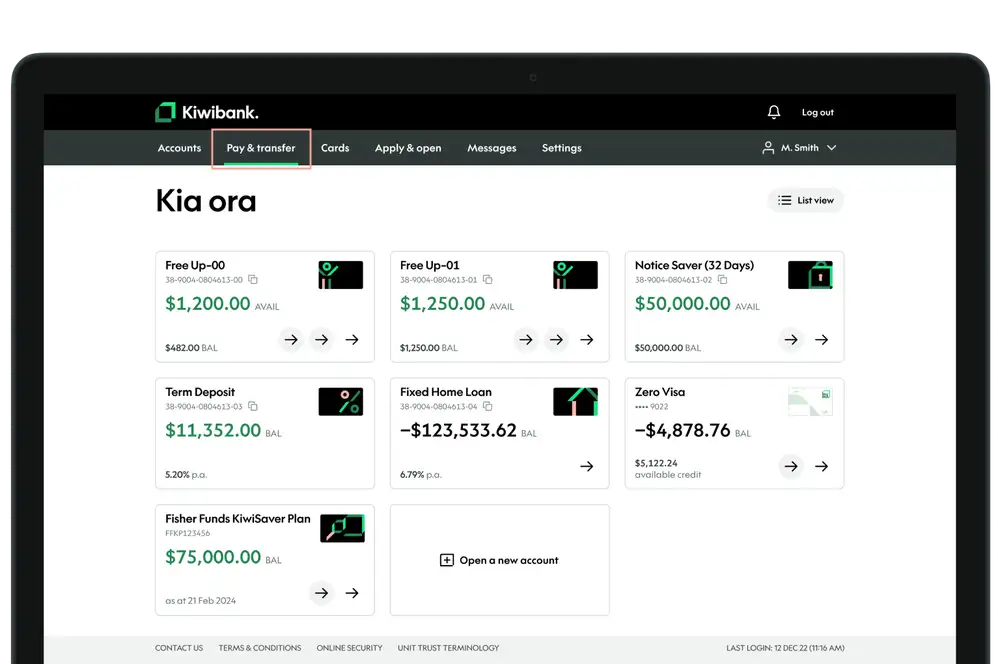
- Log in to internet banking.
- Select 'Pay & Transfer' at the top of the screen.
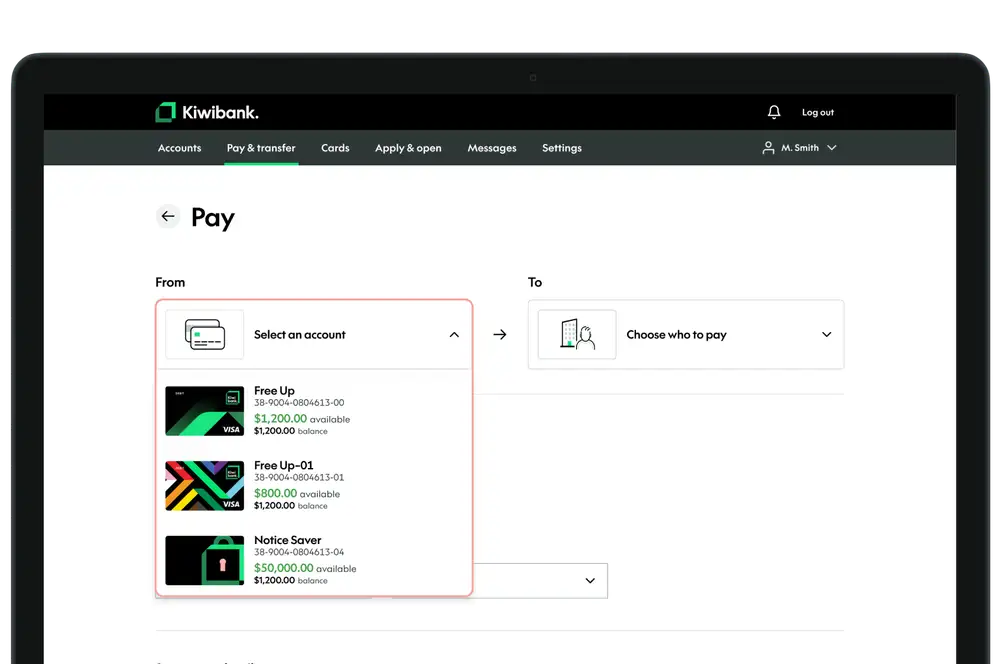
- Click 'Pay'.
- Select which account you'd like to make the payment from.
-
2 / 7
Add where the payment is going
You'll need to select an account you'd like the payment to go to. This might be a saved payee from your list or a new payee.
A payee is the person or business who you're making a payment to. Each payee will have its own unique account number.
Select a saved payee
If you've previously saved someone's details.
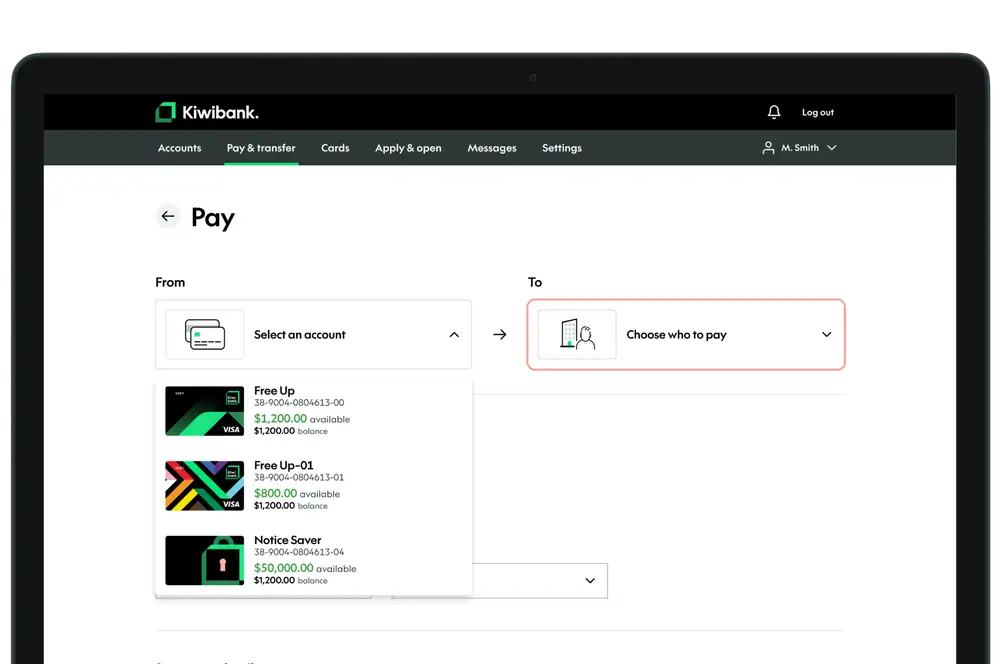
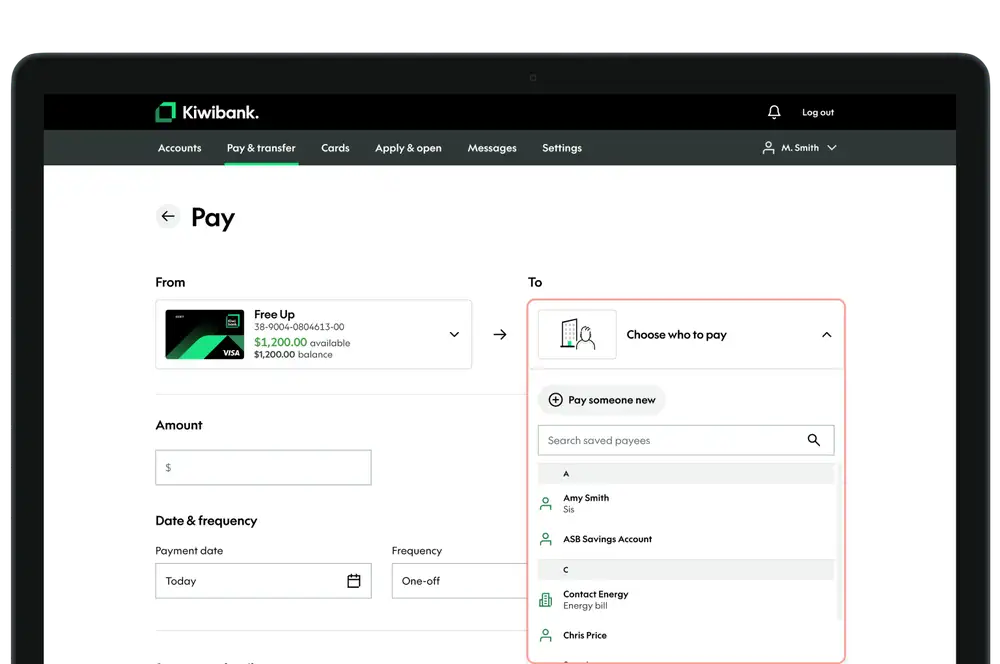
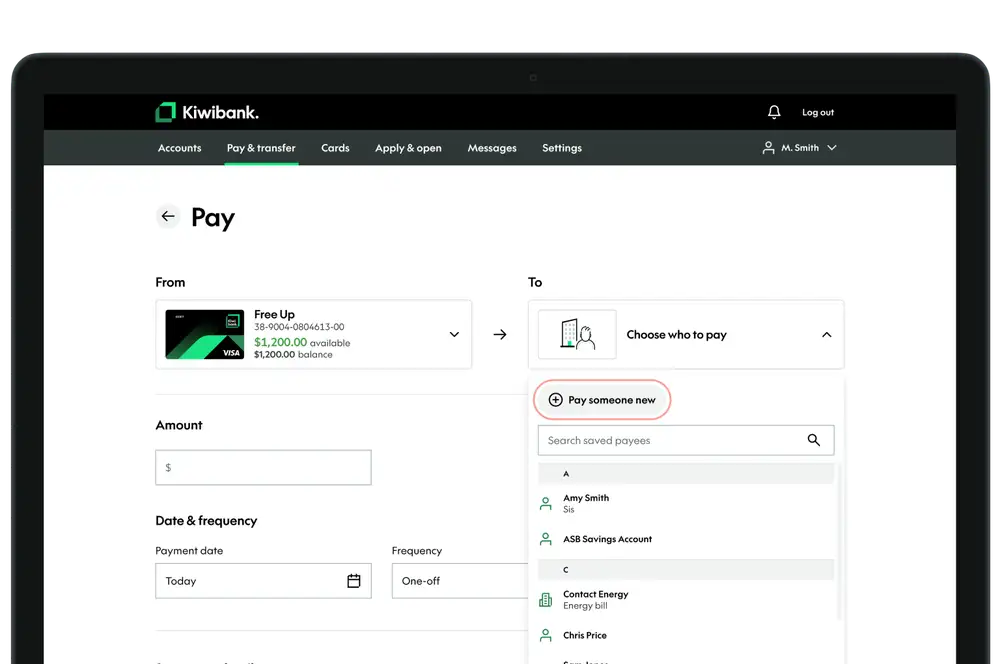
- Click 'Choose who to pay'.
- Use the search bar or scroll through to find a saved payee.
- Enter the remaining payment information.
Add a new payee
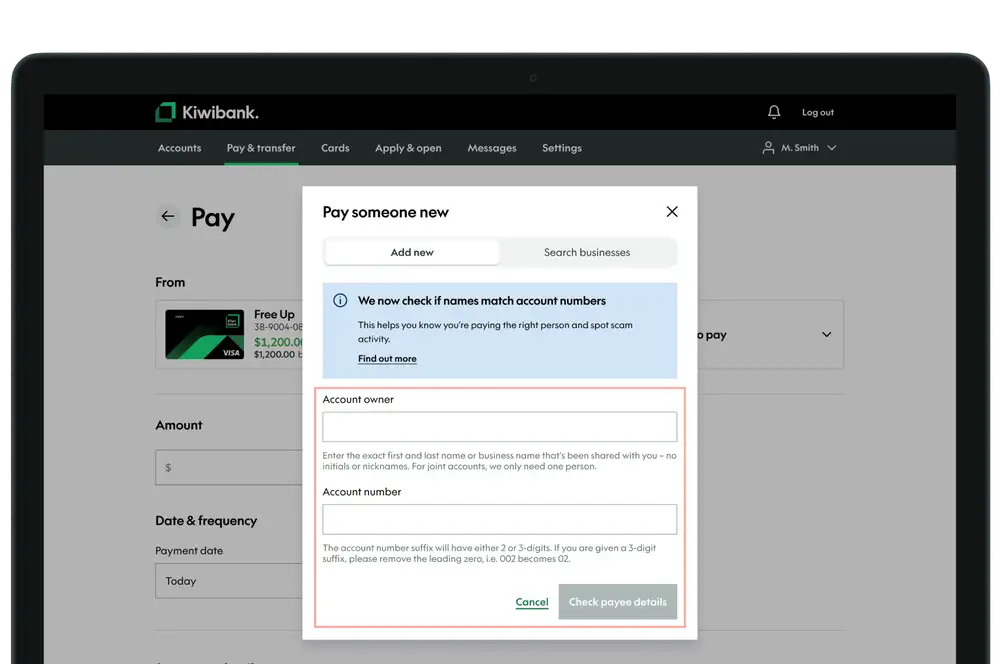
- Click 'Choose who to pay'.
- Click 'Pay someone new'
- Enter the account owner name.
- Enter the account number.
- Click 'Check payee details'*.
*Learn more about checking payee details with Confirmation of Payee.
-
3 / 7
Add a business as a payee
For some businesses or organisations we already have their account details so you won't need to manually enter them. If you can't find the business you're looking for, you'll need to add them as a new payee.
- Click 'Choose who to pay'.
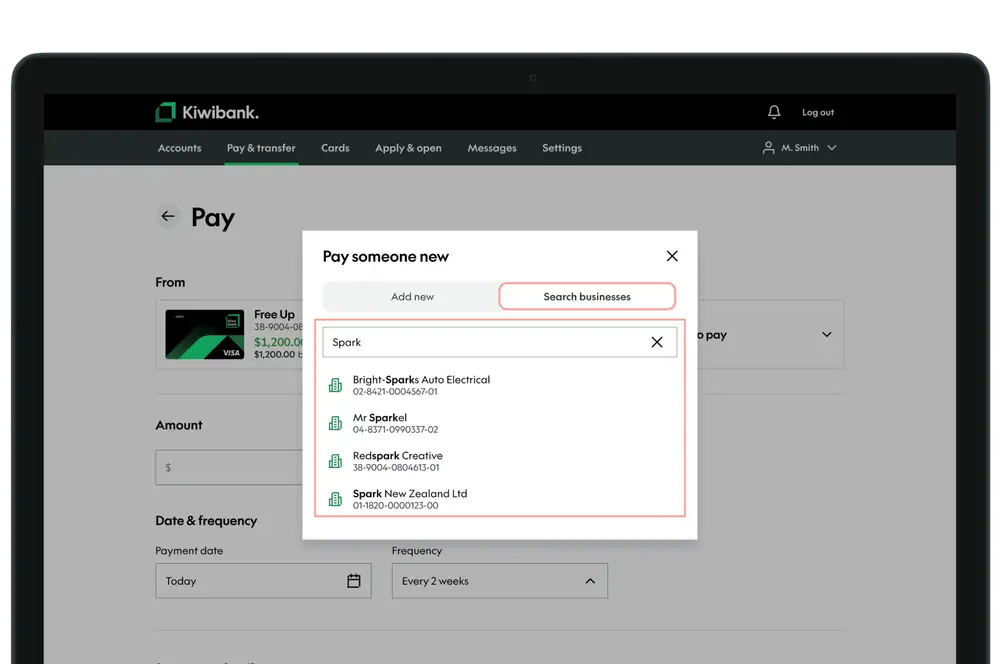
- Click 'Pay someone new'
- Select 'Add new’.
- Click 'Search businesses’
- Enter the business name into the search bar.
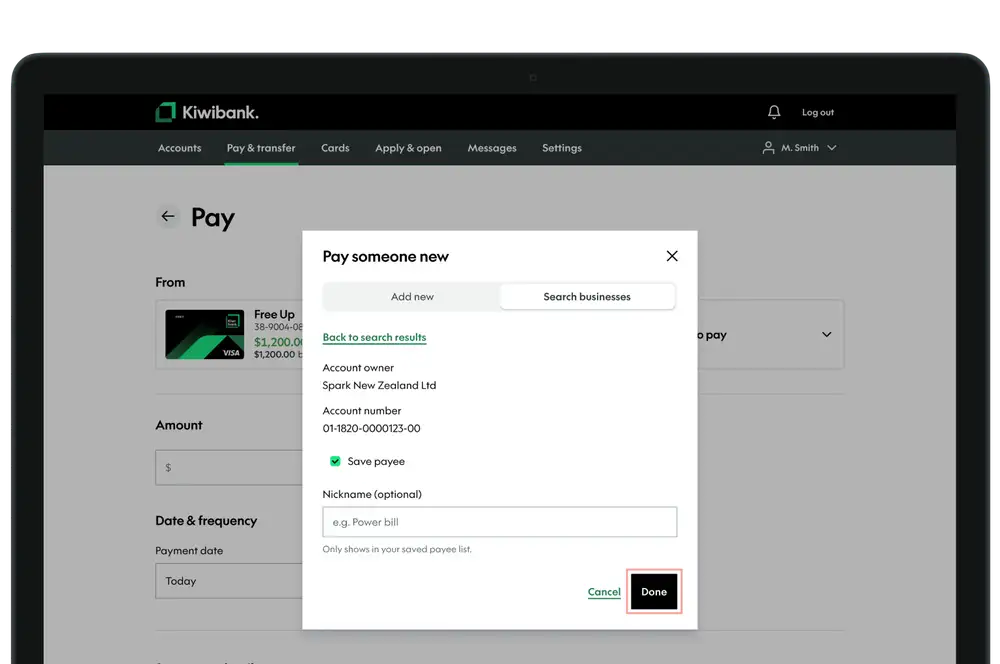
- From the search results click the business you're wanting to pay.
- Select ‘Save payee’ if you want to add them to your saved payees.
- Click ‘Done’.
-
4 / 7
Enter the payment details
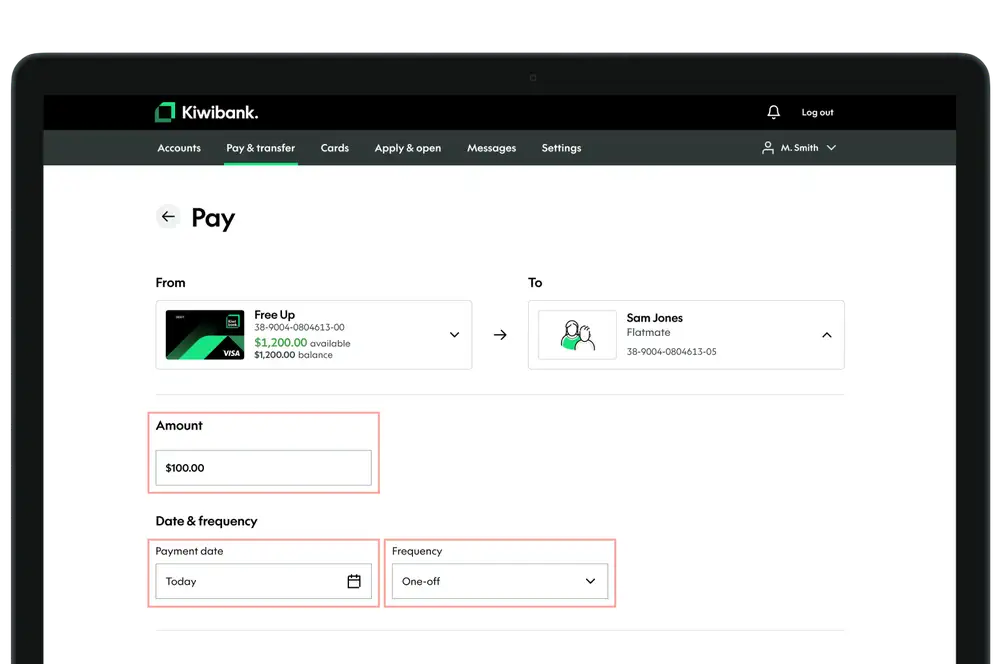
- Enter the payment amount.
- Enter the date you'd like to make the payment.
- To make this a recurring payment click the frequency drop down.
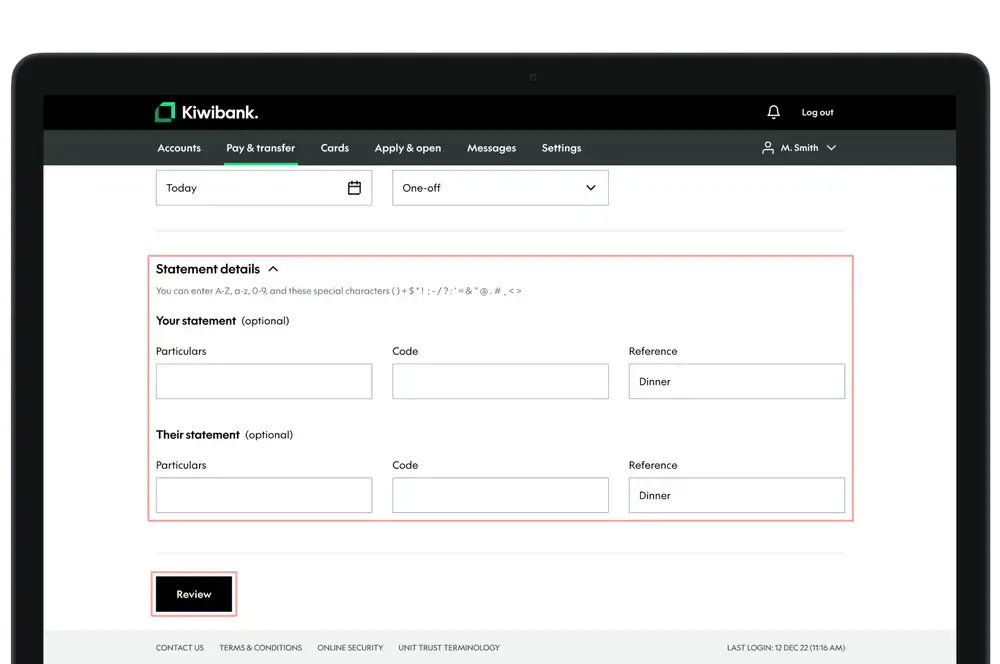
- Enter any statement details.
- Click 'Review'.
-
5 / 7
Confirm your payment
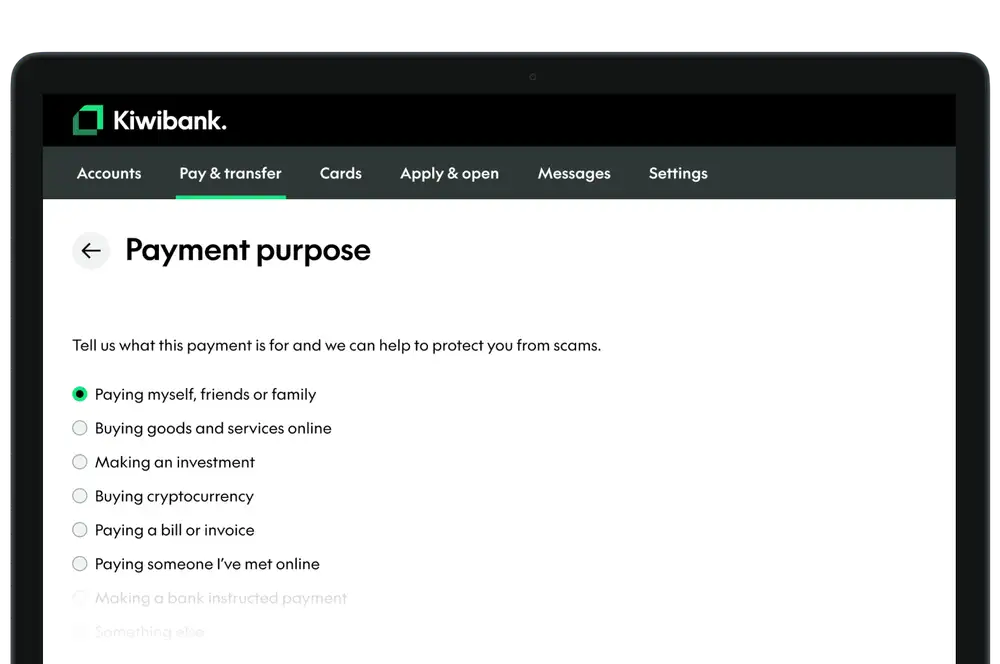
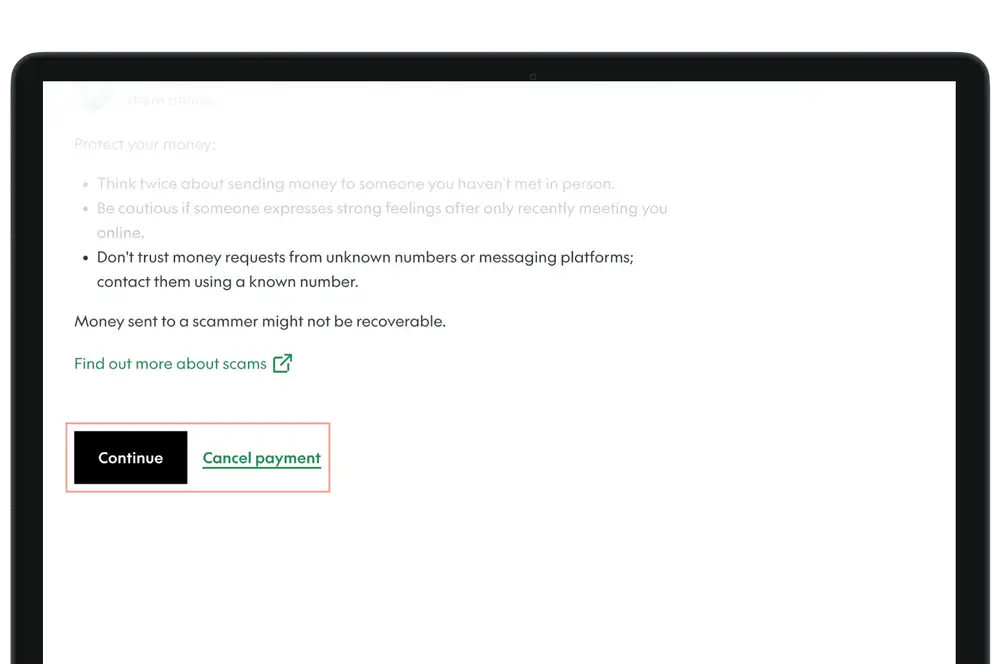
To help protect you from scams, we may ask you for a payment purpose before you confirm.- If you're asked for a payment purpose, select the option that best fits your payment, and click 'Continue'.
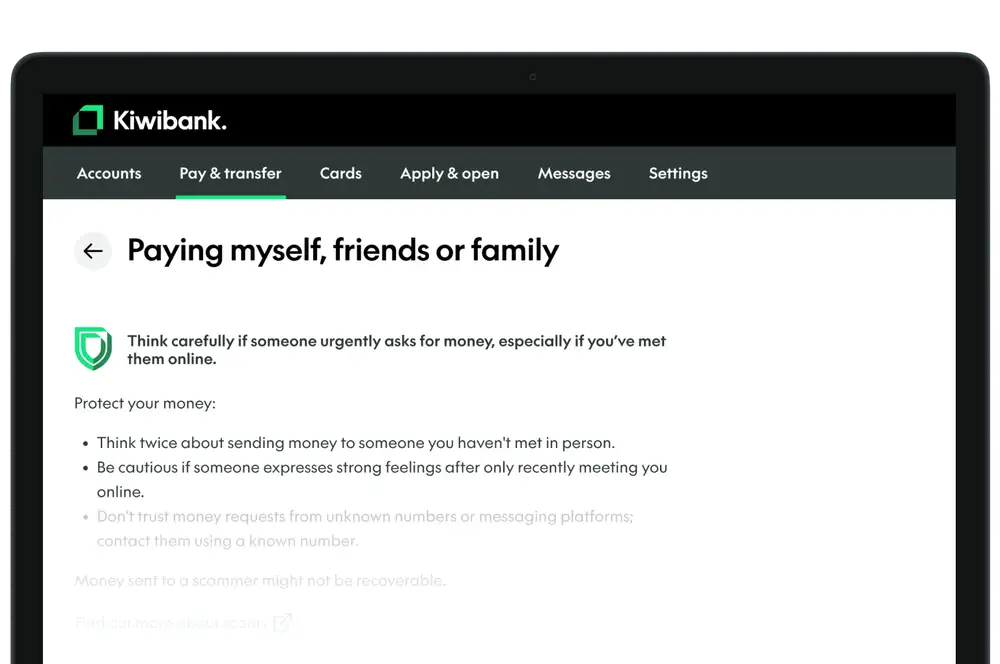
- We’ll show you scam protection messages to help you decide if you want to continue with your payment. If you're ever unsure, pause and reach out, 24/7 support is available.
- Click 'Continue' to proceed.
We'll flag potential fraud risks:
- If we detect something unusual about the payment, we'll let you know there may be a fraud risk. You'll have the option to continue or cancel the payment.
- In some cases, we may decline the payment to protect you.
Learn more about how we're making your payments safer.
-
6 / 7
Complete your payment
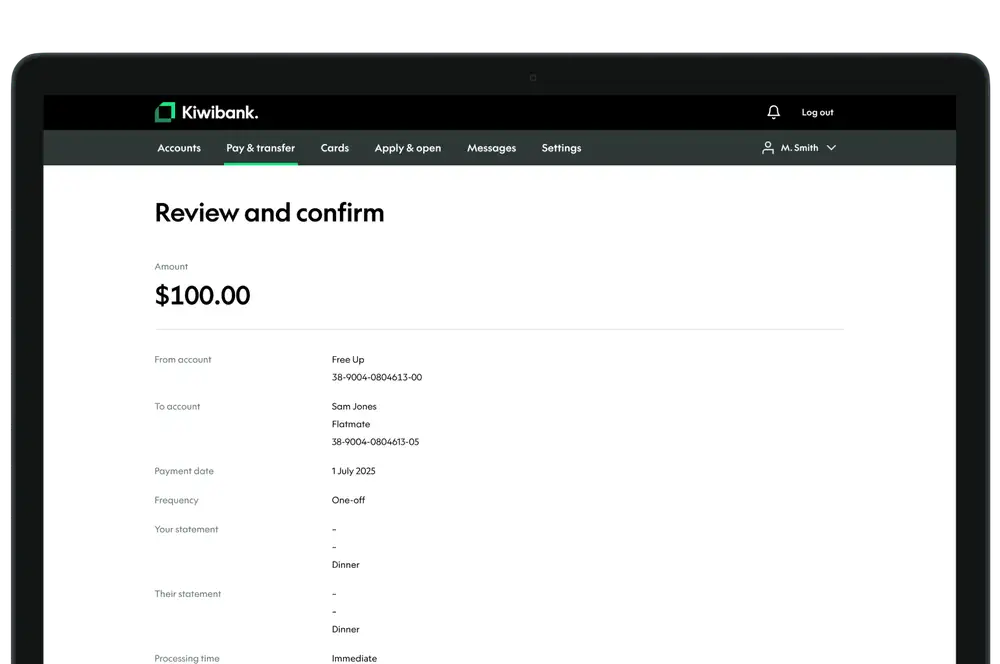
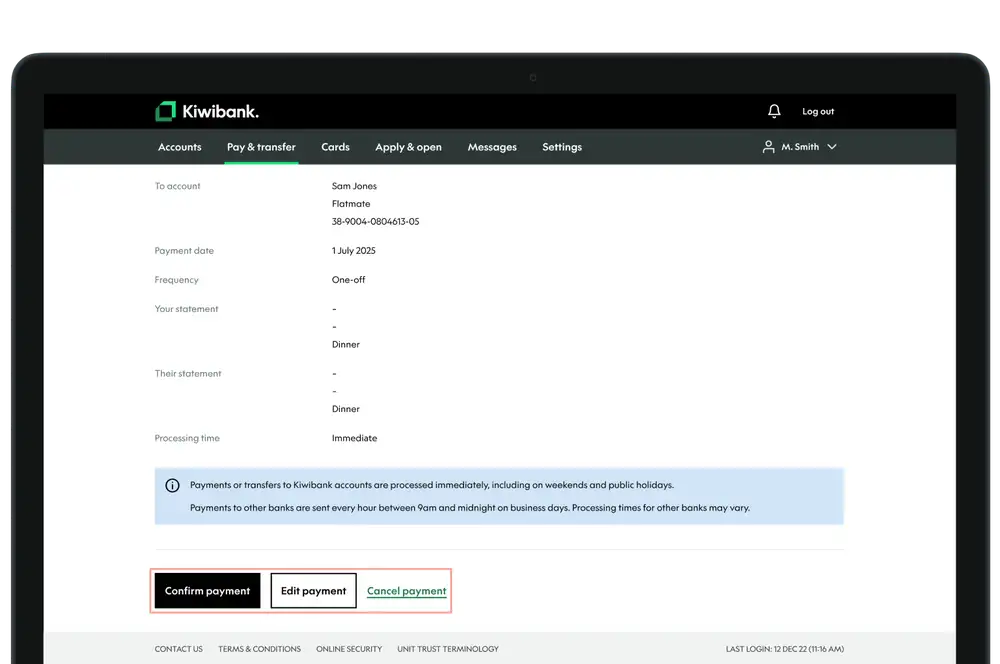
- Check the details you’ve entered.
- Click 'Confirm payment'.
-
7 / 7
Download your summary
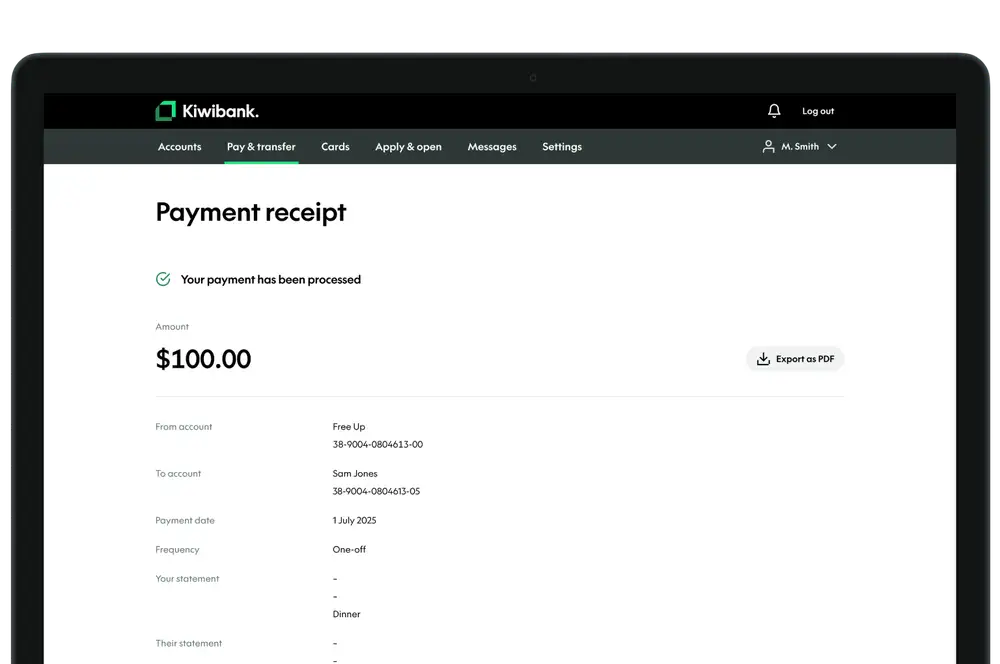
- Click 'Export as PDF' if you'd like a copy of payment summary.
See more about when your payment will be processed.